> For clean Markdown of any page, append .md to the page URL.
> For a complete documentation index, see https://docs.vapi.ai/llms.txt.
> For full documentation content, see https://docs.vapi.ai/llms-full.txt.
> For AI client integration (Claude Code, Cursor, etc.), connect to the MCP server at https://docs.vapi.ai/_mcp/server.
# Plivo SIP Integration
## Overview
For a general introduction to SIP trunking with Vapi (concepts and architecture), see our [SIP Trunking Guide](../sip-trunk.mdx).
This guide shows you how to connect your Plivo SIP trunk to your existing Vapi agents. It covers:
* Step-by-step configuration of Plivo and Vapi for SIP trunking (outbound and inbound)
* How to register and associate your Plivo phone numbers with Vapi
* How to make outbound calls using the Vapi API and dashboard
* How to assign Plivo numbers for inbound call routing through Vapi
## Prerequisites
* [A Plivo account](https://console.plivo.com/accounts/request-trial/)
* Admin access to your Plivo and PBX/SIP trunk configuration
* A phone number you want to connect to Vapi via Plivo
Indian phone numbers cannot be used with Plivo on Vapi due to TRAI regulations. These regulations require SIP termination to occur via an Indian server, which Vapi does not currently support.
## Get Started
## Plivo Configuration
Access the Plivo console.
1. **Navigate to:**
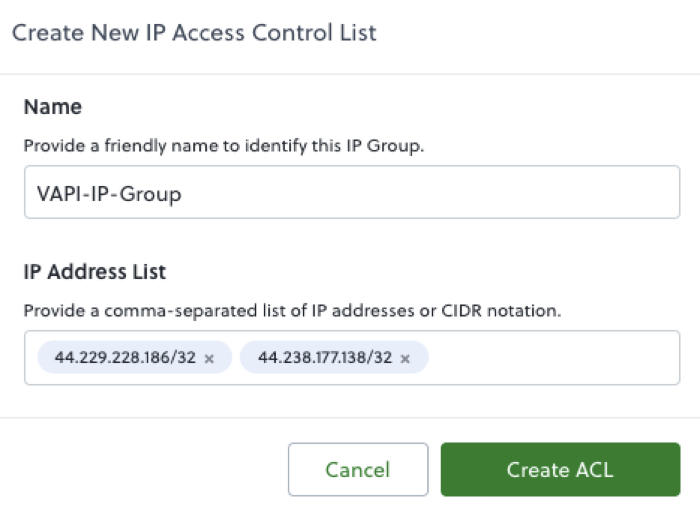
`Zentrunk (SIP) → Outbound Trunks → IP Access Control List → Create New IP Group`
2. **Fill out the form:**
* **Name:** Enter a descriptive name (for example, `VAPI-IP-Group`).
* **IP Address List:** Add each of the following IP addresses one at a time:
```
44.229.228.186/32
```
```
44.238.177.138/32
```
3. **Click** **Create ACL** to save.
1. **Navigate to:**
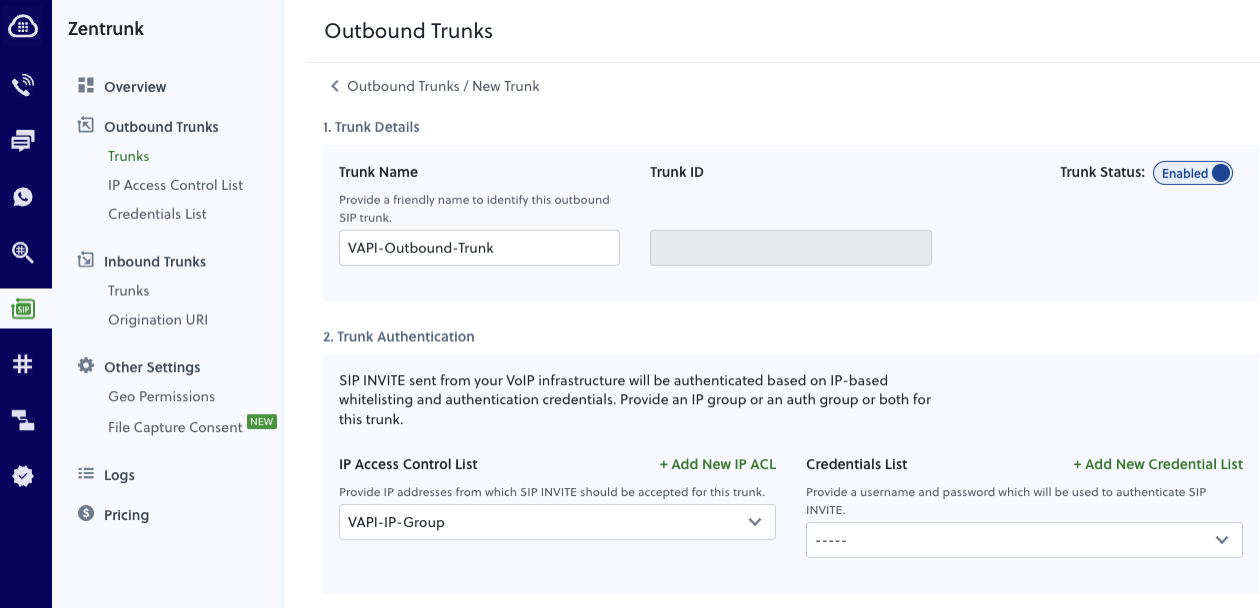
`Zentrunk (SIP) → Outbound Trunks → Trunks → Create New Outbound Trunk`
2. **Fill out the form:**
* **Trunk Name:** Enter a descriptive name (for example, `Vapi-Outbound-Trunk`).
* **IP Access Control List:** Select the IP ACL created in the previous step.
3. **Click** **Create Trunk** to save.
After creating the trunk, locate the **Termination SIP Domain** in the trunk details page. It will look something like:
`12700668357XXXXXX.zt.plivo.com`
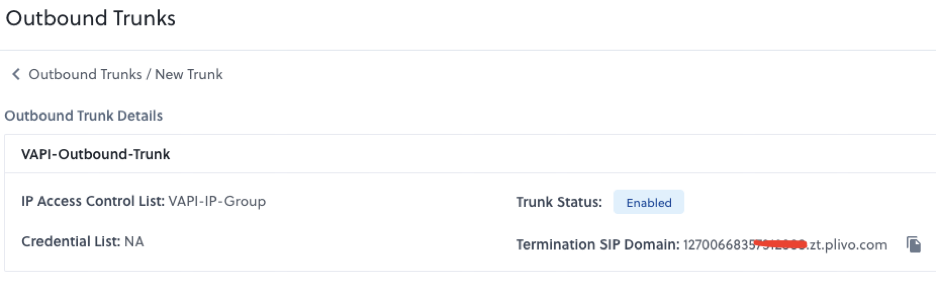
**You will need this value when configuring your SIP trunk in Vapi.**
Navigate to:
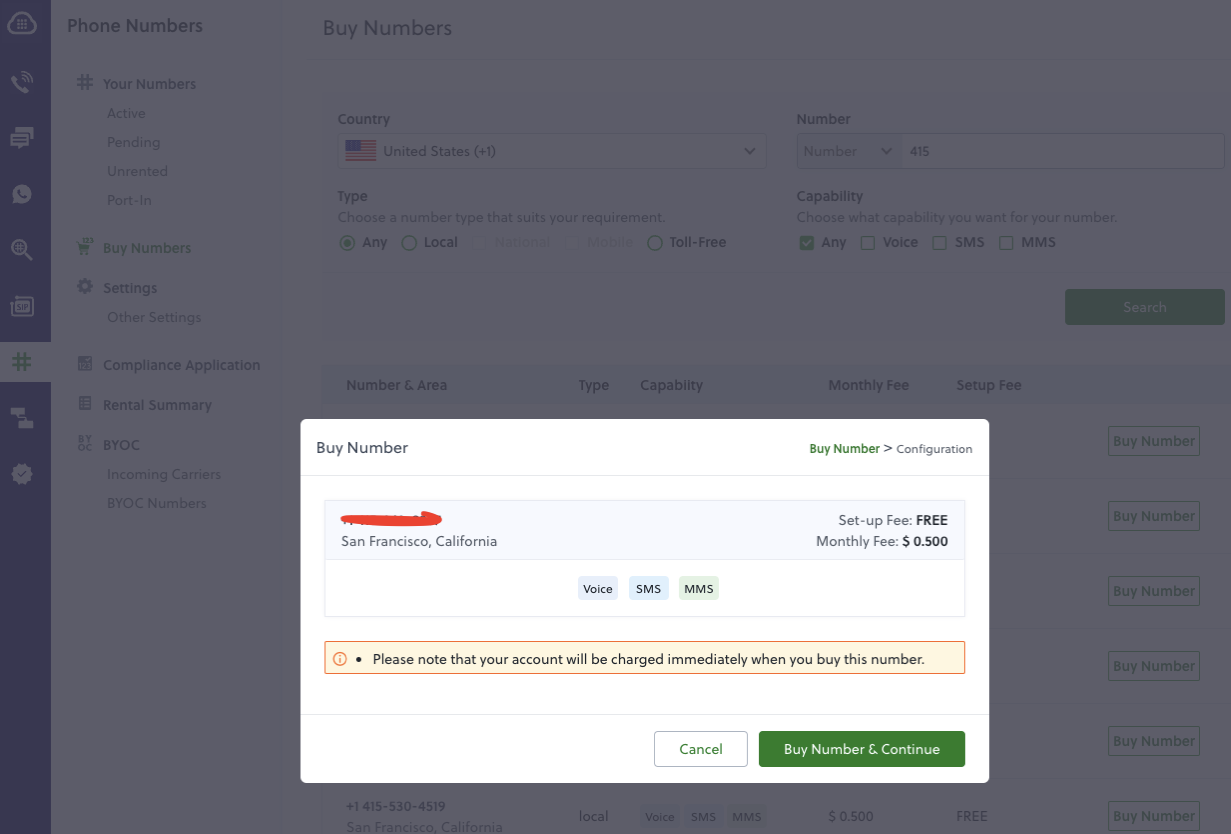
`Numbers → Buy a new number`
Once purchased, note down your new phone number. You will associate this number with your SIP trunk in a later step.
## Vapi Configuration
Sign in to the dashboard and [get your API key](https://dashboard.vapi.ai/org/api-keys).
1. Copy the following API call.
2. Replace `YOUR_PLIVO_TERMINATION_SIP_DOMAIN` with your actual Plivo Termination SIP Domain (for example, `12700668357XXXXXX.zt.plivo.com`).
```bash
curl -X POST https://api.vapi.ai/credential \
-H "Content-Type: application/json" \
-H "Authorization: Bearer YOUR_VAPI_PRIVATE_API_KEY" \
-d '{
"provider": "byo-sip-trunk",
"name": "PLIVO Trunk",
"gateways": [
{
"ip": "YOUR_PLIVO_TERMINATION_SIP_DOMAIN",
"inboundEnabled": false
}
]
}'
```
3. You'll receive a response like the one below. Note the `id` (credentialId) for the next step.
```json
{
"id": "d293b924-f68d-4cbc-850f-xxxxxxxxxxxxxxx",
"orgId": "424acf80-dbea-4015-ace8-0f3924e6000xxxx",
"provider": "byo-sip-trunk",
"createdAt": "2025-05-05T16:38:08.815Z",
"updatedAt": "2025-05-05T16:38:08.815Z",
"gateways": [
{
"ip": "1856282236xxxxxxxxxxx.zt.plivo.com",
"inboundEnabled": false
}
],
"name": "PLIVO Trunk"
}
```
1. Associate your Plivo number with the SIP trunk. Replace `YOUR_PLIVO_PHONE_NUMBER` and `YOUR_CREDENTIAL_ID` with the numbers from previous steps.
```bash
curl -X POST https://api.vapi.ai/phone-number \
-H "Content-Type: application/json" \
-H "Authorization: Bearer YOUR_VAPI_PRIVATE_API_KEY" \
-d '{
"provider": "byo-phone-number",
"name": "PLIVO SIP Number",
"number": "YOUR_PLIVO_PHONE_NUMBER",
"numberE164CheckEnabled": false,
"credentialId": "YOUR_CREDENTIAL_ID"
}'
```
2. Your response will look like this, note the phone number ID from the response for making calls.
```bash
{
"id": "eba2fb13-259f-4123-abfa-xxxxxxxxxxxxxxx",
"orgId": "489ea344-c56f-4243-8723-b28362cd5a5c",
"number": "1833684XXXX",
"createdAt": "2025-03-05T18:31:30.389Z",
"updatedAt": "2025-03-05T18:31:30.389Z",
"name": "PLIVO SIP Number",
"credentialId": "a2c815b8-03f4-40f5-813c-xxxxxxxxxxxx",
"provider": "byo-phone-number",
"numberE164CheckEnabled": false,
"status": "active"
}
```
1. [Follow this guide to create an assistant](/quickstart/phone#create-your-first-voice-assistant)
2. Note your Assistant ID for making calls.
[**Using the API**](/calls/outbound-calling)
```bash
curl --location 'https://api.vapi.ai/call/phone' \
--header 'Authorization: Bearer YOUR_VAPI_PRIVATE_API_KEY' \
--header 'Content-Type: application/json' \
--data '{
"assistantId": "29d47d31-ba3c-451c-86ce-xxxxxxxxx",
"customer": {
"number": "9199437XXXXX",
"numberE164CheckEnabled": false
},
"phoneNumberId": "eba2fb13-259f-4123-abfa-xxxxxxxxxxx"
}'
```
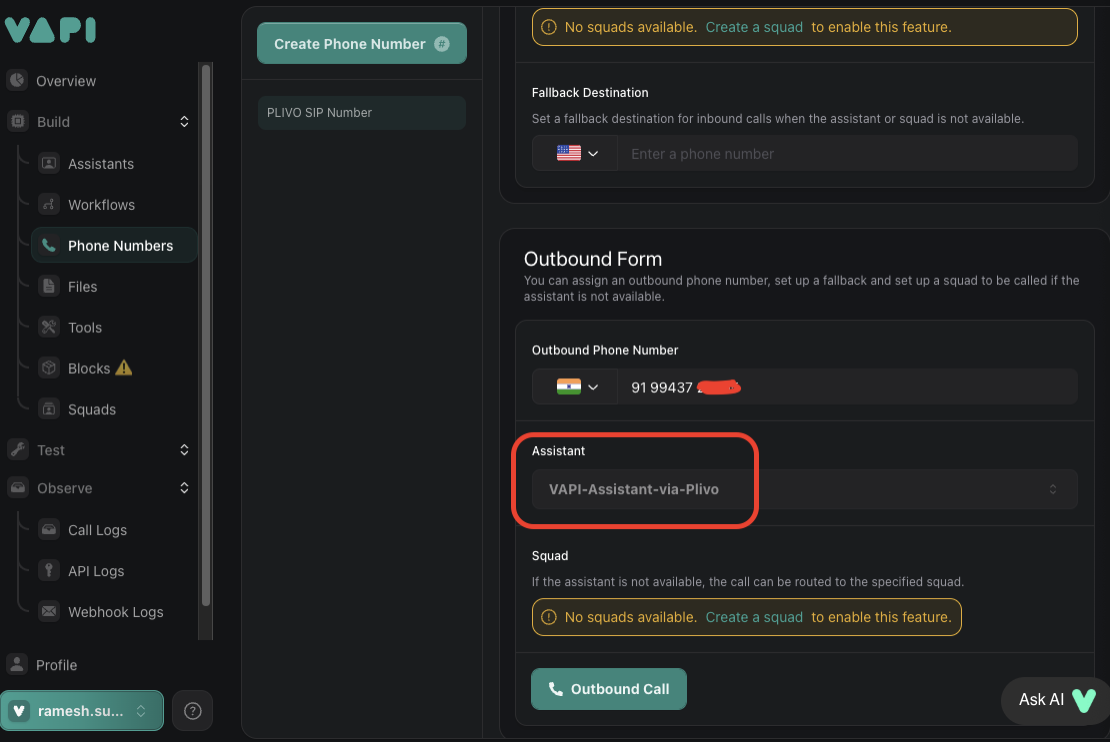
[**Using the Vapi Dashboard**](/quickstart/phone#try-outbound-calling)
1. Select your Assistant
2. Enter the phone number of the user you want to call
## Plivo Configuration
Access the Plivo console.
1. **Navigate to:**
`Zentrunk (SIP) → Inbound Trunks → Origination URI → Create New IP URI`
2. **Fill out the form:**
* **Name:** Enter a descriptive name (for example, `Vapi Inbound`).
* **URI:** Enter this origination URI exactly: `sip.vapi.ai;transport=udp`
3. **Click** **Create URI** to save.

1. **Navigate to:**
`Zentrunk (SIP) → Inbound Trunks → Trunks → Create New Inbound Trunk`
2. **Fill out the form:**
* **Trunk Name:** Enter a descriptive name (for example, `Vapi Inbound Trunk`).
* **Primary URI:** Select the URI created in the previous step.
3. **Click** **Create Trunk** to save.

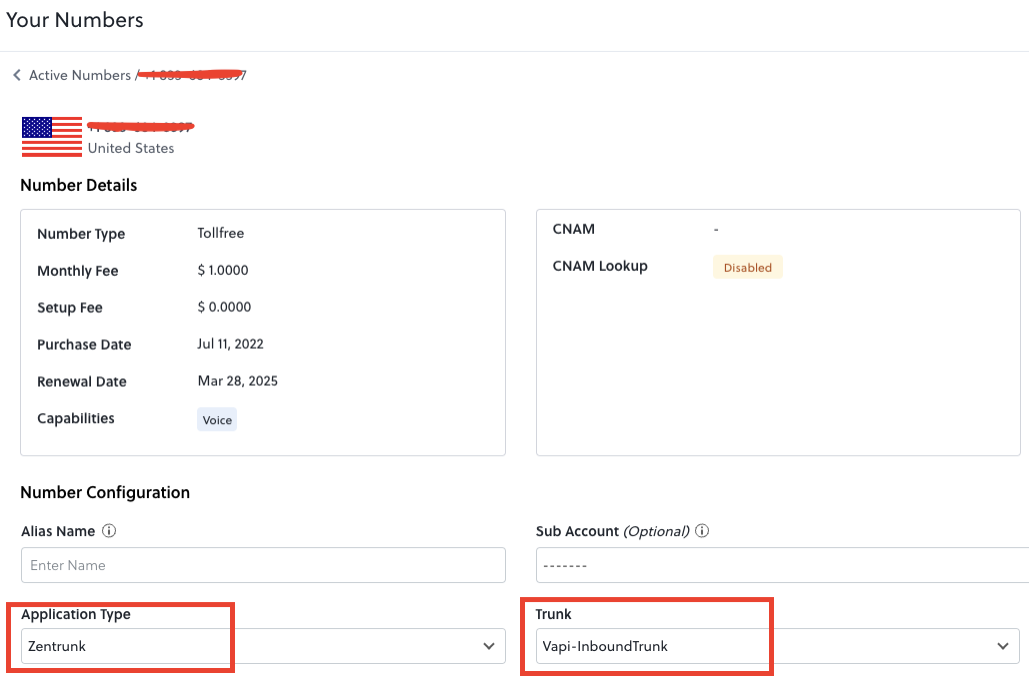
1. **Navigate to:**
`Phone Numbers → Select your purchased number`
2. **Configure the number:**
* In the **Application** dropdown, select **Zentrunk**.
* In the **Zentrunk** dropdown, select your inbound trunk.
3. **Click** **Save** to apply changes.
## Vapi Configuration
Sign into the dashboard and [get your api key](https://dashboard.vapi.ai/org/api-keys).
```bash
curl -X POST https://api.vapi.ai/credential \
-H "Content-Type: application/json" \
-H "Authorization: Bearer YOUR_VAPI_PRIVATE_API_KEY" \
-d '{
"provider": "byo-sip-trunk",
"name": "PLIVO Inbound Trunk",
"type": "inbound"
}'
```
Note the `id` (credentialId) from the response for the next step.
```bash
curl -X POST https://api.vapi.ai/phone-number \
-H "Content-Type: application/json" \
-H "Authorization: Bearer YOUR_VAPI_PRIVATE_API_KEY" \
-d '{
"provider": "byo-phone-number",
"name": "PLIVO SIP Inbound Number",
"number": "1833684XXXX",
"numberE164CheckEnabled": false,
"credentialId": "a2c815b8-03f4-40f5-813c-xxxxxxxxxxxx"
}'
```
## Errors
* **Codec Support:** Limit trunk codecs to G.711 µ‑law and A‑law only. Other codecs are not supported by Plivo SIP trunks.
* **SIP REFER Not Supported:** Plivo SIP trunks do not accept SIP REFER for call transfers.
* **Origination URI Already Exists:** This was previously an error on Plivo's side and has been fixed.