> For clean Markdown of any page, append .md to the page URL.
> For a complete documentation index, see https://docs.vapi.ai/llms.txt.
> For full documentation content, see https://docs.vapi.ai/llms-full.txt.
> For AI client integration (Claude Code, Cursor, etc.), connect to the MCP server at https://docs.vapi.ai/_mcp/server.
# Telnyx SIP integration
Integrate your Telnyx SIP trunk with Vapi to enable your AI voice assistants to handle calls efficiently. This guide walks you through the complete setup process for both inbound and outbound calls.
* Log in to your Vapi account
* Navigate to **Organization Settings**
* In the **API Keys** section, copy your **Private Key**
- Go to Voice / SIP Trunking / Create
- Select FQDN
- Click "Add FQDN"
- Select A record type
- Set FQDN to: `sip.vapi.ai`
- Port should be 5060 by default
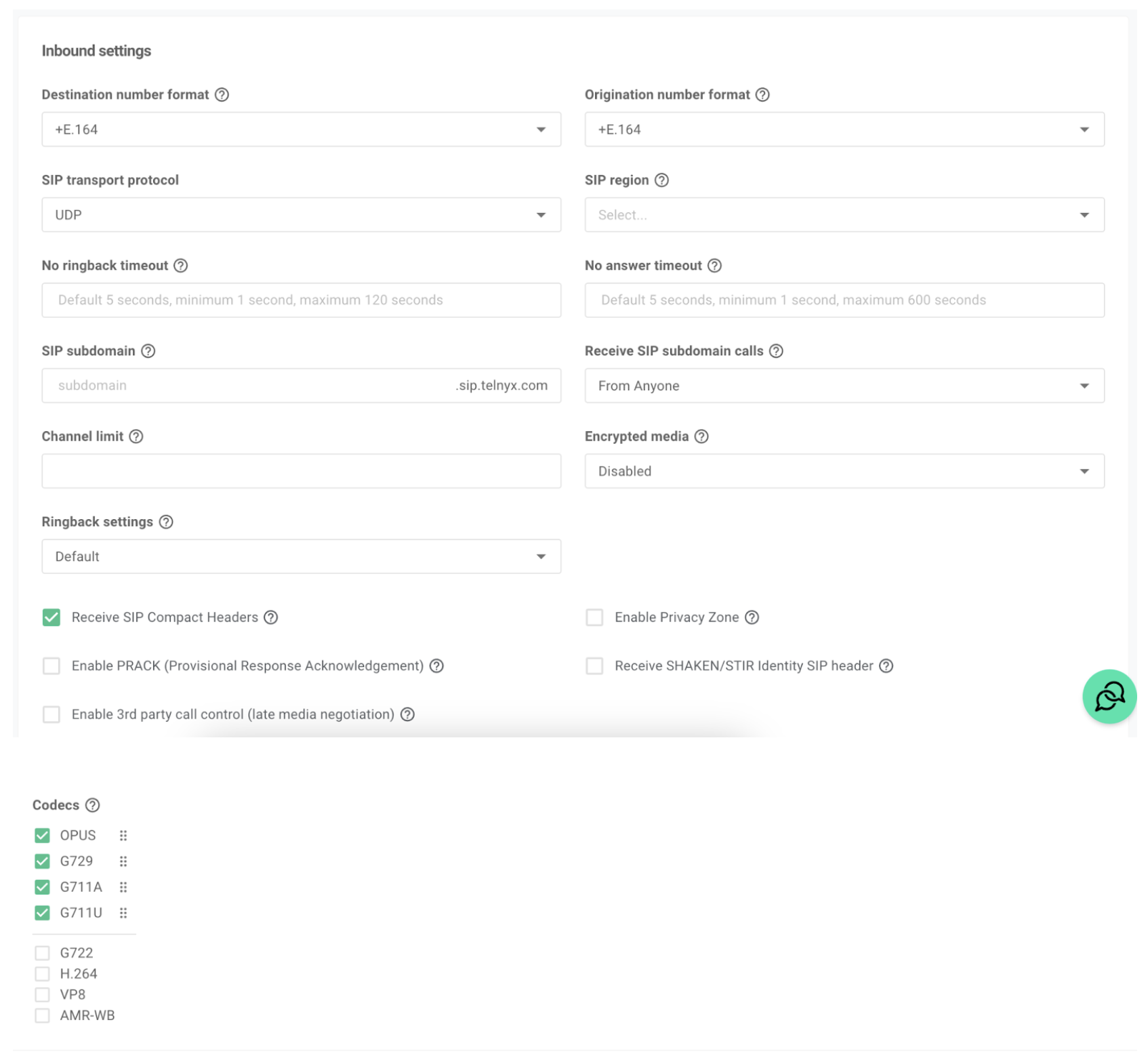
* Navigate to the Inbound tab of your SIP trunk
* Configure settings as shown:
 * Go to the Numbers tab
* Assign your acquired phone number to the SIP trunk
- Go to Numbers, edit the number you'll be using
- Navigate to Voice settings
- Scroll down to find "Translated Number"
- Set this value to match your Vapi SIP URI
You can get your Vapi SIP URI when you create a new SIP number through the **Phone Numbers** tab in the Vapi dashboard. The URI will look like:
* Go to the Numbers tab
* Assign your acquired phone number to the SIP trunk
- Go to Numbers, edit the number you'll be using
- Navigate to Voice settings
- Scroll down to find "Translated Number"
- Set this value to match your Vapi SIP URI
You can get your Vapi SIP URI when you create a new SIP number through the **Phone Numbers** tab in the Vapi dashboard. The URI will look like:
sip:@sip.vapi.ai
*This setting modifies the SIP Invite so invites are correctly routed to your Vapi SIP URI.*
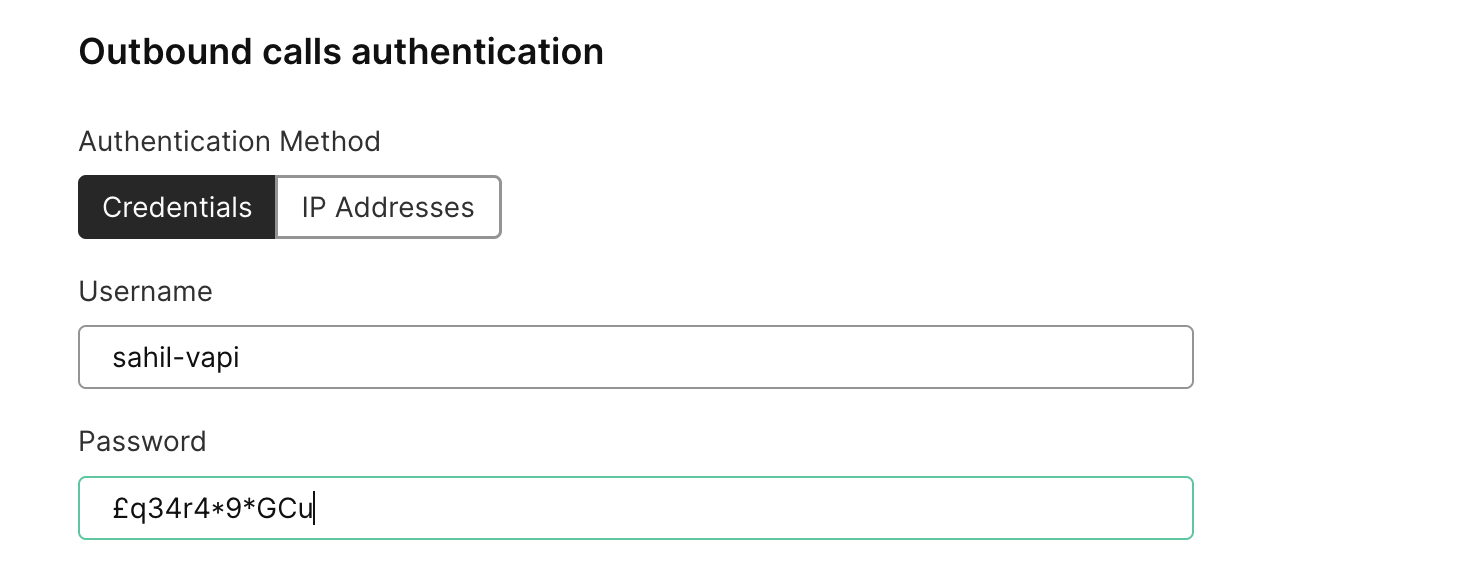
* Go to Voice / SIP Trunking / Authentication and routing
* Scroll down to "Outbound calls authentication"
* Create a new credential for Vapi to use
 * Go to Voice / Outbound Voice Profiles
* Create a new profile
* Name it appropriately
* Configure desired destinations
* Leave default configuration settings
* Assign your SIP trunk
* Complete setup
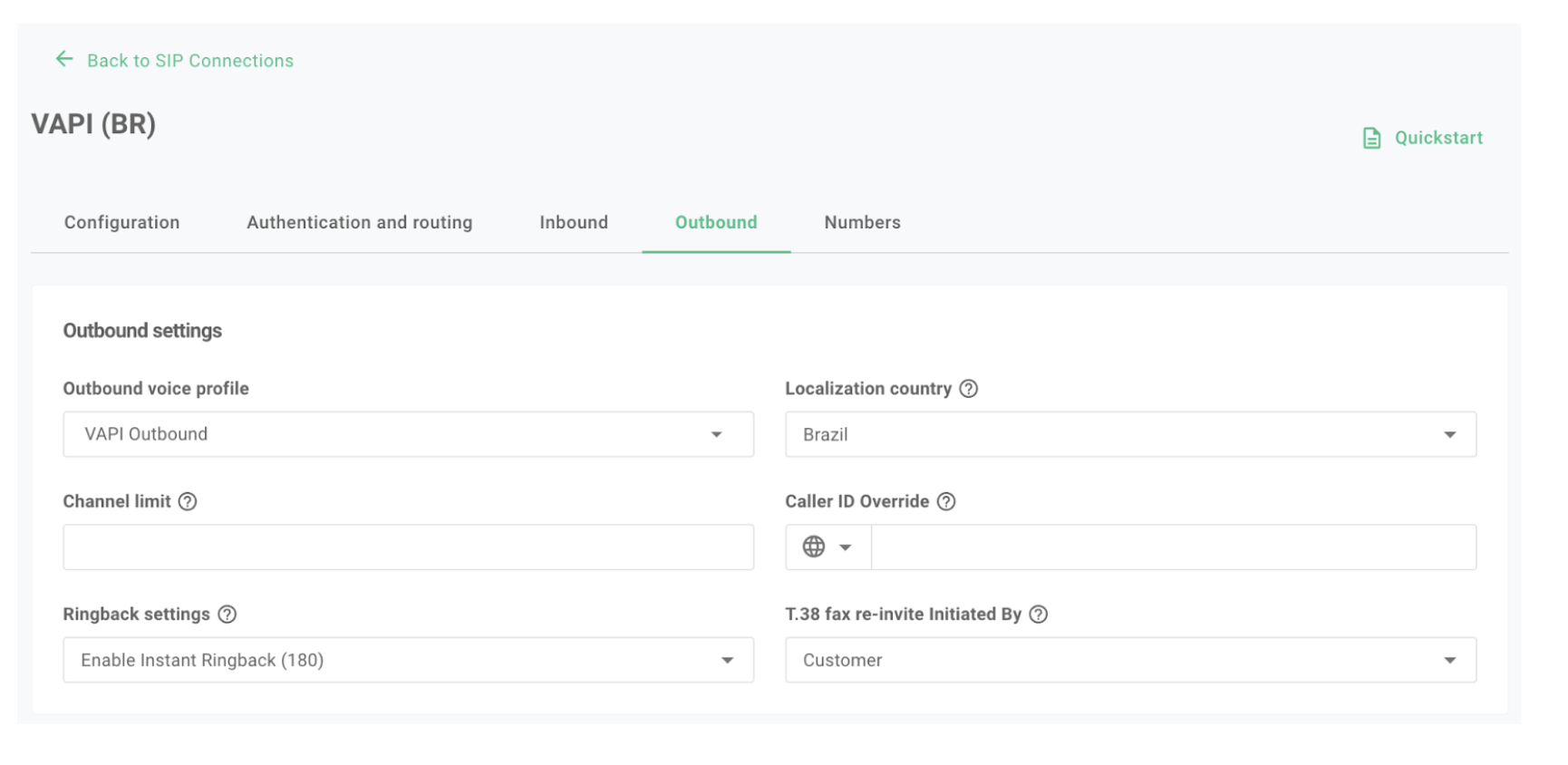
Alternatively, go to your SIP trunk / Outbound tab and select your newly created outbound voice profile.
- Choose the country you'll be making most calls to
*We recommend creating a separate SIP Trunk for each country you aim to be making most calls to.*
* Go to Voice / Outbound Voice Profiles
* Create a new profile
* Name it appropriately
* Configure desired destinations
* Leave default configuration settings
* Assign your SIP trunk
* Complete setup
Alternatively, go to your SIP trunk / Outbound tab and select your newly created outbound voice profile.
- Choose the country you'll be making most calls to
*We recommend creating a separate SIP Trunk for each country you aim to be making most calls to.*
 Use the Vapi API to create a SIP trunk credential:
Use IP addresses in `gateways`. FQDNs like `sip.telnyx.com` return a `400 Bad Request`.
```bash
curl -X POST https://api.vapi.ai/credential \
-H "Content-Type: application/json" \
-H "Authorization: Bearer YOUR_VAPI_PRIVATE_KEY" \
-d '{
"provider": "byo-sip-trunk",
"name": "Telnyx Trunk",
"gateways": [
{
"ip": "192.76.120.10",
"inboundEnabled": true
},
{
"ip": "64.16.250.10",
"inboundEnabled": true
}
],
"outboundAuthenticationPlan": {
"authUsername": "YOUR_SIP_USERNAME",
"authPassword": "YOUR_SIP_PASSWORD",
"sipRegisterPlan": {
"realm": "sip.telnyx.com"
}
}
}'
```
Replace `YOUR_VAPI_PRIVATE_KEY`, `YOUR_SIP_USERNAME`, and `YOUR_SIP_PASSWORD` with your actual credentials.
Replace the gateway IPs with the Telnyx gateway IPs assigned to your trunk.
Set `inboundEnabled` to `false` if you only need outbound calls.
If successful, the response will include an `id` for the created credential, which you'll use in the next step.
Associate your phone number with the SIP trunk in Vapi:
```bash
curl -X POST https://api.vapi.ai/phone-number \
-H "Content-Type: application/json" \
-H "Authorization: Bearer YOUR_VAPI_PRIVATE_KEY" \
-d '{
"provider": "byo-phone-number",
"name": "Telnyx SIP Number",
"number": "YOUR_PHONE_NUMBER",
"numberE164CheckEnabled": false,
"credentialId": "YOUR_CREDENTIAL_ID"
}'
```
Replace `YOUR_VAPI_PRIVATE_KEY`, `YOUR_PHONE_NUMBER`, and `YOUR_CREDENTIAL_ID` with your actual details.
* In your Vapi dashboard, go to the **Build** section and select **Phone Numbers**
* Click on your **Telnyx Number**
* In the **Inbound Settings** section, assign your voice assistant to handle incoming calls
* In the **Outbound Form** section, assign your voice assistant to handle outgoing calls
To initiate outbound calls through your Telnyx SIP trunk:
```bash
curl --location 'https://api.vapi.ai/call/phone' \
--header 'Authorization: Bearer YOUR_VAPI_PRIVATE_KEY' \
--header 'Content-Type: application/json' \
--data '{
"assistantId": "YOUR_ASSISTANT_ID",
"customer": {
"number": "CUSTOMER_PHONE_NUMBER",
"numberE164CheckEnabled": false
},
"phoneNumberId": "YOUR_PHONE_ID"
}'
```
Replace all placeholder values with your actual information.
By following these steps, your Telnyx SIP trunk will be fully integrated with Vapi, allowing your AI voice assistants to manage calls effectively.
Use the Vapi API to create a SIP trunk credential:
Use IP addresses in `gateways`. FQDNs like `sip.telnyx.com` return a `400 Bad Request`.
```bash
curl -X POST https://api.vapi.ai/credential \
-H "Content-Type: application/json" \
-H "Authorization: Bearer YOUR_VAPI_PRIVATE_KEY" \
-d '{
"provider": "byo-sip-trunk",
"name": "Telnyx Trunk",
"gateways": [
{
"ip": "192.76.120.10",
"inboundEnabled": true
},
{
"ip": "64.16.250.10",
"inboundEnabled": true
}
],
"outboundAuthenticationPlan": {
"authUsername": "YOUR_SIP_USERNAME",
"authPassword": "YOUR_SIP_PASSWORD",
"sipRegisterPlan": {
"realm": "sip.telnyx.com"
}
}
}'
```
Replace `YOUR_VAPI_PRIVATE_KEY`, `YOUR_SIP_USERNAME`, and `YOUR_SIP_PASSWORD` with your actual credentials.
Replace the gateway IPs with the Telnyx gateway IPs assigned to your trunk.
Set `inboundEnabled` to `false` if you only need outbound calls.
If successful, the response will include an `id` for the created credential, which you'll use in the next step.
Associate your phone number with the SIP trunk in Vapi:
```bash
curl -X POST https://api.vapi.ai/phone-number \
-H "Content-Type: application/json" \
-H "Authorization: Bearer YOUR_VAPI_PRIVATE_KEY" \
-d '{
"provider": "byo-phone-number",
"name": "Telnyx SIP Number",
"number": "YOUR_PHONE_NUMBER",
"numberE164CheckEnabled": false,
"credentialId": "YOUR_CREDENTIAL_ID"
}'
```
Replace `YOUR_VAPI_PRIVATE_KEY`, `YOUR_PHONE_NUMBER`, and `YOUR_CREDENTIAL_ID` with your actual details.
* In your Vapi dashboard, go to the **Build** section and select **Phone Numbers**
* Click on your **Telnyx Number**
* In the **Inbound Settings** section, assign your voice assistant to handle incoming calls
* In the **Outbound Form** section, assign your voice assistant to handle outgoing calls
To initiate outbound calls through your Telnyx SIP trunk:
```bash
curl --location 'https://api.vapi.ai/call/phone' \
--header 'Authorization: Bearer YOUR_VAPI_PRIVATE_KEY' \
--header 'Content-Type: application/json' \
--data '{
"assistantId": "YOUR_ASSISTANT_ID",
"customer": {
"number": "CUSTOMER_PHONE_NUMBER",
"numberE164CheckEnabled": false
},
"phoneNumberId": "YOUR_PHONE_ID"
}'
```
Replace all placeholder values with your actual information.
By following these steps, your Telnyx SIP trunk will be fully integrated with Vapi, allowing your AI voice assistants to manage calls effectively.