> For clean Markdown of any page, append .md to the page URL.
> For a complete documentation index, see https://docs.vapi.ai/llms.txt.
> For full documentation content, see https://docs.vapi.ai/llms-full.txt.
> For AI client integration (Claude Code, Cursor, etc.), connect to the MCP server at https://docs.vapi.ai/_mcp/server.
# Import number from Telnyx
## Overview
This guide shows you how to import your existing Telnyx phone numbers to the Vapi platform and enable outbound calling. Follow the steps below to use your Telnyx numbers with your assistants or squads.
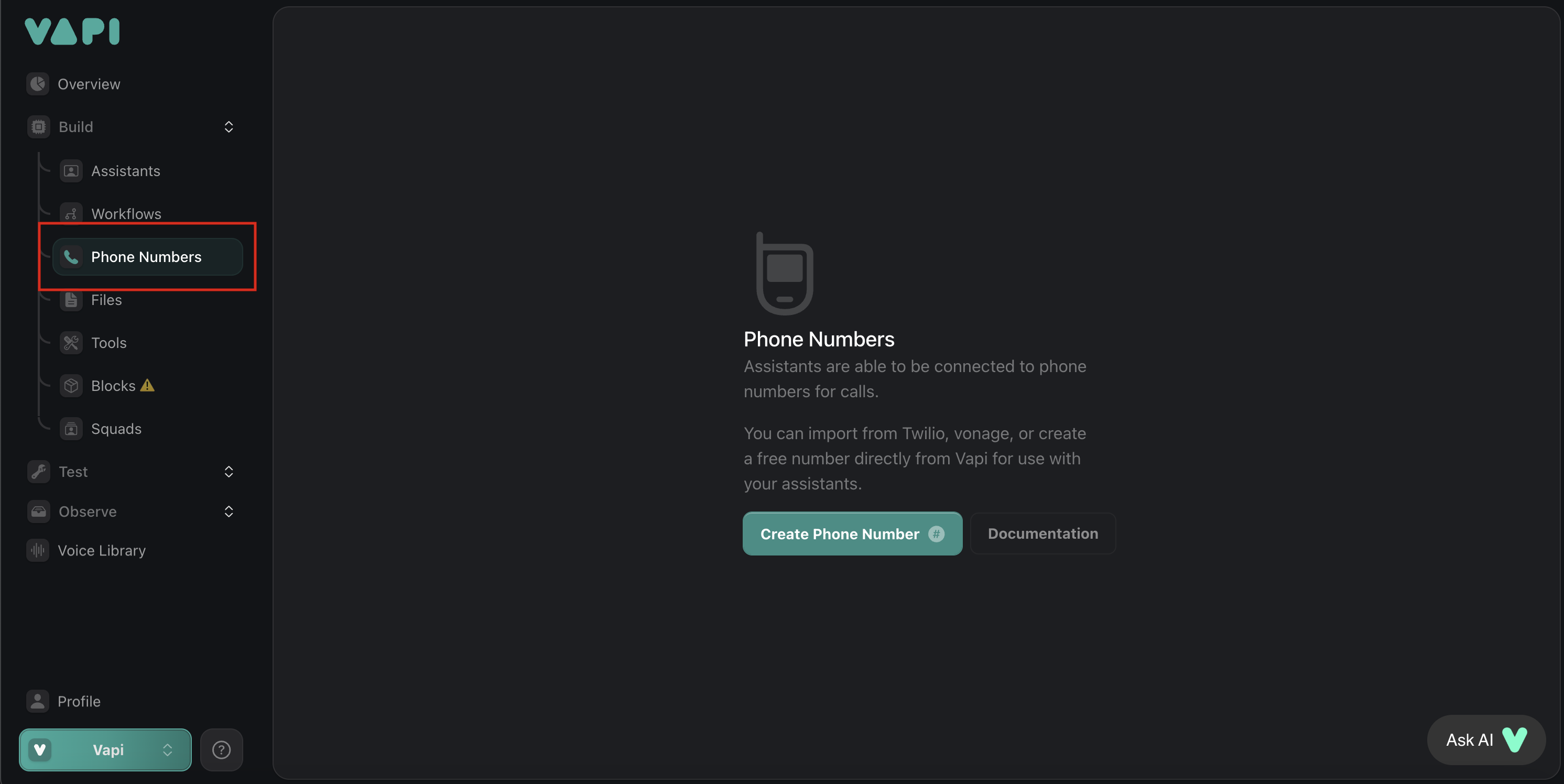
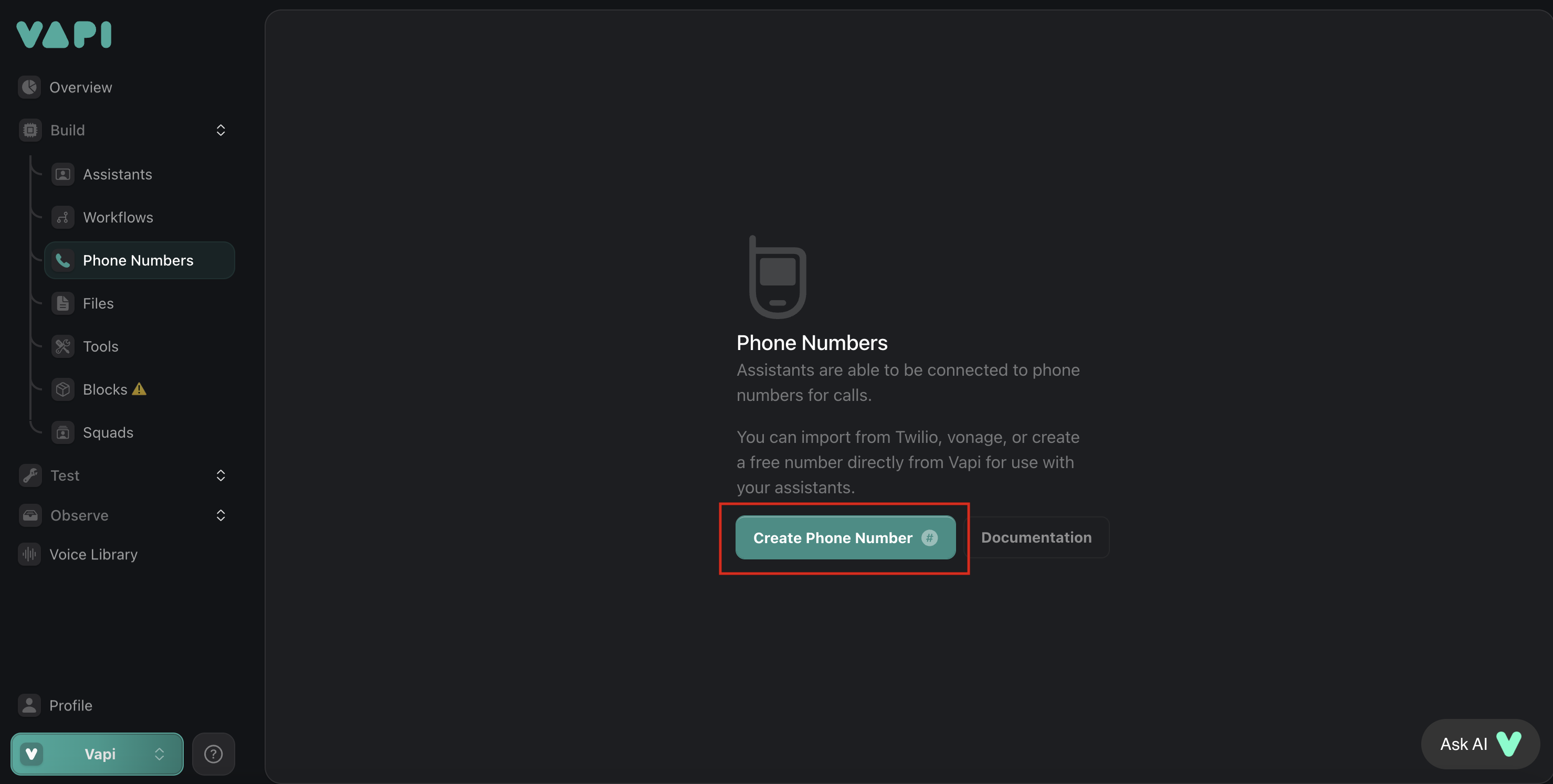 You'll need to have an active Telnyx account with phone numbers that you want to import.
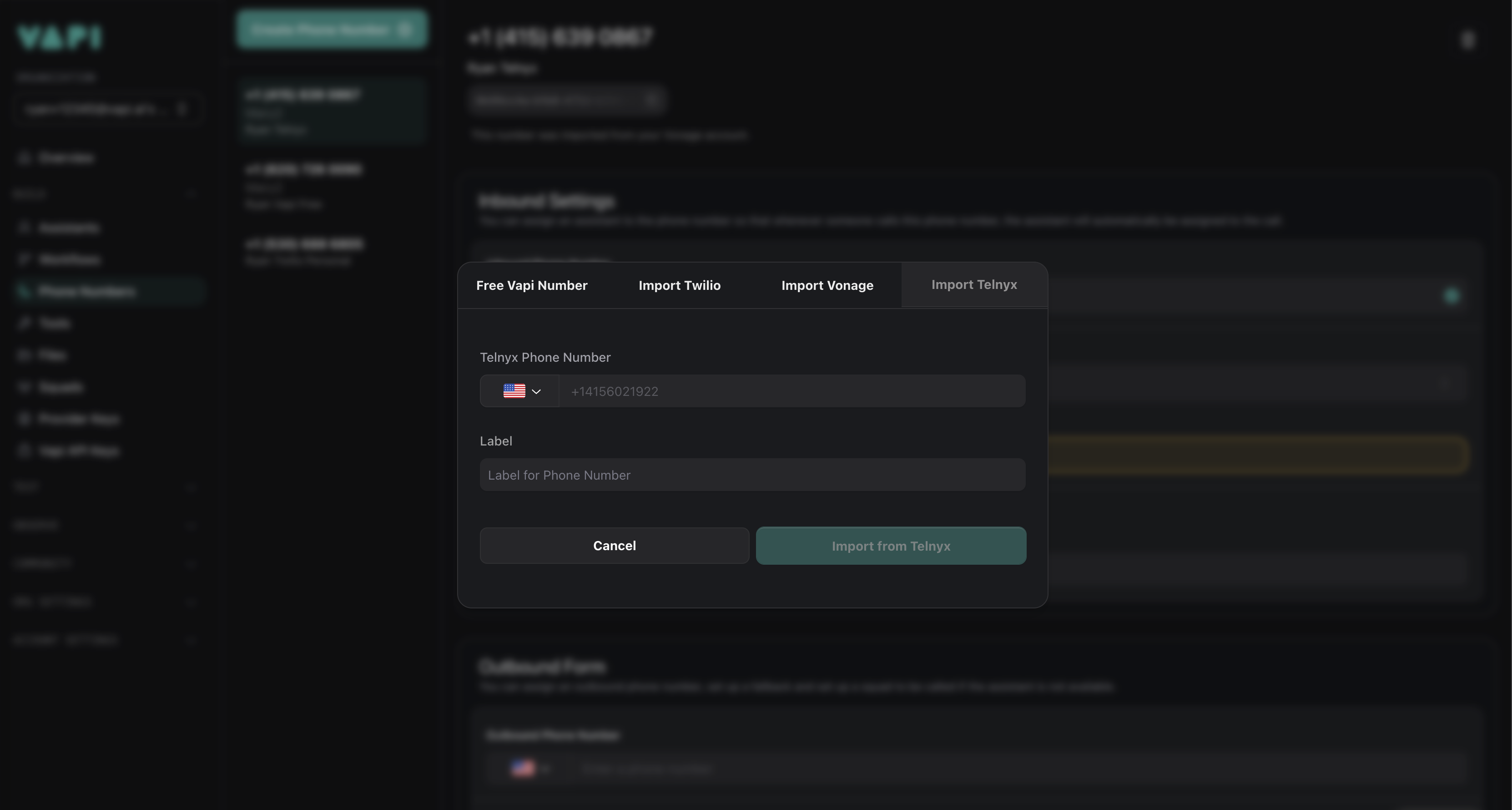 ## Configuring outbound calling with Telnyx
To enable outbound calling with your imported Telnyx numbers, configure your Telnyx account:
Go to the [Telnyx Portal](https://portal.telnyx.com/#/outbound-profiles).
Set up or select the outbound voice profile you want to use.
Under the "Connections and Applications" tab, add Vapi as a connection.
Save your configuration to enable outbound calling.
Without this configuration, outbound calling functionality will not work properly with your Telnyx numbers on the Vapi platform.
## Configuring outbound calling with Telnyx
To enable outbound calling with your imported Telnyx numbers, configure your Telnyx account:
Go to the [Telnyx Portal](https://portal.telnyx.com/#/outbound-profiles).
Set up or select the outbound voice profile you want to use.
Under the "Connections and Applications" tab, add Vapi as a connection.
Save your configuration to enable outbound calling.
Without this configuration, outbound calling functionality will not work properly with your Telnyx numbers on the Vapi platform.