

Tool argument encryption
Overview
Tool argument encryption protects sensitive data like Social Security Numbers, Credit Card Numbers, and other PII by encrypting specific fields before they’re sent to your server.
In this guide, you’ll learn to:
- Create and configure a custom credential with encryption enabled
- Generate RSA public/private key pairs
- Configure tools to encrypt specific argument fields
- Decrypt encrypted data on your server
Prerequisites
- A Vapi account with access to the Dashboard
- OpenSSL or a similar tool for generating RSA keys
- A server endpoint that can receive and decrypt encrypted data
Create a custom credential with encryption
- Open the Vapi Dashboard, select Integrations, then select Server Configuration.
- Select Add Custom Credential. Choose the Authentication Type your server uses and complete its required fields.
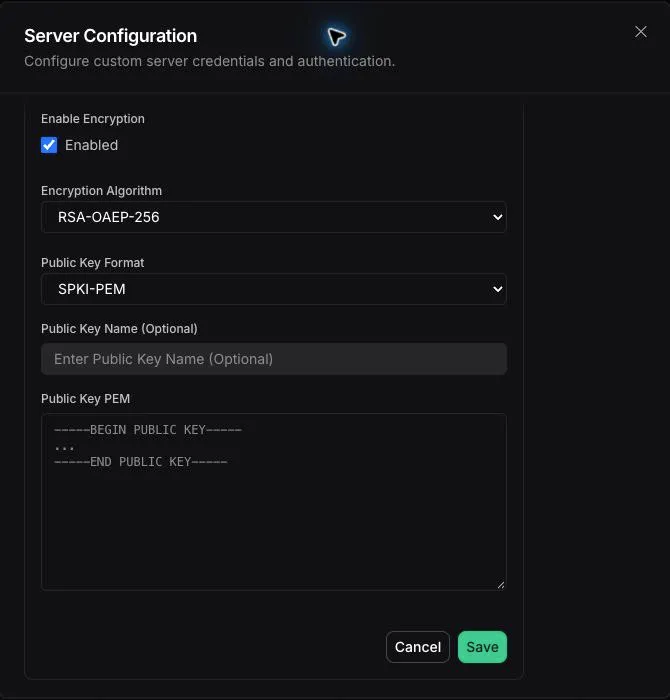
- Select Enable Encryption and confirm RSA-OAEP-256 for Encryption Algorithm and SPKI-PEM for Public Key Format.
Generate RSA key pair
Use OpenSSL to generate a public/private key pair in PEM format.
Run this command in your terminal to generate both keys:
This creates two files:
private-key.pem- Keep this secure on your server for decryptionpublic-key.pem- Copy this to Vapi for encryption
Never share or commit your private key. Store it securely in your server’s environment variables.
Add public key to credential
Copy and paste your public key into the Dashboard.
- Open
public-key.pemand copy the entire contents. - Paste the public key into Public Key PEM.
- Select Save.
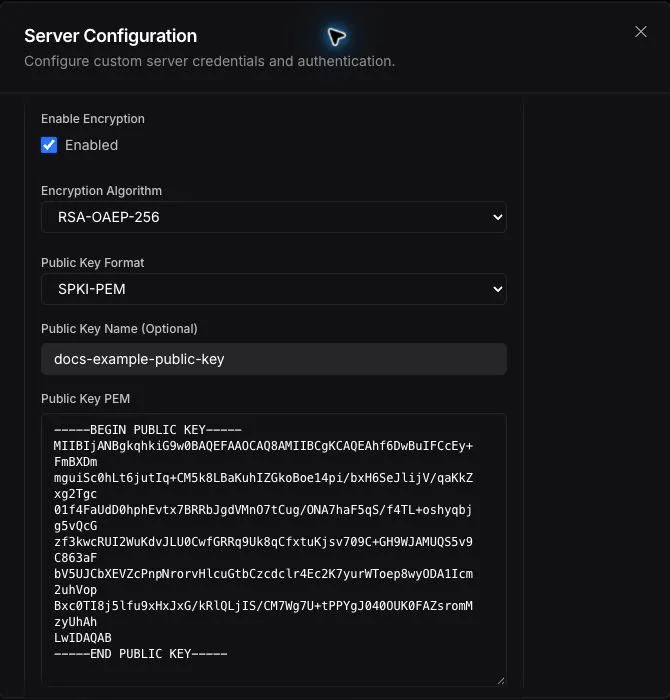
Your credential is now ready to use with encrypted tool arguments.
Select a tool to configure
- Select Tools in the Dashboard.
- Open an existing Function tool or API Request tool, or create a new tool.
Configure credential and encryption settings
Link your encryption credential and specify which fields to encrypt.
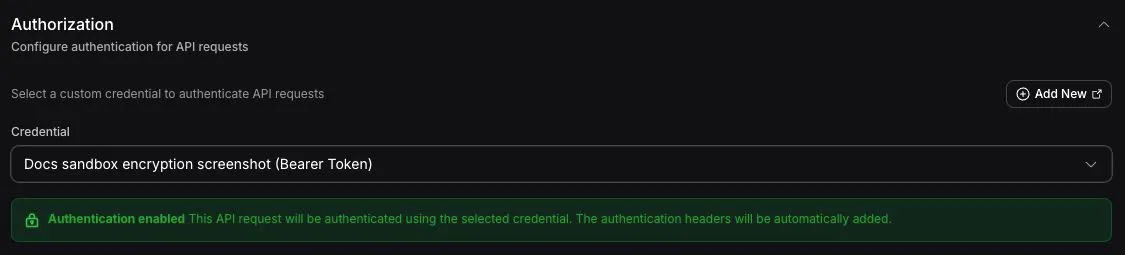
- Expand Authorization and select the credential you created from Credential.
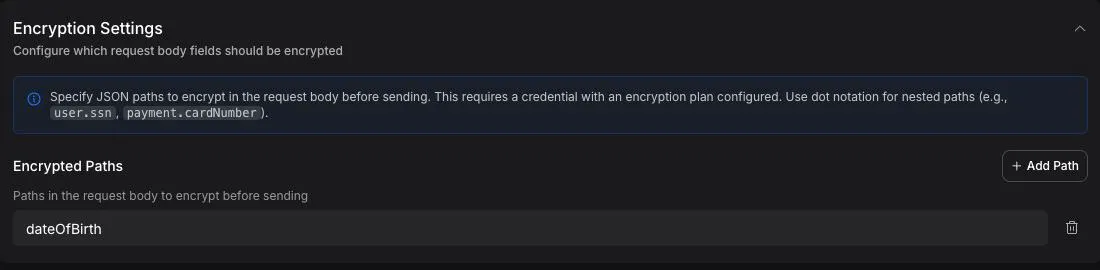
- Expand Encryption Settings and select Add Path for each request body field you want encrypted.
- Enter each field’s exact path under Encrypted Paths.
Example JSON paths:
ssn- Encrypts thessnfieldpayment.cardNumber- Encrypts nested fields
JSON paths are relative to the tool’s argument structure. Only specified fields will be encrypted.
Publish and test the configuration
Publish your tool configuration and verify encryption works with a test call.
- Select Publish to apply the tool draft.
- Make a test call using an assistant with this tool.
- Trigger the tool during the call.
- Check your server logs to confirm encrypted data arrives.
When your server receives the webhook, encrypted fields will appear as base64-encoded strings:
Security best practices
Follow these guidelines to maintain secure encryption:
- Never commit private keys - Use environment variables or secret management systems
- Rotate keys periodically - Generate new key pairs and update credentials regularly
- Encrypt selectively - Only encrypt fields that contain sensitive data to minimize overhead
- Validate decrypted data - Always validate and sanitize decrypted values before use
- Use HTTPS - Ensure your server endpoint uses HTTPS for transport security
Next steps
Now that you have tool argument encryption configured:
- Function tools: Learn more about creating Function tools
- API request tools: Configure API request tools with encrypted arguments
- Server URLs: Set up secure server endpoints for receiving encrypted data