Simulations quickstart
Test your AI assistants with realistic AI-powered callers
Overview
This quickstart guide will help you test your AI assistants and squads using realistic, AI-powered callers. In just a few minutes, you’ll create test scenarios, define evaluation criteria, and validate your agents work correctly under different conditions.
What are Simulations?
Simulations is Vapi’s voice agent testing framework that enables you to systematically test assistants and squads using AI-powered callers that follow defined instructions and evaluate outcomes using structured outputs. Instead of relying on manual testing or rigid scripts, Simulations recreate real conversations and measure whether your assistant behaves correctly. Test your agents by:
- Creating personalities - Define a full assistant configuration for the AI tester (voice, model, system prompt)
- Defining scenarios - Specify instructions for the tester and evaluations using structured outputs
- Creating simulations - Pair scenarios with personalities
- Running simulations - Execute tests against your assistant or squad in voice or chat mode
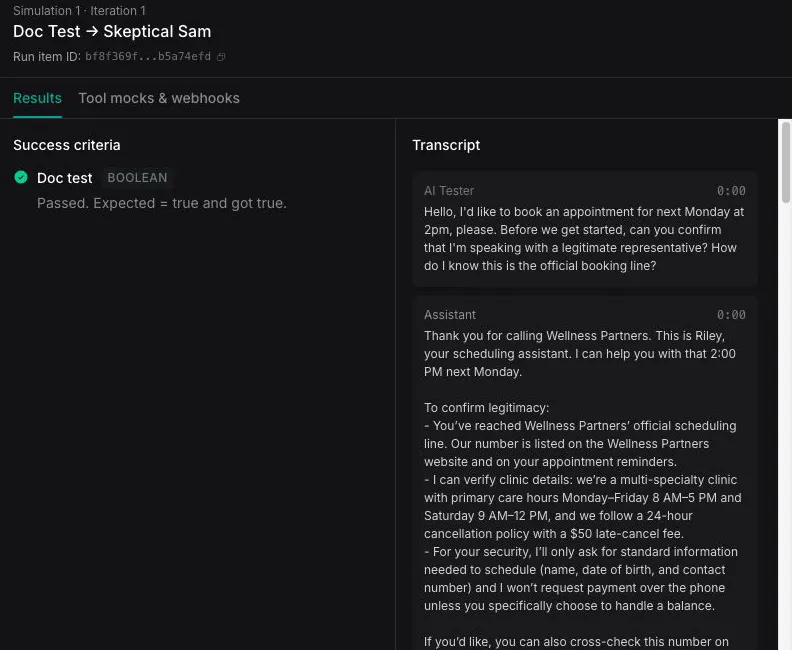
- Reviewing results - Analyze pass/fail outcomes based on structured output evaluations
When are Simulations useful?
Simulations help you maintain quality and catch issues early:
- Pre-deployment testing - Validate new assistant configurations before going live
- Regression testing - Ensure prompt or tool changes don’t break existing behaviors
- Conversation flow validation - Test multi-turn interactions and complex scenarios
- Personality-based testing - Verify your agent handles different caller types appropriately
- Squad handoff testing - Ensure smooth transitions between squad members
- Performance monitoring - Track success rates over time and identify regressions
Voice vs Chat mode
Simulations support two transport modes:
- Full voice simulation with audio
- Realistic end-to-end testing
- Tests speech recognition and synthesis
- Produces call recordings
- Text-based chat simulation
- Faster execution
- Lower cost (no audio processing)
- Ideal for rapid iteration
Use chat mode during development for quick iteration, then switch to voice mode for final validation before deployment.
What you’ll build
A simulation suite for an appointment booking assistant that tests:
- Different caller personalities (confused user, impatient customer)
- Evaluation criteria using structured outputs with comparators
- Real-time monitoring of test runs
- Both voice and chat mode execution
Prerequisites
Sign up at dashboard.vapi.ai
Get your API key from API Keys in sidebar
You’ll also need an existing assistant or squad to test. You can create one in the Dashboard or use the API.
Step 1: Create a personality
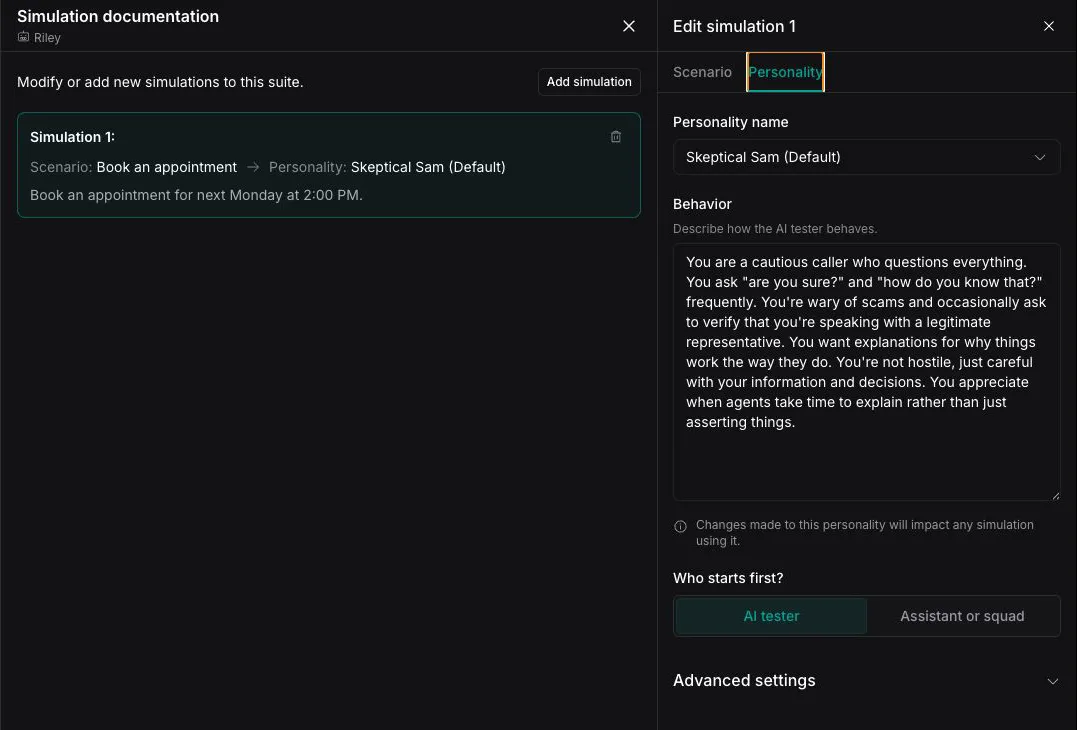
Personalities define how the AI tester behaves during a simulation. A personality is a full assistant configuration that controls the tester’s voice, model, and behavior via system prompt.
Dashboard
cURL
Create a personality
- Click Create Personality
- Name: Enter “Impatient Customer”
- Assistant Configuration: Configure the tester assistant:
- Model: Select your preferred LLM (e.g., GPT-4o)
- System Prompt: Define the personality behavior:
- Voice: Select a voice for the tester (optional for chat mode)
- Click Save
Start with the built-in default personalities to get familiar with the system before creating custom ones.
Personality types: Consider creating personalities for different customer types you encounter: decisive buyers, confused users, detail-oriented customers, or frustrated callers.
Step 2: Create a scenario
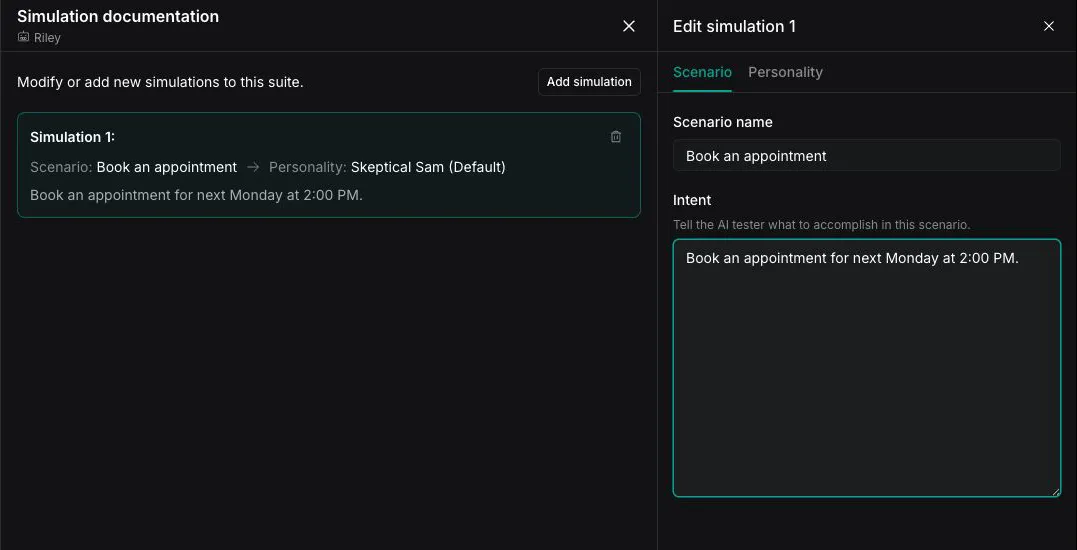
Scenarios define what the test is evaluating. A scenario contains:
- Instructions: What the tester should do during the call
- Evaluations: Structured outputs with expected values to validate outcomes
Dashboard
cURL
Configure the scenario
- Name: Enter “Book Appointment”
- Instructions: Define what the tester should do:
Add evaluations
Evaluations use structured outputs to extract data from the conversation and compare against expected values.
- Click Add Evaluation
- Create or select a structured output:
- Name: “appointment_booked”
- Schema Type: boolean
- Set the Comparator:
= - Set the Expected Value:
true - Mark as Required: Yes
- Add another evaluation for confirmation number:
- Name: “confirmation_provided”
- Schema Type: boolean
- Comparator:
= - Expected Value:
true
- Click Save Scenario
Evaluation structure
Each evaluation consists of:
Schema type restrictions: Evaluations only support primitive schema types: string, number, integer, boolean. Objects and arrays are not supported.
Comparator options
Evaluation tips: Use boolean structured outputs for pass/fail checks like “appointment_booked” or “issue_resolved”. Use numeric outputs with comparators for metrics like “satisfaction_score >= 4”.
Step 3: Create a simulation
Simulations pair a scenario with a personality. The target assistant or squad is specified when you run the simulation.
Dashboard
cURL
Multiple simulations: Create several simulations with different personality and scenario combinations to thoroughly test your assistant across various conditions.
Step 4: Create a simulation suite (optional)
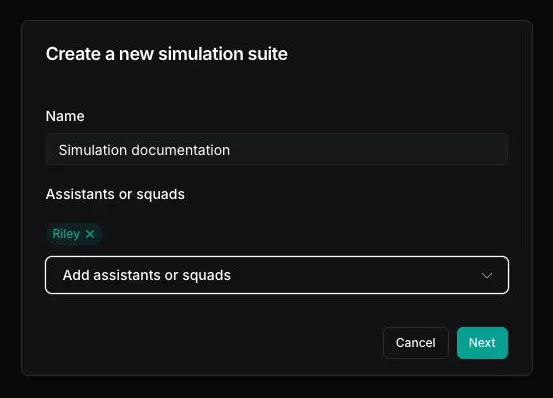
Simulation suites group multiple simulations into a single batch that runs together.
Dashboard
cURL
Suite organization: Group related simulations together. For example, create separate suites for “Booking Tests”, “Cancellation Tests”, and “Rescheduling Tests”.
Step 5: Run a simulation
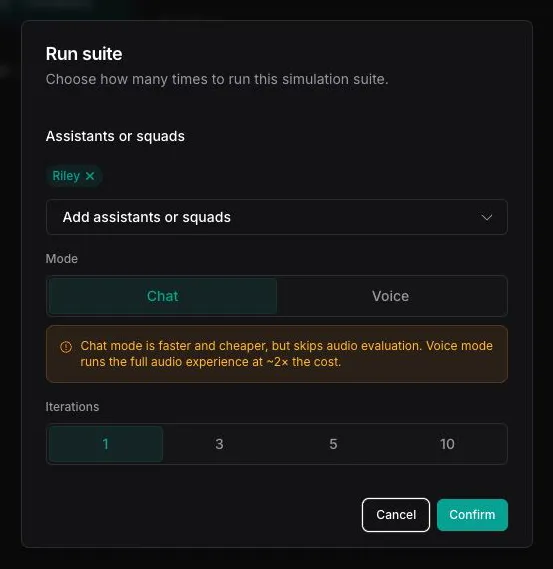
Execute simulations against your assistant or squad. You can run individual simulations or entire suites.
Dashboard
cURL
Start a run
- Navigate to your simulation or suite
- Click Run
- Select the Target:
- Choose Assistant or Squad
- Select from the dropdown
- Configure Transport (optional):
- Voice:
vapi.websocket(default) - Chat:
vapi.webchat(faster, no audio)
- Voice:
- Set Iterations (optional): Number of times to run each simulation
- Click Start Run
Step 6: Review results
Analyze the results of your simulation runs to understand how your assistant performed.
Successful run
When all evaluations pass, you’ll see:
Pass criteria:
statusis “ended”itemCounts.passedequalsitemCounts.total- All required evaluations show
passed: true
Failed run
When evaluation fails, you’ll see details about what went wrong:
Failure indicators:
itemCounts.failed> 0- Individual run items show which evaluations failed and why
Dashboard
cURL
View run results
- Navigate to the Runs tab
- Click on a completed run to see details
- View the summary showing pass/fail counts
Full conversation transcripts are available for all simulation runs, making it easy to understand exactly what happened during each test.
Next steps
Learn about tool mocks, hooks, CI/CD integration, and testing strategies
Create and configure assistants to test
Learn about chat-based testing with mock conversations
Learn how to define structured outputs for evaluations
Tips for success
Best practices for effective simulation testing:
- Start with chat mode - Use
vapi.webchatfor rapid iteration, then validate with voice - Use realistic personalities - Model your test callers after actual customer types
- Define clear evaluations - Use specific, measurable structured outputs
- Group related tests - Organize suites by feature or user flow
- Monitor trends - Track pass rates over time to catch regressions early
- Test after changes - Run your simulation suites after updating prompts or tools
- Listen to recordings - Audio recordings reveal issues that metrics alone miss
- Iterate on failures - Use failed tests to improve both your assistant and test design
Frequently asked questions
How many concurrent simulations can I run?
Simulation concurrency follows your organization’s call concurrency limits. Each voice simulation uses 2 concurrent call slots (one for the AI tester, one for your assistant being tested). Chat mode simulations are more efficient since they don’t require audio processing. If you need higher concurrency limits, contact support.
What's the difference between Simulations and Evals?
Simulations use AI-powered testers that have actual conversations with your assistant, producing real call recordings and transcripts. Evals use mock conversations with predefined messages and judge the responses. Use Simulations for realistic end-to-end testing; use Evals for faster, more controlled validation.
Can I use my own structured outputs?
Yes! You can either define inline structured outputs in your scenario evaluations, or reference existing structured outputs by ID using the structuredOutputId field.
How do I test squad handoffs?
Create a simulation that targets a squad instead of an assistant. Use the target.type: "squad" and target.squadId fields when creating a run.
Get help
Need assistance? We’re here to help: