

Transfer Call tool
The transfer call tool lets an assistant route an active phone call to a phone number or Session Initiation Protocol (SIP) URI. Use it to connect a caller with a person, department, or external phone system based on the conversation. To move a call between assistants, use the handoff tool instead; handoff works with standalone assistants and assistants in a Squad.
Prerequisites
Before you create the tool, prepare:
- A Vapi assistant that handles phone calls
- A reachable destination phone number in E.164 format, for example,
+14155550100, or a valid SIP URI - A private Vapi API key for the curl method
Configure the transfer call tool
Create a reusable transfer call tool, define its destinations, and add it to an assistant.
Dashboard
curl
Create the tool
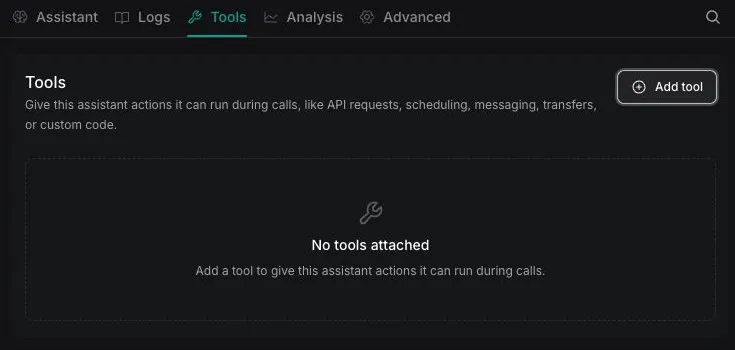
Open Tools in the Vapi Dashboard, click Create Tool, and select Transfer Call.
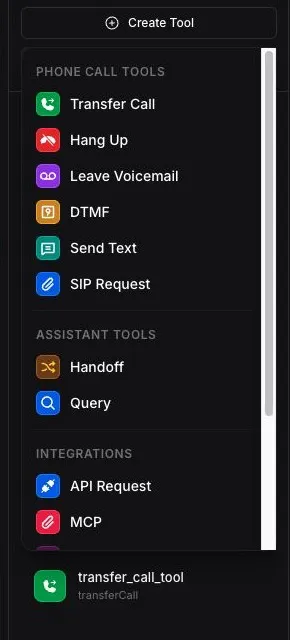
Describe when to transfer
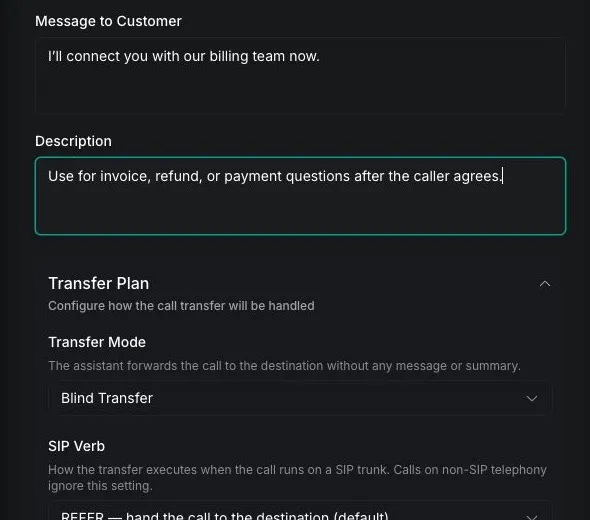
Under Tool Settings, enter a clear Tool Name and Description. Describe the conditions that should trigger a transfer so the assistant can choose the tool reliably.
For example:
Add a destination
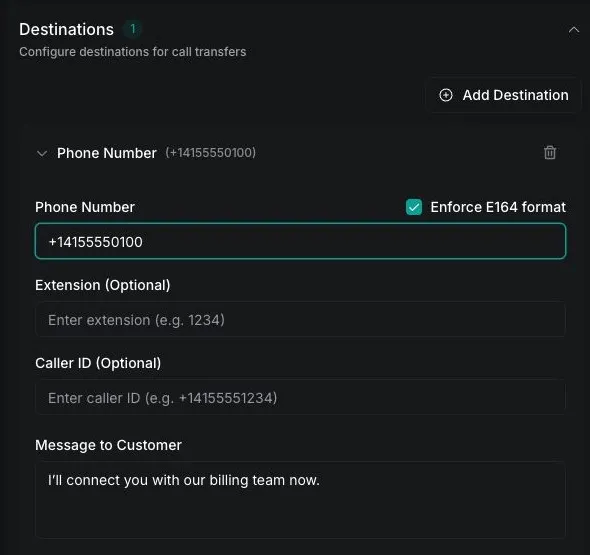
Under Destinations, click Add Destination, then select Phone Number or SIP. Enter the destination and a specific description of when the assistant should use it.
For a phone number, use E.164 format, including the + prefix and country code. If you add multiple destinations, give each one a distinct description so the assistant can route the caller correctly.
Configure transfer messages
Optionally configure a message for the assistant to say before the transfer. If neither the destination nor the tool defines a message, the assistant says Transferring the call now by default. Set the destination message to an empty string for a silent transfer. A message can be at most 1,000 characters.
Expand Transfer Plan to choose how this destination receives the call. Leave Blind Transfer selected for an immediate transfer, or follow the mode-specific guides below to configure another behavior.
Choose a destination
Use the destination type that matches the system receiving the call.
For a phone-number destination that uses an extension, set extension. Vapi dials the extension after the destination answers.
A destination’s description tells the assistant when to select it. Keep each description specific to a routing intent, for example, billing, sales, or technical support.
To choose among stored destinations based on an API lookup, follow Transfer calls using API Request and Transfer Call tools. To select or construct a destination at runtime instead of storing it on the tool, follow Dynamic call transfers.
Route to multiple destinations
A single transfer call tool can contain multiple phone-number destinations, SIP destinations, or a mix of both. When the assistant invokes the tool, it uses the conversation and each destination’s description to select one destination; it does not call every destination in the array.
In the Dashboard, click Add Destination for each route. Give every destination a distinct description, then add matching routing rules to the assistant’s system prompt. For example:
With the API, add one object for each route to destinations. Each object can have its own message and transfer plan. When updating a tool, include every destination that should remain because the new destinations array replaces the existing array.
To move the conversation to another Vapi assistant, use the handoff tool instead of a phone or SIP transfer. Handoff works between standalone assistants and between assistants in a Squad, and can carry conversation context into the destination assistant.
Choose a transfer mode
The transfer mode controls what happens on the destination call leg before the customer is connected. The Dashboard displays a readable label; API requests use the corresponding transferPlan.mode value.
Use Dynamic call transfers when the destination is selected at runtime. Dynamic destination selection is separate from the transfer mode.
Verify the transfer
Place a test call and ask for the destination described in the tool. Confirm that the call log contains a transferCall tool invocation and that the destination rings or answers.
The assistant-forwarded-call ended reason confirms that Vapi initiated the transfer. It does not confirm that the downstream telephony provider completed it, so check the provider’s call logs when the destination does not receive the call.
Troubleshooting
For dropped calls, provider diagnostics, and SIP packet checks, follow Troubleshoot call forwarding drops. The call ended reasons reference lists transfer-specific outcomes such as call.in-progress.error-transfer-failed.
API reference
The Create Tool API reference documents the public transfer call fields, destination types, transfer plans, messages, and rejection settings. The Update Assistant API reference documents how to assign reusable tools with model.toolIds.