

DIDWW SIP integration
Before you begin
- An active DIDWW account is required. Sign in or create an account.
- Access to DIDWW Outbound Trunks is required.
- A Vapi account and assistant is required.
1. Route incoming calls to Vapi
Create a DIDWW inbound SIP trunk that sends calls from your DIDWW numbers to Vapi.
Create an inbound SIP trunk
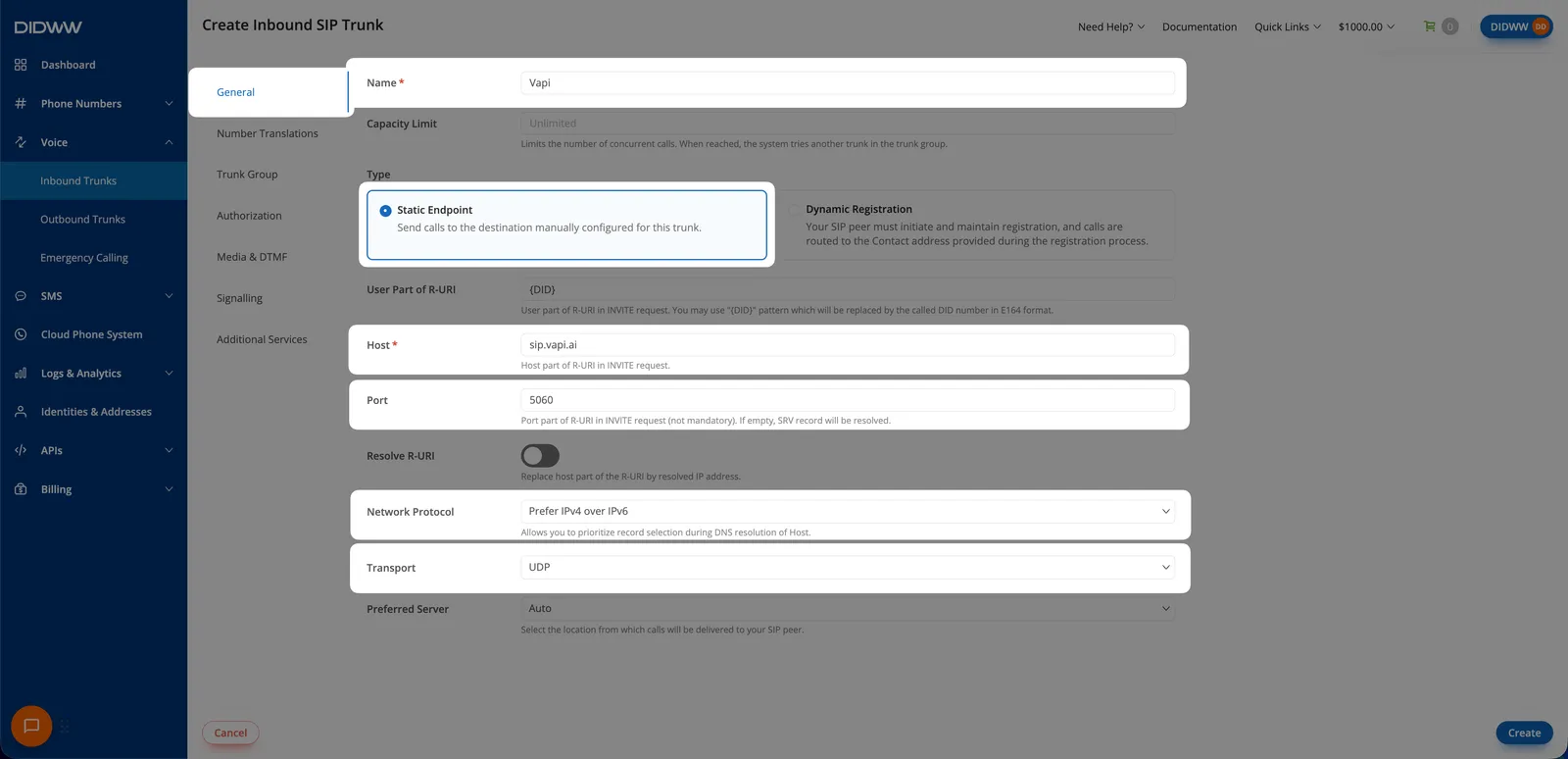
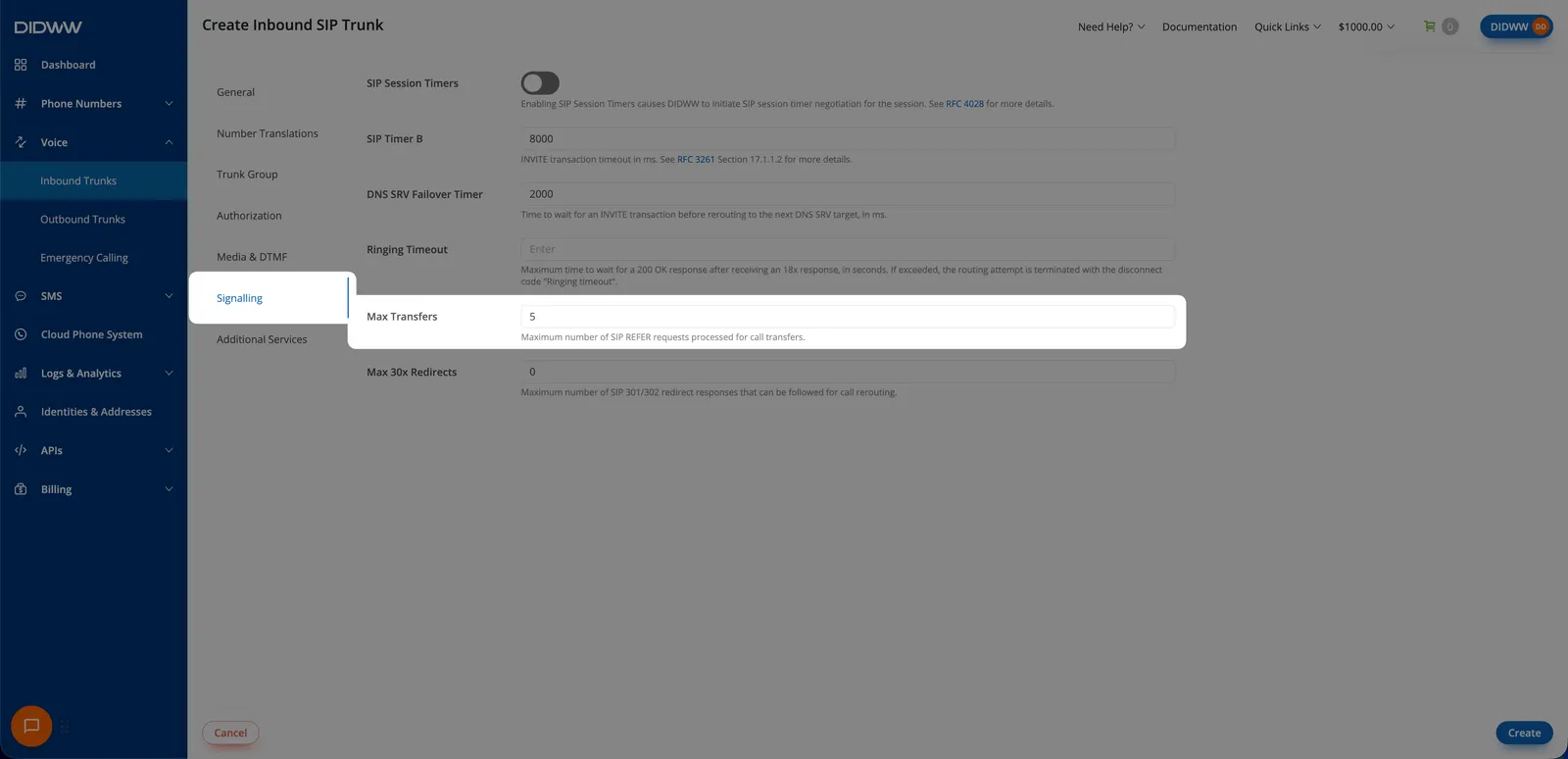
In the DIDWW User Panel, go to Voice → Inbound Trunks and select Create New → SIP Trunk.
Configure the required trunk fields
In the General tab, configure every field below:
2. Enable outbound calling through DIDWW
Create a DIDWW outbound trunk for Vapi calls and for authenticated SIP REFER transfers.
Create an outbound voice trunk
In the DIDWW User Panel, go to Voice → Outbound Trunks and click Create New.
Configure authentication and allowed IPs
Set a Friendly Name, such as Vapi, and keep Credentials & IP-based authentication selected.
Under Allowed SIP IP addresses, add the signaling addresses for your Vapi region:
To support call transfers, also add all DIDWW inbound signaling addresses:
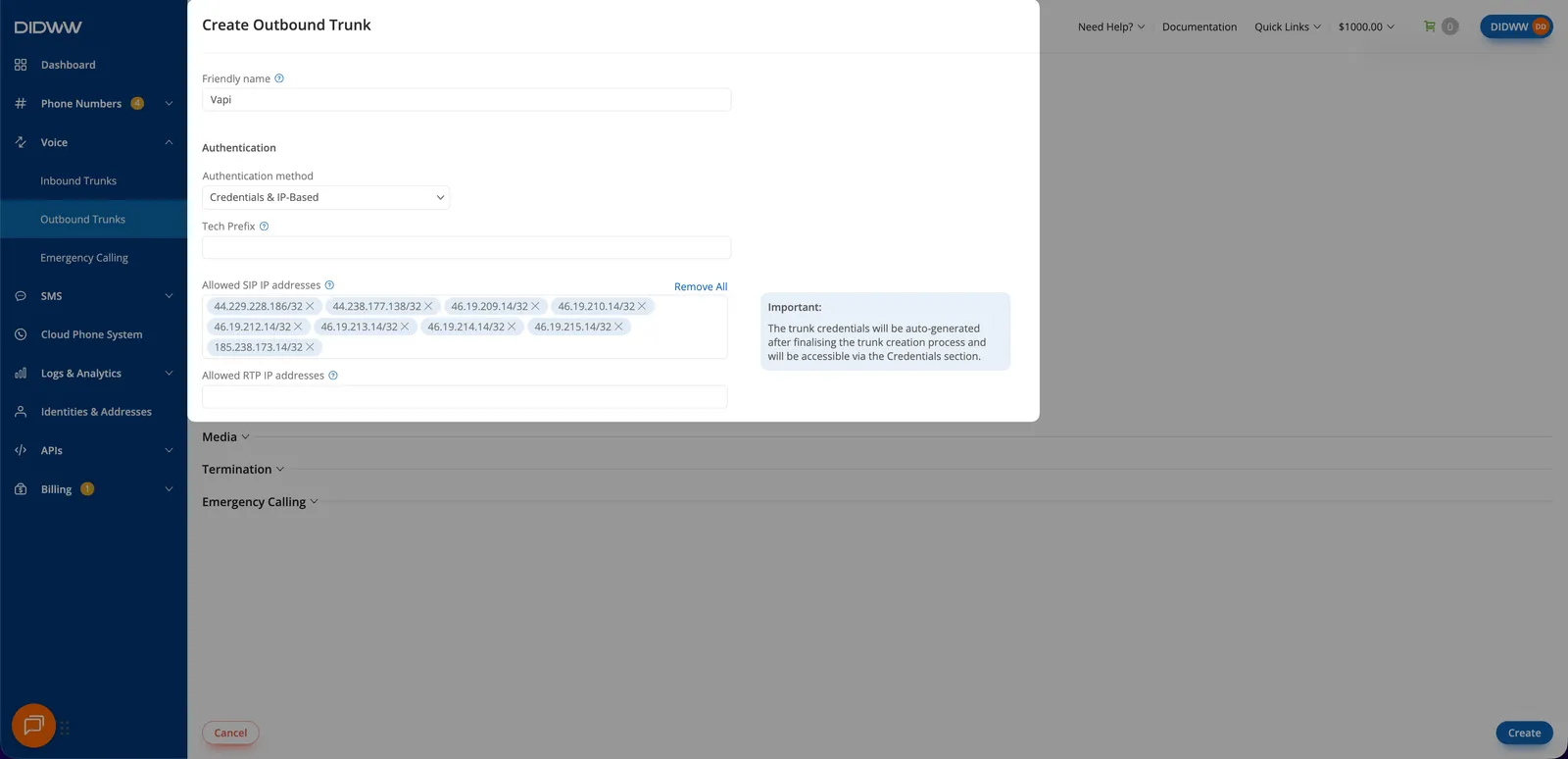
Do not use 0.0.0.0/0 in production. Restrict the trunk to the current Vapi signaling IPs and DIDWW SIP servers.
Copy the outbound credentials
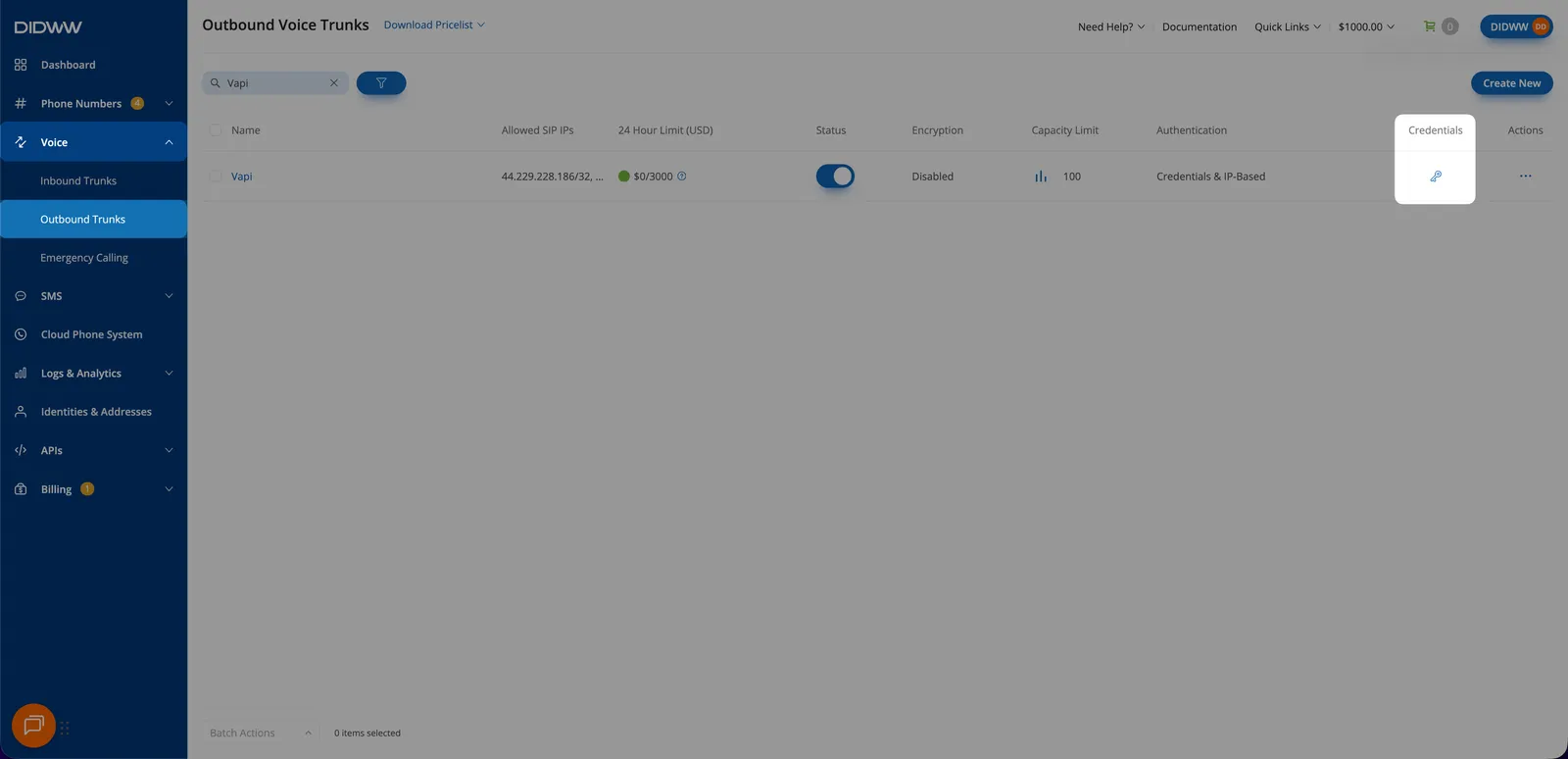
On Voice → Outbound Trunks, click the key icon in the trunk’s Credentials column. Copy the Username and Password; you will use both in DIDWW and Vapi.
Authorize transfers on the inbound trunk
Edit the Vapi inbound trunk and open Authorization. Turn on Enable Authorization, paste the outbound trunk Username and Password into Auth User and Auth Password, then click Submit.
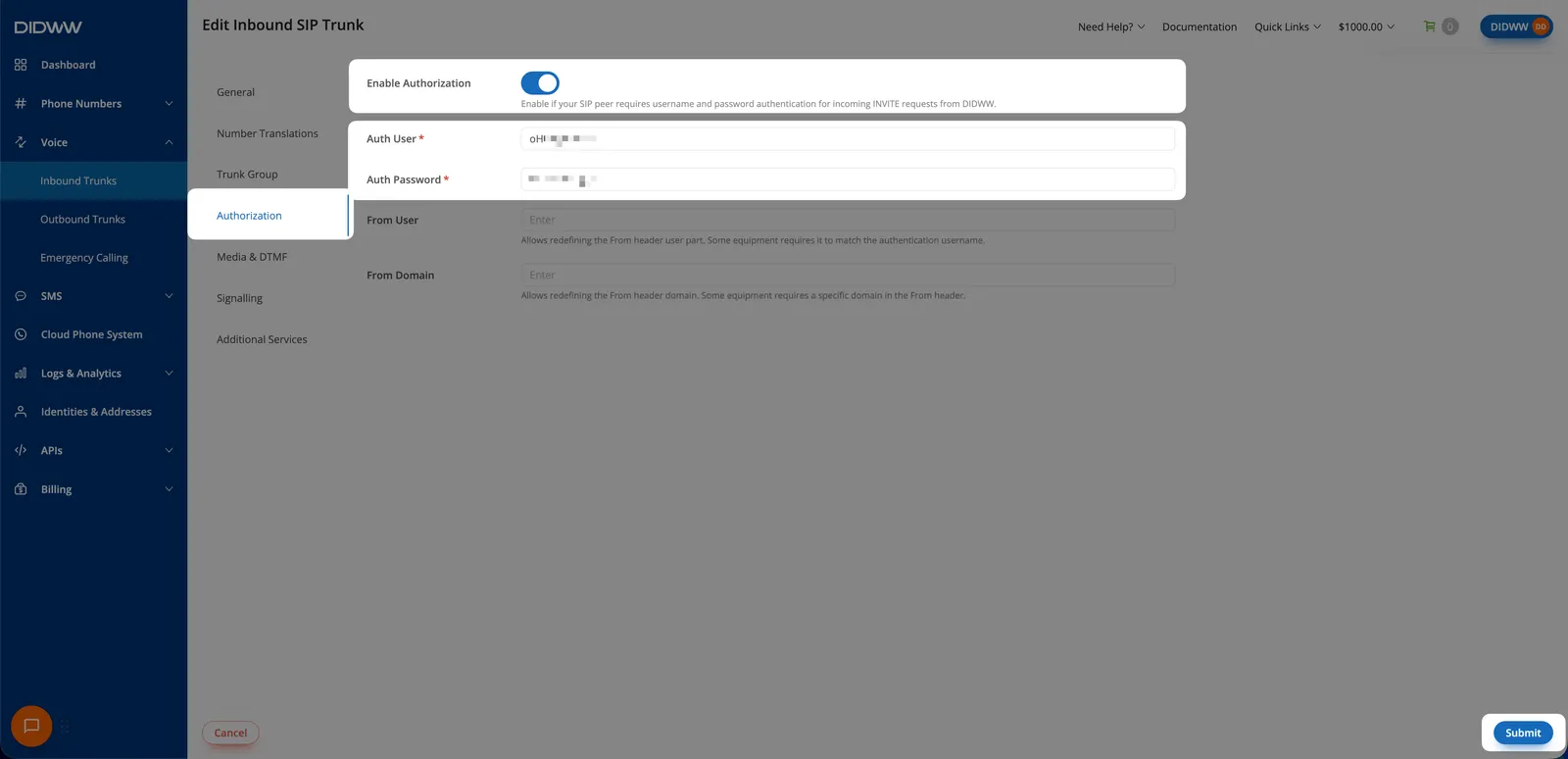
For more detail, see Add outbound credentials to the inbound trunk.
3. Connect the SIP trunks in Vapi
Use the same transport and port on both sides. In API examples, use https://api.vapi.ai for US organizations or replace it with https://api.eu.vapi.ai for EU organizations.
Step 1: Create the outbound trunk
Dashboard
cURL
In the Vapi dashboard, select Integrations in the sidebar. Under Phone Number Providers, select SIP Trunk, then click Configure New SIP Trunk.
- Set Name to
DIDWW Outbound Trunk. - Set IP Address / Domain to a DIDWW outbound endpoint, such as
fra.eu.out.didww.com. - Select the transport and port:
5060for UDP/TCP or5061for TLS. - Turn off Allow inbound calls and leave Allow outbound calls on.
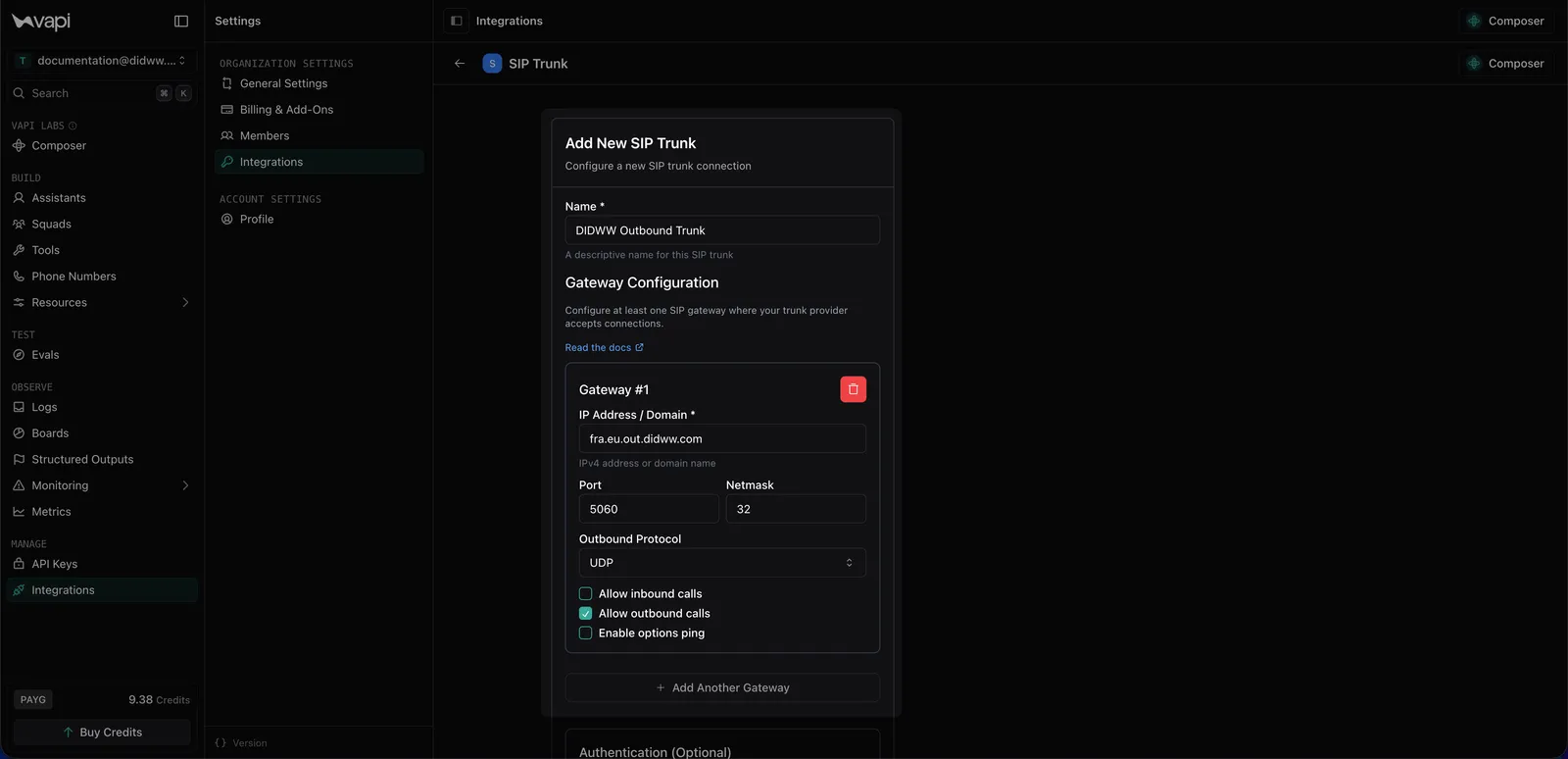
- Under Authentication, enter the DIDWW outbound username and password. Leave SIP registration off and save the trunk.
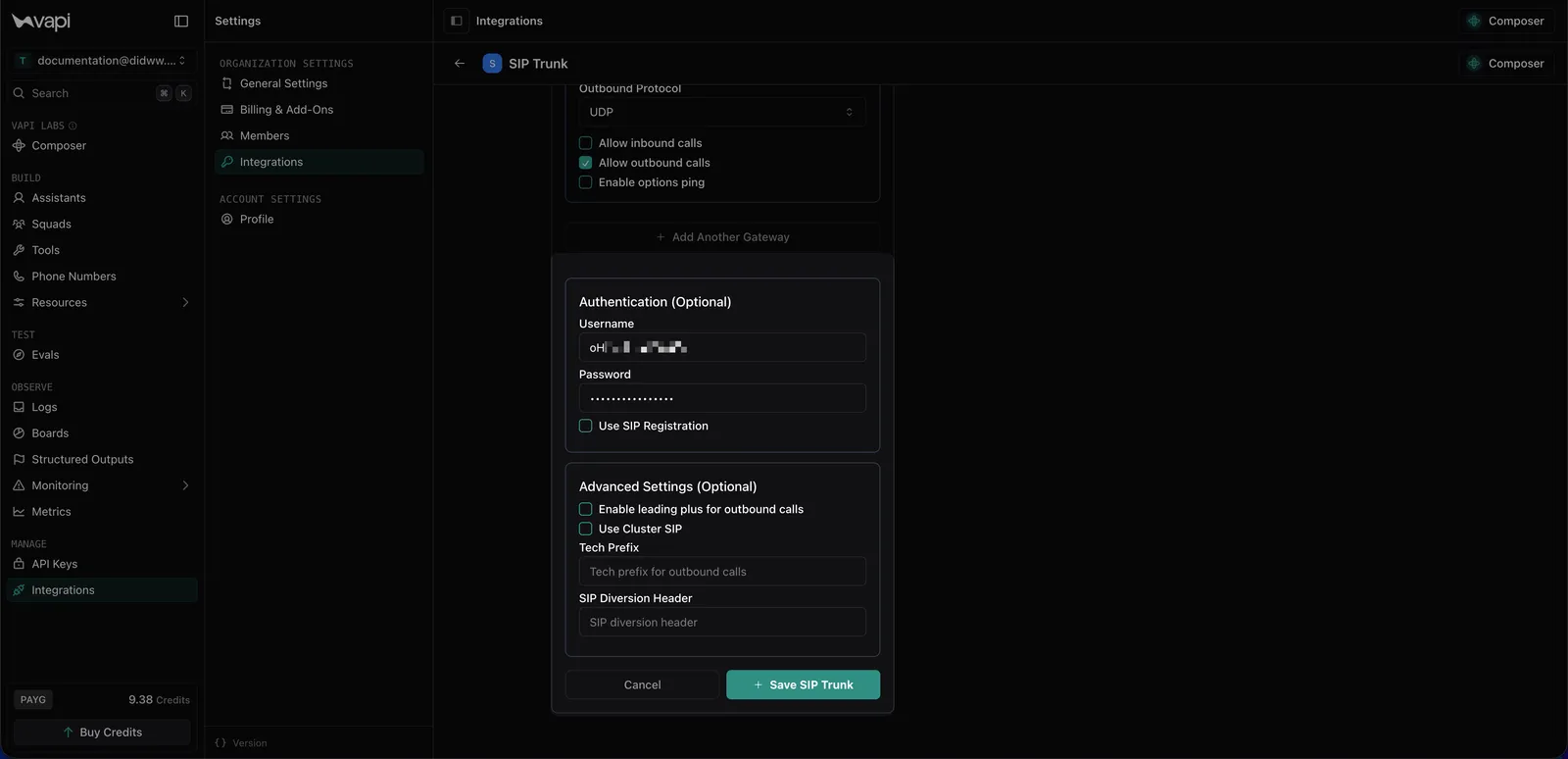
Step 2: Create the inbound trunk
Dashboard
cURL
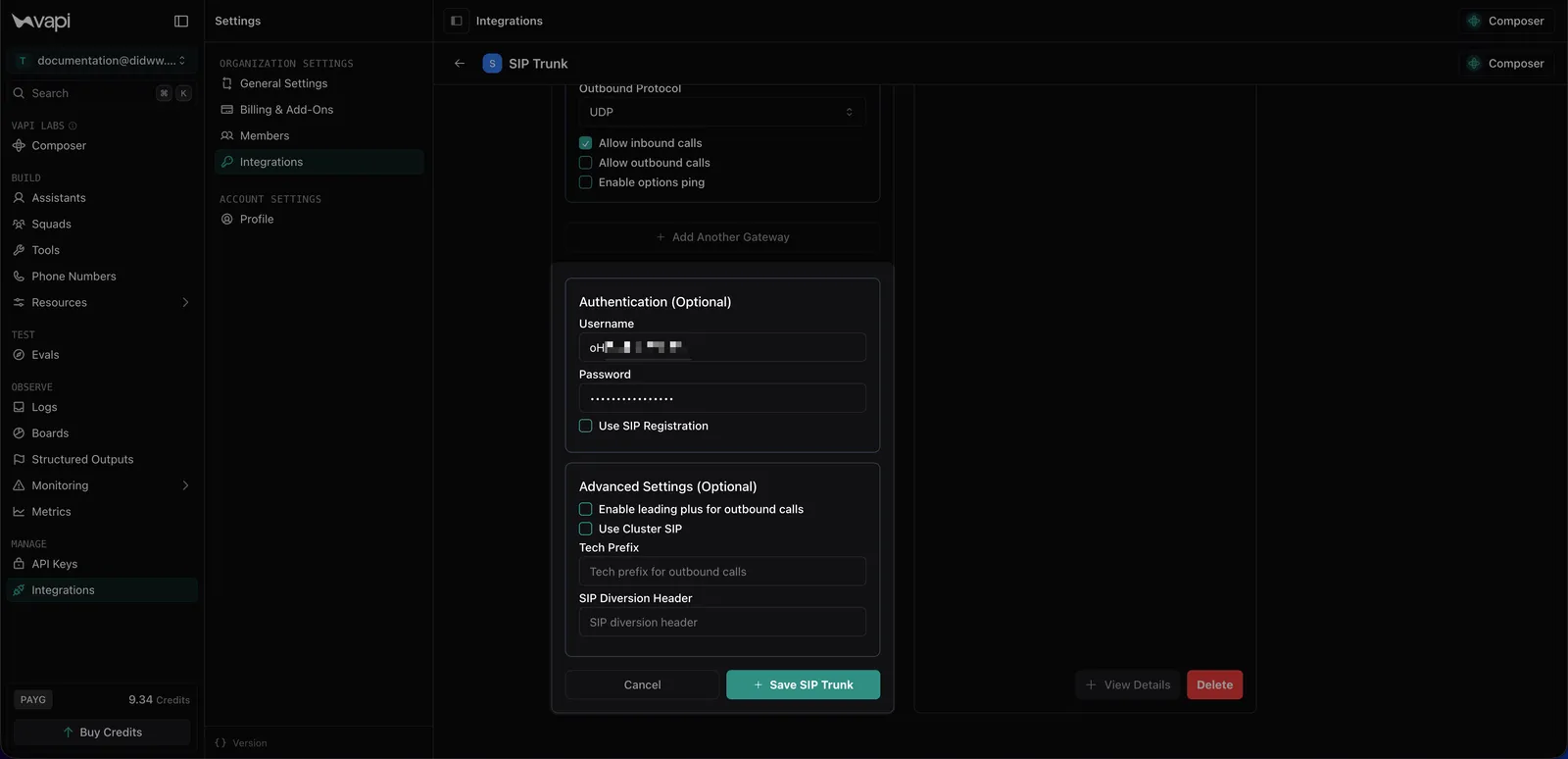
Create another Vapi SIP trunk named DIDWW Inbound Trunk.
- Add one gateway for each DIDWW IP below, using netmask
32and the same port as the DIDWW inbound trunk. - For every gateway, turn on Allow inbound calls and turn off Allow outbound calls.
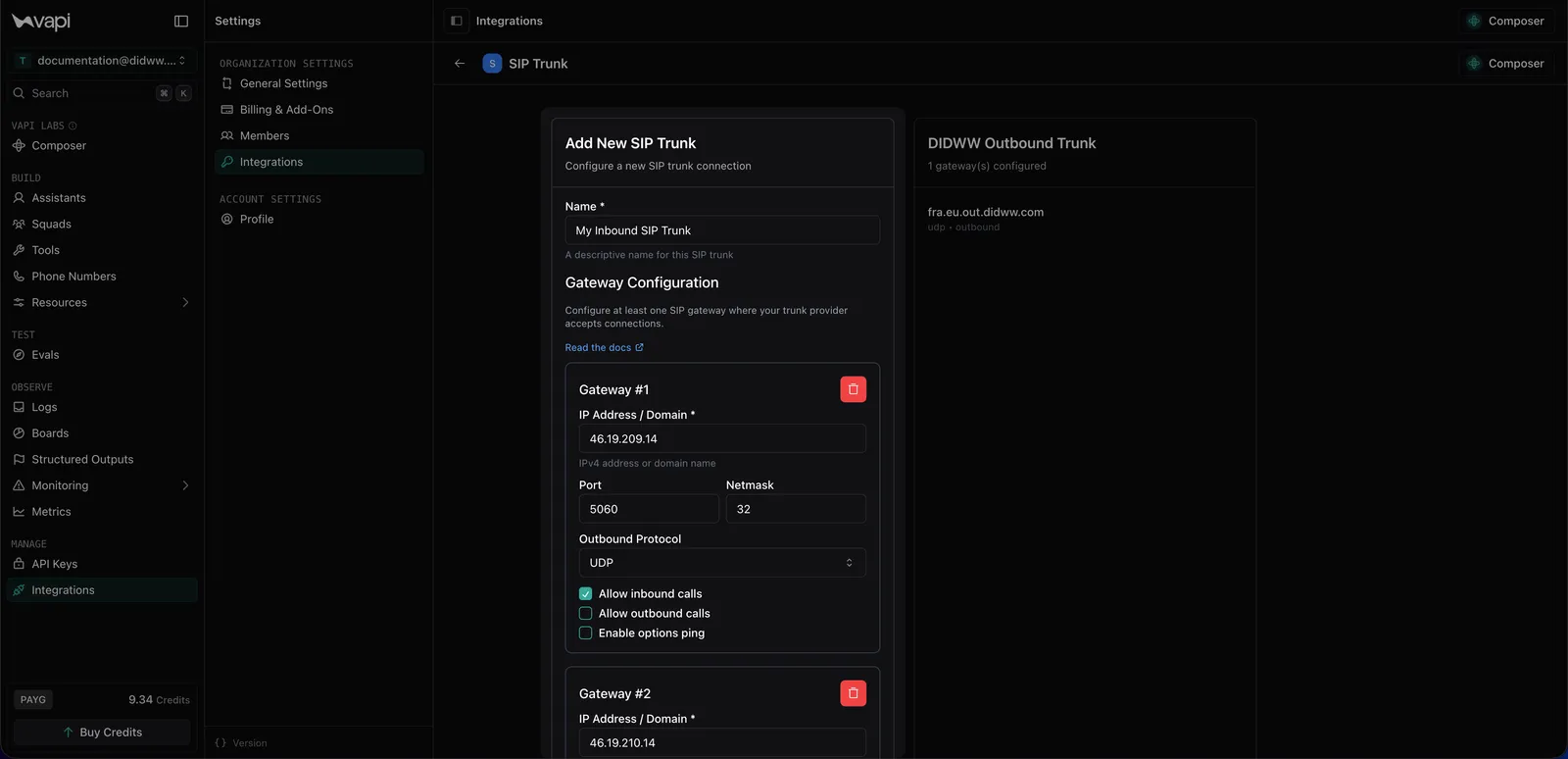
- Under Authentication, enter the DIDWW outbound username and password, then save the trunk.
Step 3: Create a call transfer tool
Dashboard
cURL
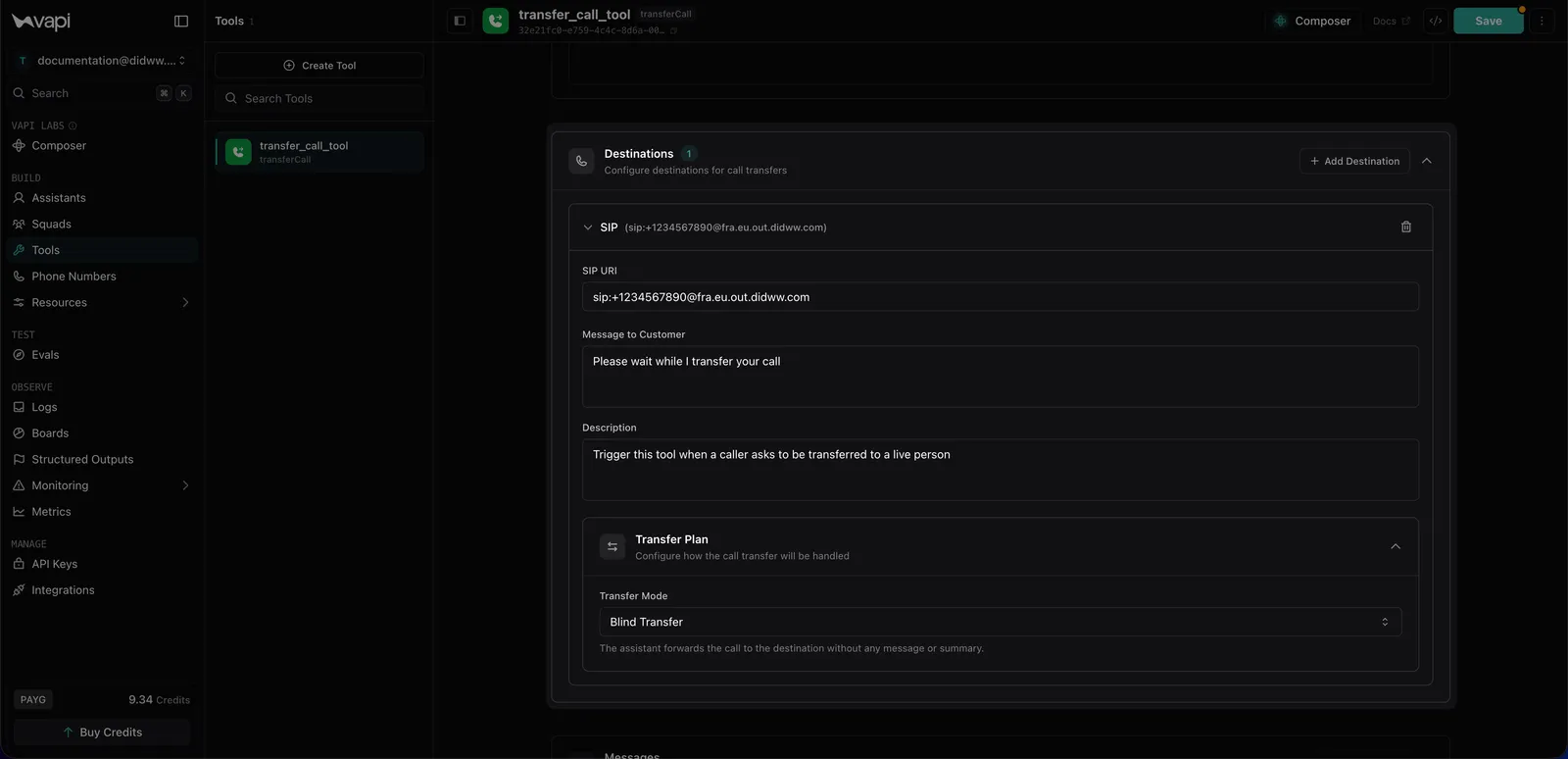
In Vapi, go to Tools, click Create Tool, and select Transfer Call.
- Enter a tool name and describe when the assistant should transfer the caller.
- Add a SIP destination.
- Set SIP URI to
sip:+E164_NUMBER@OUTBOUND_ENDPOINT, for examplesip:+447700900123@fra.eu.out.didww.com. - Add the customer message and destination description, keep Blind Transfer, and save.
Step 4: Add the transfer tool to your assistant
Dashboard
cURL
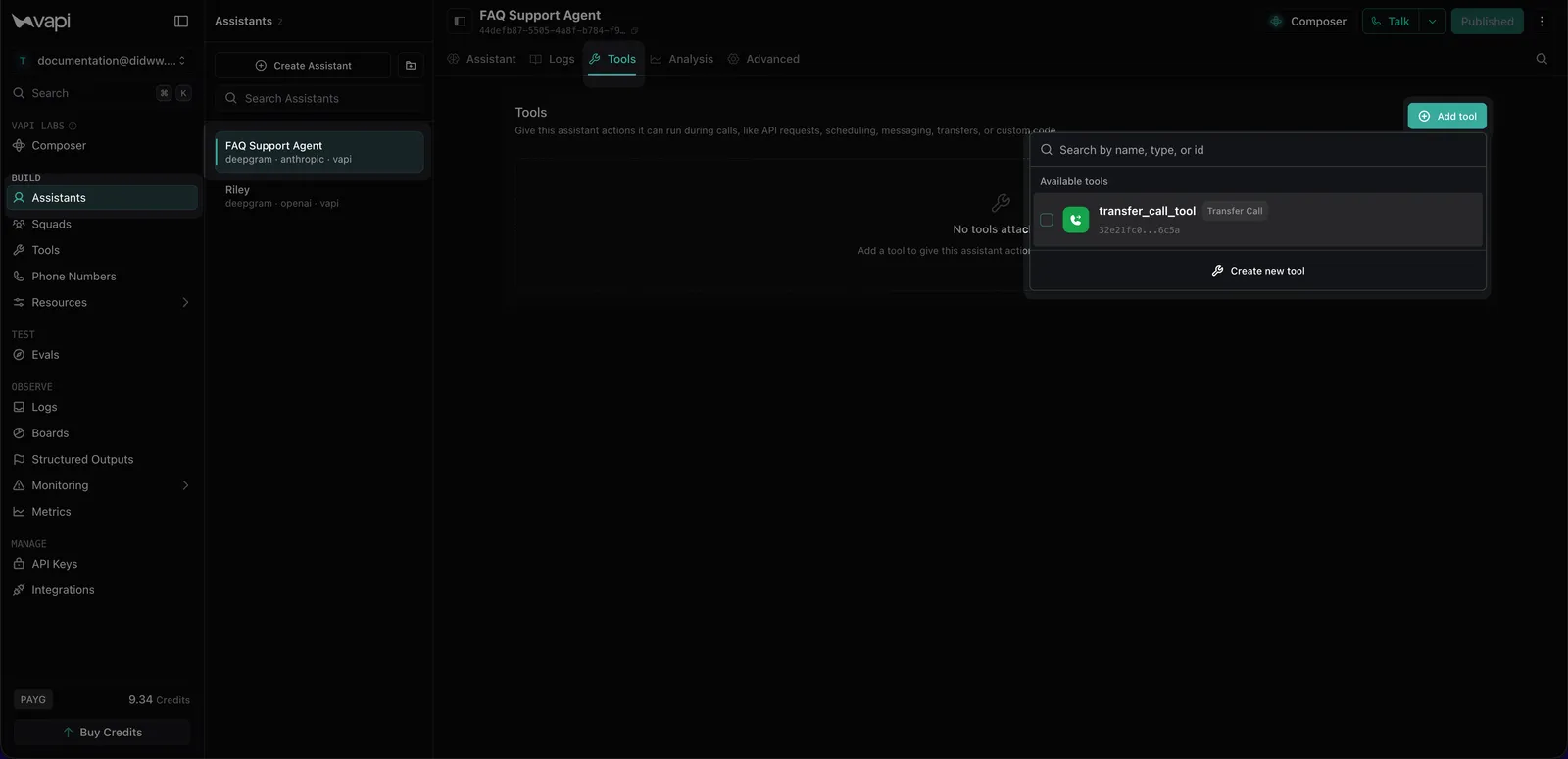
Open the assistant’s Tools tab, click Add tool, and select the transfer tool. Click Publish, then confirm the publication.
Next step
Import a number from DIDWW: Purchase or select a DIDWW number, assign the inbound trunk, and import the number into Vapi.