

Purchase call concurrency
This page applies if your Dashboard shows Settings → Billing & Add-Ons. In this view, each organization has its own subscription and concurrency limit. If your Dashboard sidebar shows Billing & Payment instead, see Manage Success Packages and add-ons.
Purchase call concurrency when your organization needs to run more simultaneous calls than its subscription includes.
How call lines affect concurrency
Call concurrency is the number of Vapi calls that can be active at the same time. Each reserved call line adds one simultaneous call to your organization’s included concurrency.
All inbound and outbound calls share the organization’s capacity. A campaign’s Max concurrency setting limits that campaign, but it does not purchase or reserve additional call lines.
Prerequisites
- An Admin role in the organization.
- Enough Vapi credits to cover the prorated charge shown before purchase.
Purchase call concurrency
Open Billing & Add-Ons
Sign in to the Vapi Dashboard, select the organization you want to update, open Settings, then select Billing & Add-Ons.
Enter the reserved concurrency
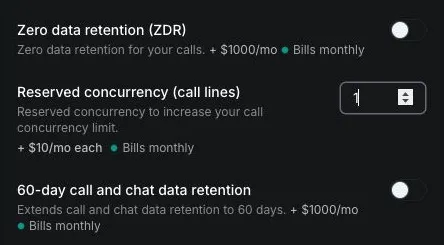
In Add-ons, find Reserved concurrency (call lines). Enter the total number of add-on call lines you want the organization to have.
This value represents purchased call lines, not the organization’s total concurrency. For example, if the subscription includes 10 calls and you enter 5, the organization has 15 call lines after the purchase.
Review the pricing preview
Review Add-ons summary and Pricing preview. The preview shows the new monthly charge and the prorated amount due for the remainder of the current billing period.