For AI agents: a documentation index is available at the root level at /llms.txt and /llms-full.txt. Append /llms.txt to any URL for a page-level index, or .md for the markdown version of any page.
WebsiteStatusSupportDashboard
DocumentationAPI ReferenceMCPSDKsCLI (new)What's New?
  • Get started
    • Introduction
    • Phone calls
    • Web calls
    • Vapi Guides
    • Composer
    • CLI quickstart
  • Assistants
    • Quickstart
    • Tools
    • Custom keywords
    • Custom voices
    • Custom transcriber
    • Custom TTS
  • Observability
    • Boards
  • Squads
    • Quickstart
    • Overview
    • Handoff tool
    • Passing data between assistants
  • Best practices
    • Prompting guide
    • Debugging voice agents
    • Enterprise environments (DEV/UAT/PROD)
    • IVR navigation
  • Phone numbers
    • Free Vapi number
    • Inbound SMS
      • Twilio
      • Telnyx
    • Phone Number Hooks
  • Calls
    • Call end reasons
    • Troubleshoot call errors
  • Outbound Campaigns
    • Quickstart
    • Overview
  • Chat
    • Quickstart
    • Streaming
    • Non-streaming
    • OpenAI compatibility
    • Session management
    • Variable substitution
    • SMS chat
    • Web widget
    • Webhooks
  • Workflows
    • Quickstart
    • Overview
LogoLogo
WebsiteStatusSupportDashboard
On this page
  • Overview
  • Prerequisites
  • Get started
Phone numbersTelephony integrations

Import number from Twilio

Import a new or existing number from Twilio
Was this page helpful?
Edit this page
Previous

Import number from Telnyx

Import and use your Telnyx numbers with Vapi
Next
Built with

Overview

As you scale your agents, you may want to use other telephony providers, like Twilio. In this guide, you’ll learn how to add a new or existing Twilio number to Vapi.

Prerequisites

  • A Twilio account

Get started

1

Buy a Phone Number via Twilio (if needed)

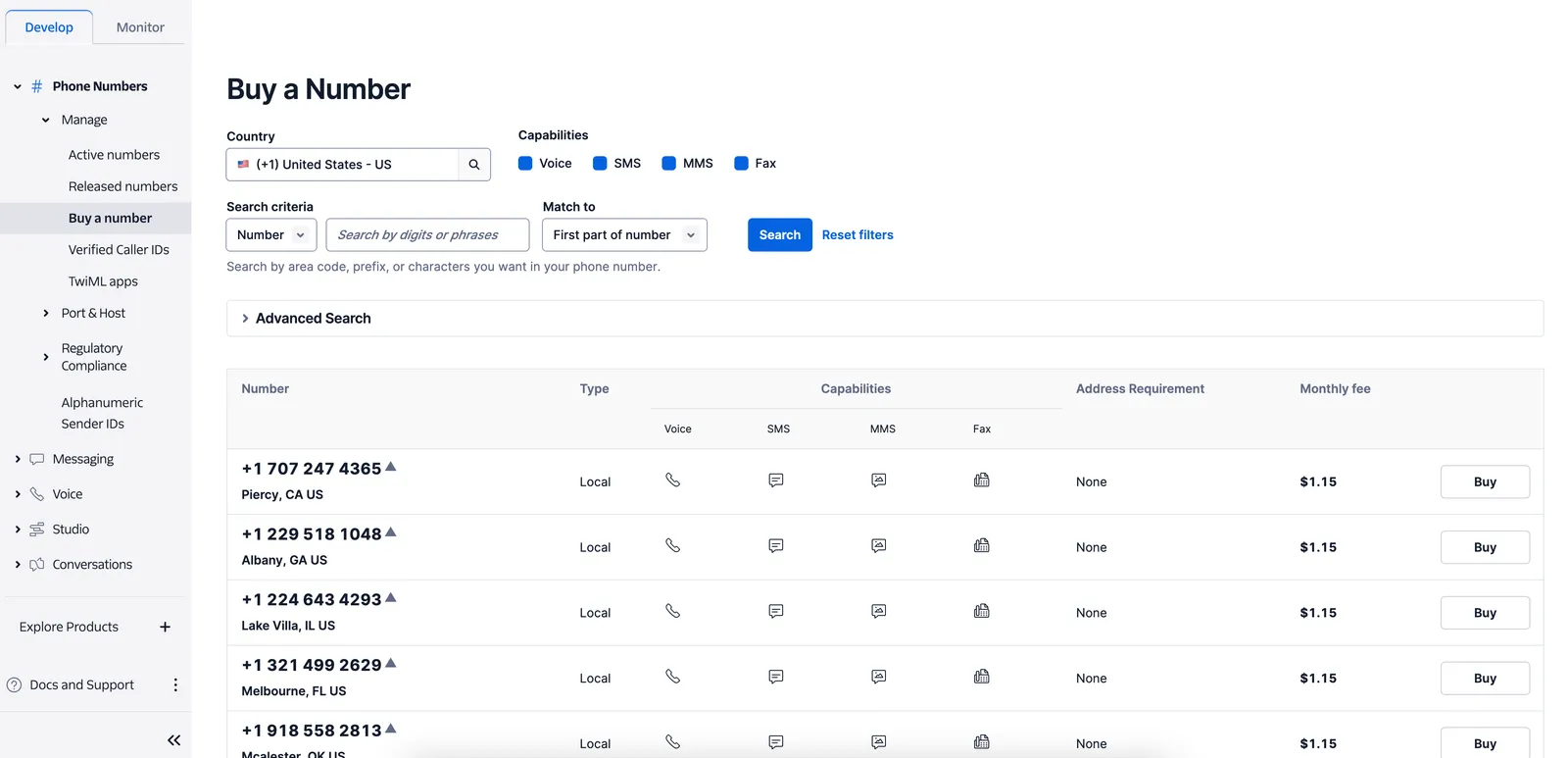
If you don’t have a Twilio number, purchase one in your Twilio console’s “Buy a number” section.

The Twilio 'Buy a Number' page in the Twilio console.
2

Get Your Twilio Account SID & Auth Token

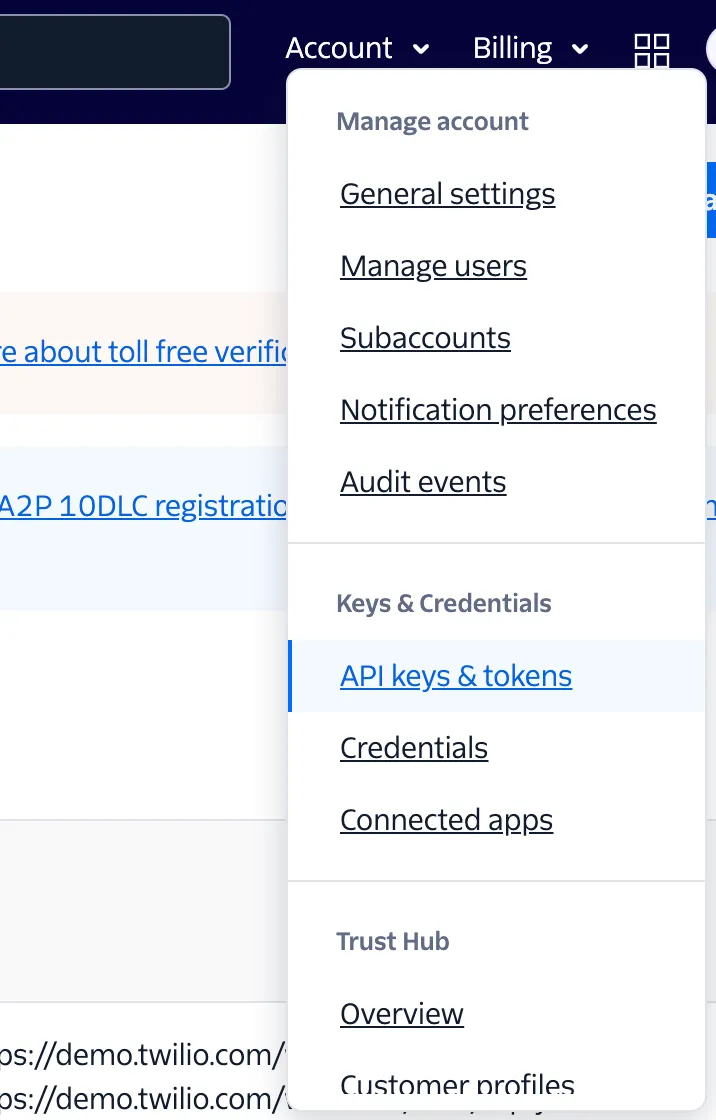
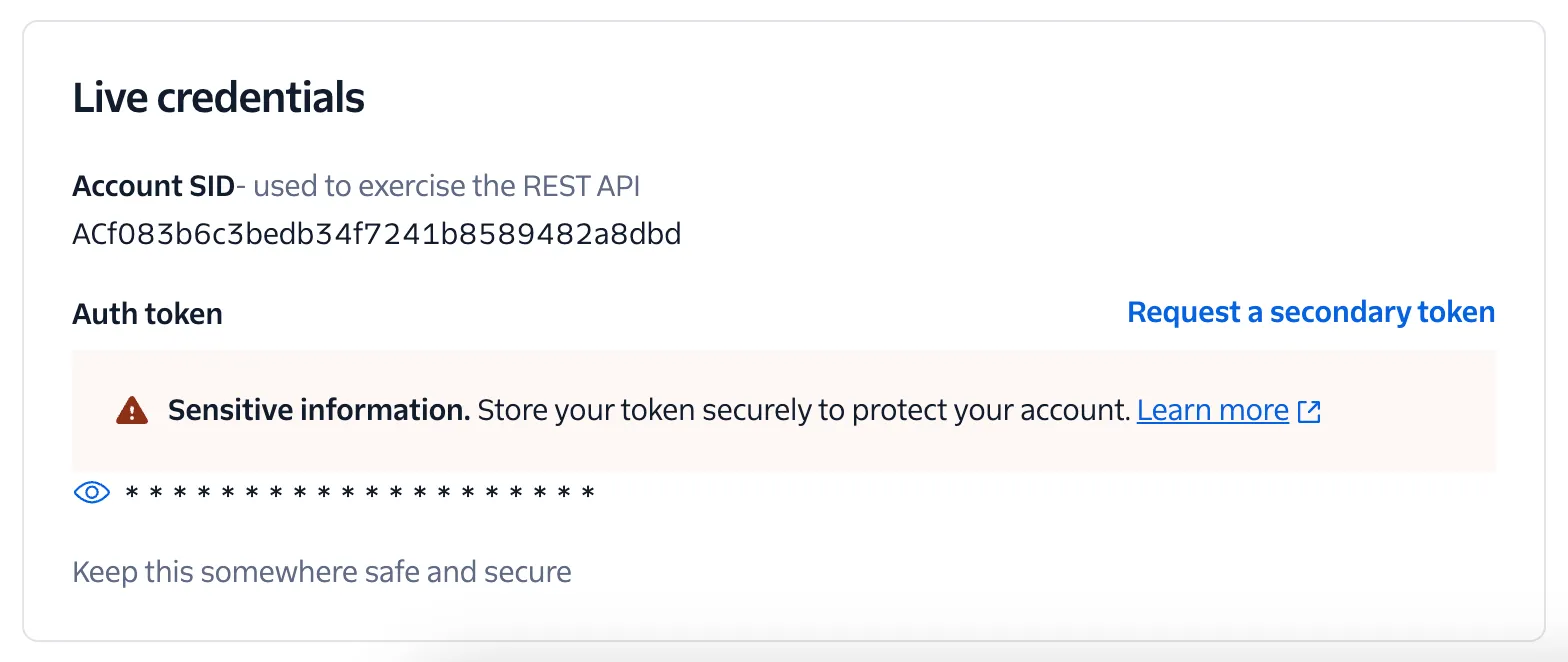
In your Twilio console, go to “API keys & tokens” to find your Account SID and Auth Token.

Navigate to the credentials section of your Twilio account.
3

Import Your Number in the Vapi Dashboard

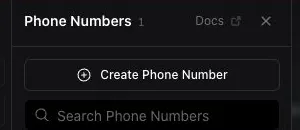
  1. Go to the “Phone Numbers” section in Vapi and click “Import”.
Click 'Import' in the 'Phone Numbers' tab of your dashboard.
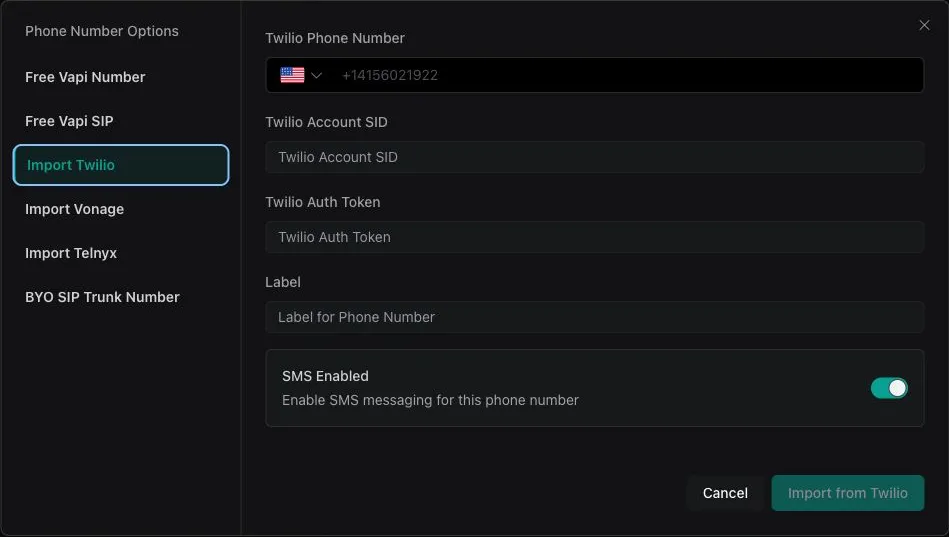
  1. Enter your phone number and Twilio credentials, then click “Import”.
4

Your number is ready now ready

You can use the number with an assistant for inbound or outbound calls.

The phone number detail page, where you can configure your phone number.