
API Request Tool quickstart

Create a coffee-order assistant that calls an HTTP API during an inbound phone call.

In this quickstart, you’ll create a coffee-order assistant and place a test order in about 10 minutes. The assistant collects order details, calls a public endpoint, and reads the server-calculated result to the caller.

What you’ll build

  • An API Request Tool that sends a confirmed coffee order to an HTTP endpoint
  • An assistant that collects and confirms the order before calling the tool
  • An inbound phone experience that reads back the server-calculated total and order number

Prerequisites

1. Test the order endpoint

Send a coffee order directly to the public test endpoint.

$curl --request POST \
> --url https://vapi-docs-orders.val.run/ \
> --header "Content-Type: application/json" \
> --data '{
> "customerName": "Alex",
> "productId": "coffee-beans",
> "quantity": 2
> }'

The endpoint returns an HTTP 201 response. The requestId and five-digit orderId change with every request.

1{
2 "success": true,
3 "requestId": "f47ac10b-58cc-4372-a567-0e02b2c3d479",
4 "orderId": 47730,
5 "mock": true,
6 "customerName": "Alex",
7 "productId": "coffee-beans",
8 "productName": "House coffee beans",
9 "quantity": 2,
10 "totalCents": 3600,
11 "totalDisplay": "$36.00",
12 "message": "Your mock order for 2 House coffee beans was accepted for $36.00."
13}

2. Create the API Request Tool

1

Create an API Request Tool

Open the Dashboard, select Tools, select Create Tool, then choose API Request.

2

Configure the request

Enter the following values under Base Configuration:

FieldValue
Tool NamecreateCoffeeOrder
DescriptionCreates a mock coffee shop order. Use only after the caller confirms their name, product, and quantity. If the request is rejected, explain the error and help the caller correct the order.
Request URLhttps://vapi-docs-orders.val.run/
Request HTTP MethodPOST

Under Authorization, keep No authentication selected. This public endpoint is for testing only.

Vapi Dashboard Base Configuration for the createCoffeeOrder API Request Tool
Configure the API Request Tool name, description, endpoint, and HTTP method
3

Define the request body

Under Request Body, select Add Property and add these properties:

PropertyTypeRequiredConfiguration
customerNameStringYesDescription: Customer name for the order.
productIdStringYesAllowed values: coffee-beans, tea-sampler, ceramic-mug
quantityIntegerYesMinimum: 1

Set the productId description to The product the customer confirmed. and the quantity description to The confirmed quantity. Then enable Lock schema (no additional properties).
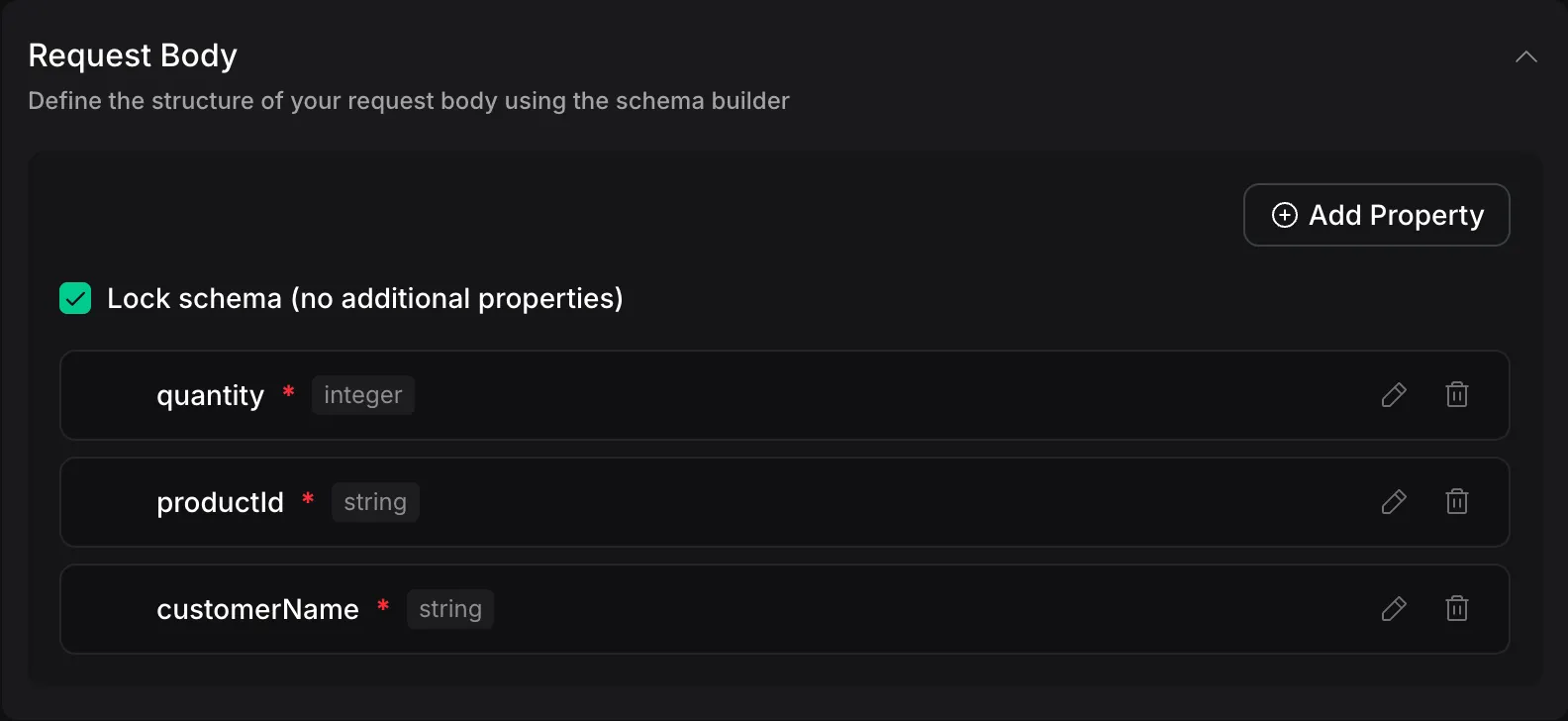
Vapi Dashboard Request Body with customerName, productId, and quantity as required properties
Define the three model-generated request body properties
4

Publish the tool

Select Publish.

3. Create the assistant

Use this system prompt in either method:

System prompt
You are a friendly coffee shop order assistant.
Available products:
- House coffee beans: productId coffee-beans, $18 each
- Tea sampler: productId tea-sampler, $14 each
- Ceramic mug: productId ceramic-mug, $12 each
Help the caller place one order. Collect their name, product, and positive whole-number quantity. Read the complete order back and get explicit confirmation before calling createCoffeeOrder. Never invent a productId and never call the tool before confirmation.
After a successful tool response, confirm the product, quantity, five-digit order number, and server-calculated total. Never read the internal requestId aloud.
After confirming a successful order, ask whether the caller needs anything else. If they do not, say "Thanks for your order. Goodbye." Do not continue speaking after that closing sentence.
1

Create a blank assistant

Select Assistants, then select Create Assistant.

2

Configure the assistant

Set Name to Docs Coffee Order Hello World and First Message to:

First message
Thanks for calling the Vapi coffee shop. What would you like to order?

Select OpenAI GPT-4o Mini Cluster as the model and Vapi Clara v2 as the voice. Replace System Prompt with the prompt above.

Vapi Dashboard assistant editor with the coffee-order first message and system prompt
Add the first message and coffee-order system prompt
3

Attach the tool

In the assistant’s Tools section, add createCoffeeOrder.

Vapi Dashboard assistant Tools section with createCoffeeOrder attached
Attach createCoffeeOrder to the assistant
4

Configure how the call ends

In the assistant editor, set End Call Message to Thanks for your order. Goodbye. Then add Thanks for your order to End Call Phrases.

Only the assistant’s speech triggers an end call phrase. The phrase omits punctuation so it still matches the closing sentence in the system prompt.

Vapi Dashboard End Call Message and End Call Phrases configured for the coffee-order assistant
Set the assistant's closing message and end call phrase
5

Publish the assistant

Select Publish, review the changes, then select Quick Publish.

4. Connect the phone number

Open Phone Numbers in the Dashboard, then select your existing phone number. Find Inbound Settings, choose Docs Coffee Order Hello World from the Assistant menu, then select Save.

If you do not have a number, request a free Vapi phone number before continuing.

5. Place a coffee order

Call the phone number and order two bags of house coffee beans. Give the assistant your name, then confirm the complete order when it reads the details back.

The assistant should call the API only after confirmation. It should then read a five-digit order number and the server-calculated total of $36.00. When it asks whether you need anything else, say no. The assistant should say its closing sentence and end the call.

Next steps