

Manage billing and credits
Add a payment method, buy credits, set up auto-reload, and download billing records
This page applies if your Dashboard sidebar shows Billing & Payment. If you see Settings → Billing & Add-Ons instead, see Manage pay-as-you-go billing and credits.
Vapi credits are prepaid funds in US dollars held by a subscription and used to cover its usage-based charges. This guide shows you how to add a payment method, fund the subscription, keep its balance funded automatically, and download billing records.
Prerequisites
- An Admin role in the organization.
How credits work
Credits cover usage-based costs:
- The per-minute Vapi hosting fee draws down your balance as calls run.
- Model, voice, transcriber, and telephony costs also draw down your balance.
The Dashboard shows how Success Package and add-on fees are charged before you confirm a purchase. Add-ons are charged to your Vapi credits on the first day of each month. If your balance does not cover them, Vapi automatically purchases the additional credits needed, plus your auto-reload amount if auto-reload is on.
If the subscription’s credit balance reaches $0 and auto-reload is off, Vapi freezes the subscription. You cannot start new calls or other billable usage until you purchase more credits.
Add or update a payment method
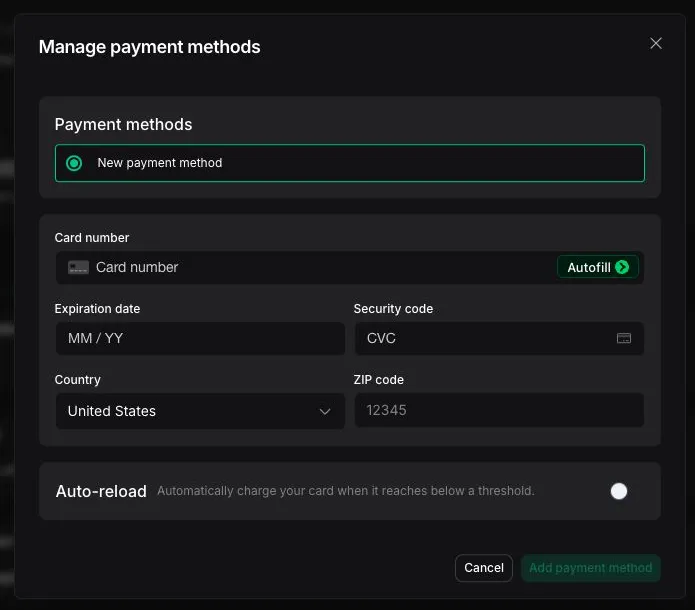
The subscription’s default card is used for credit purchases, auto-reload, and any recurring charges shown in the Dashboard. Add a card before you buy credits or turn on auto-reload.
Open the Billing page
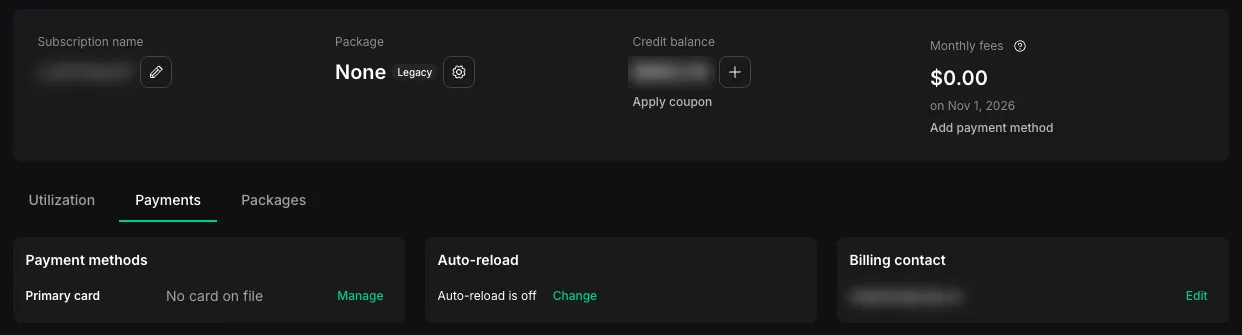
Sign in to the Vapi Dashboard, make sure the correct organization is selected, and open Billing & Payment. Select the Payments tab.
Buy credits
Buy credits to fund the subscription associated with your selected organization. Credits are added to that subscription, so confirm you are on the right organization first.
Set up auto-reload
Auto-reload keeps your subscription funded so usage is not interrupted. When the subscription’s credit balance reaches a threshold you set, Vapi automatically purchases the top-up amount you choose.
Open auto-reload settings
In Billing & Payment, on the Payments tab, select Change under Auto-reload.
With auto-reload off, usage can be interrupted when credits run out. Turn on auto-reload to keep the balance funded.
Download statements and invoices
Download a statement or an invoice from your billing history for your records or accounting.