

Import a number from DIDWW
Before you begin
- An active DIDWW account is required. Sign in or create an account.
- A completed DIDWW SIP integration is required.
- A Vapi assistant for inbound calls is required.
Prepare the DIDWW number
Purchase or select a DIDWW number
If needed, purchase a number from the DIDWW Coverage page. The number must support inbound calls and have available capacity. If you already own a suitable number, continue with it.
For detailed purchasing instructions, see Buy Numbers.
Assign the inbound trunk
In the DIDWW User Panel, go to Phone Numbers → My Numbers and select the number. Choose Batch Actions → Update Trunks, select the Vapi inbound trunk, and click Confirm.
See Assign inbound SIP trunk to your DID numbers for the complete DIDWW procedure.
Import the number
Dashboard
cURL
Open the import form
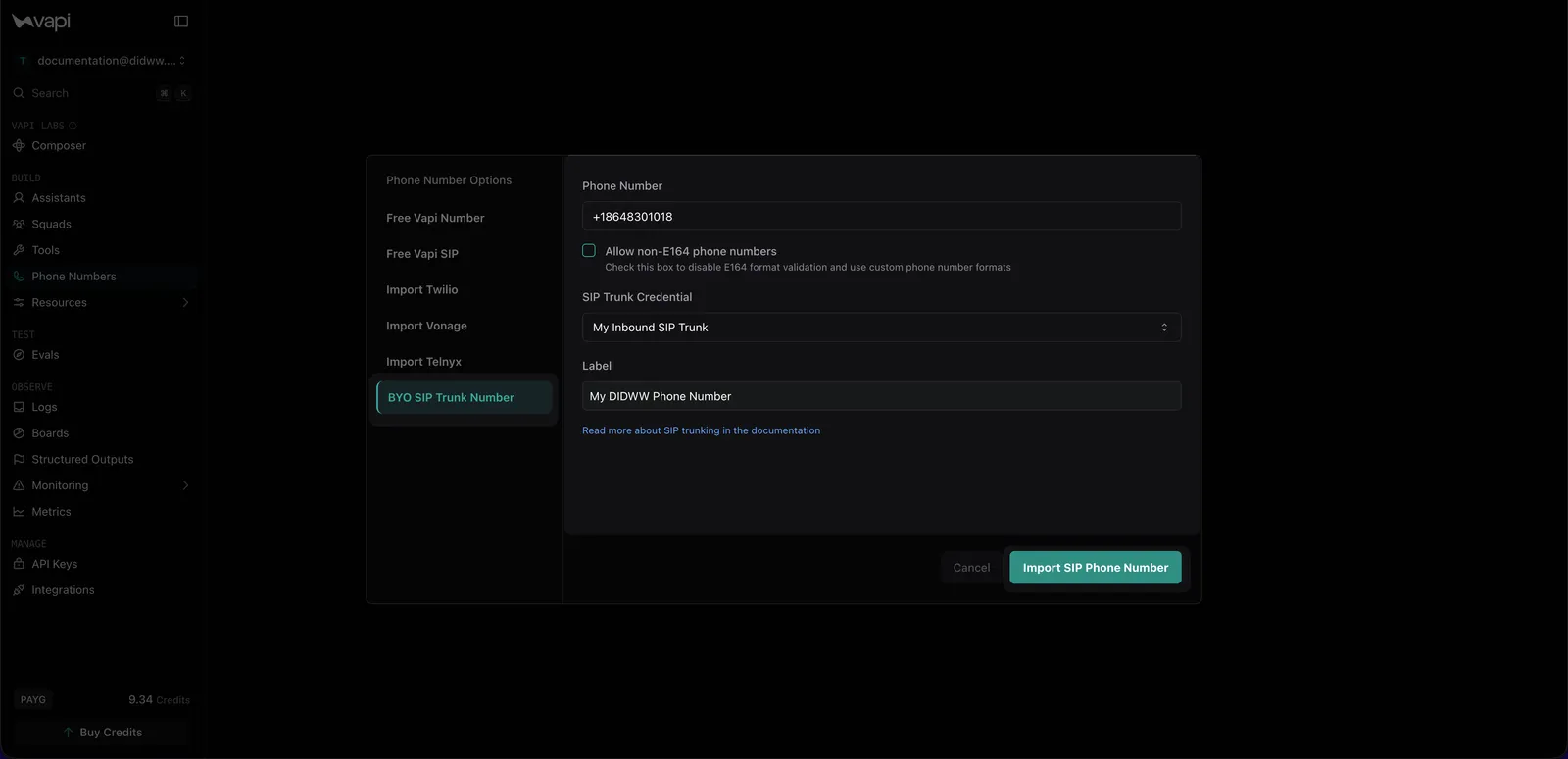
In the Vapi dashboard, go to Phone Numbers, click Create Phone Number, and select BYO SIP Trunk Number.
Enter the DIDWW number
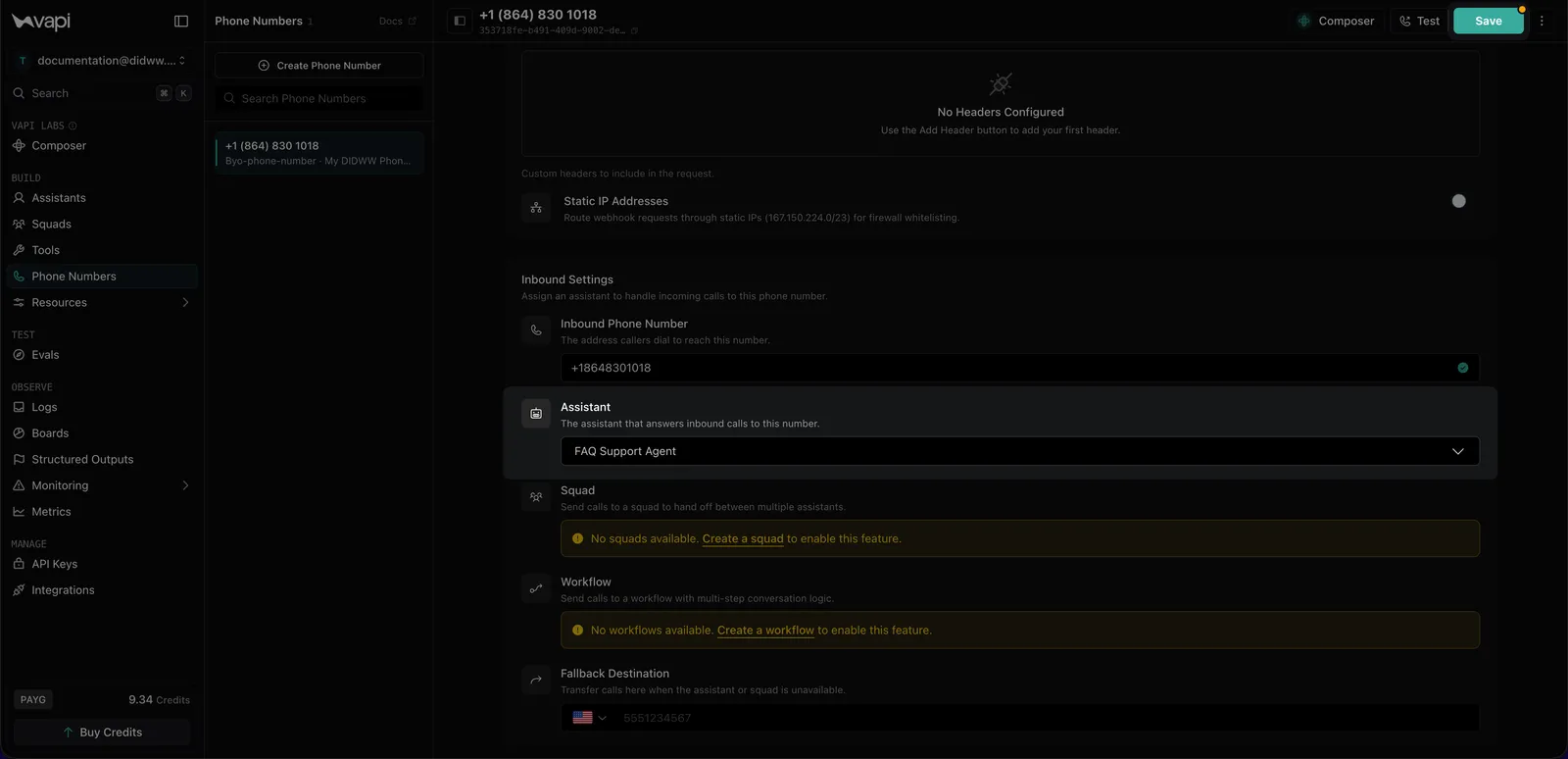
Enter the number in E.164 format, including the + prefix. Leave Allow non-E164 phone numbers off, select the DIDWW Inbound Trunk credential created in the DIDWW SIP integration, and optionally add a label. Then select Import SIP Phone Number.
Test the number
Call the DIDWW number from an external phone and confirm that the assigned assistant answers. You can also use the imported number for outbound calls to an external PSTN number to test outbound calling.
If a call fails, verify that the number is assigned to the correct DIDWW inbound trunk and that all DIDWW signaling IPs are enabled for inbound calls in the Vapi credential.