

Use API Request tool response data
A successful API Request Tool response is available to the model as a tool result. The model can use it immediately without additional response configuration. Configure variable extraction only when later tools or assistants need to reference specific response values through Liquid.
Prerequisites
- An API Request Tool whose endpoint returns JSON
- For cURL requests, a Vapi API key and the tool ID
Choose how to use the response
The coffee-order quickstart needs only the first option. Its assistant reads orderId, productName, quantity, and totalDisplay from the successful tool result, then ends the conversation. Extraction would add configuration without changing that experience.
The tool’s Request Body defines values the model sends to the API. Response Body and Aliases extract values returned by the API. They serve different directions of the request.
Use the immediate tool result
Return concise JSON with descriptive field names and instruct the assistant which fields are authoritative. For the coffee-order assistant, the system prompt includes:
No response schema or alias is required for that instruction. The model receives the successful JSON result and can use those values in its next response.
See Handle responses and errors for the coffee endpoint’s success and failure contracts.
Extract selected values with aliases
Aliases copy selected values from a JSON response into the call’s variable bag. Use names that describe their source and purpose to avoid collisions with variables created by other tools.
The alias configuration below stores orderId, totalDisplay, and productName from a successful coffee-order response under coffee-order-specific variable names:
Dashboard
cURL
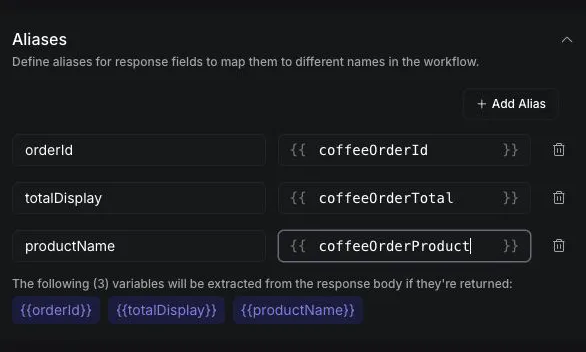
After a successful tool call, the values are available as {{ coffeeOrderId }}, {{ coffeeOrderTotal }}, and {{ coffeeOrderProduct }} for the remainder of the call.
Extract a response shape
Use a response schema when you want to extract several fields under their existing names. For an object response, each property listed in the schema becomes a call-level variable.
Dashboard
cURL
Under Response Body, add these properties:
Publish the tool. After a successful request, the values are available as {{ orderId }}, {{ productName }}, and {{ totalDisplay }}.
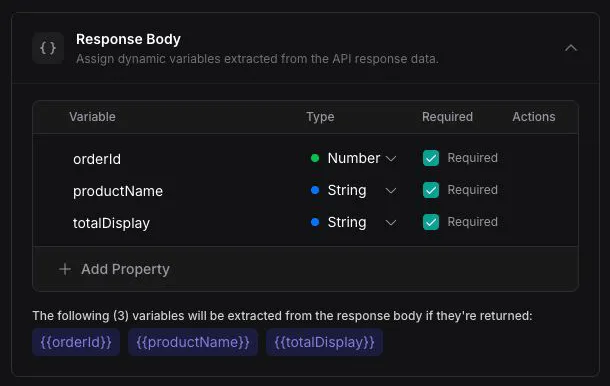
Prefer aliases when you want unique names, a nested response path, or a Liquid transformation. Prefer a schema when the response already has clear field names and you want to extract several fields together. Do not configure both approaches for the same values unless you intentionally need both variable names.
Pass a value to a later tool
Reference an extracted value with Liquid in a subsequent tool. Use a static body field when the model should not choose or rewrite the value.
Dashboard
cURL
Open the later tool. Under Static Body Fields, add this field:
The field is merged into the later request when that tool runs. The model does not supply it as an argument.
This passes the extracted value deterministically, without relying on the model to copy the order ID from one tool result into another tool call.
Verify extracted values
Place a test call that completes the source tool before any tool that consumes its variables.
Dashboard
cURL
Open Logs, select the call, and confirm that the source tool succeeded before the later tool ran. Inspect the call’s messages to confirm the expected response fields were present.
Apply extraction safely
- Extraction requires a JSON response. Plain text, HTML, and malformed JSON cannot provide response variables.
- Extracted values are available only after the source tool succeeds. Do not run a dependent tool first.
- Variable names are global for the call. Use unique, descriptive names to prevent collisions.
- Aliases improve deterministic forwarding; they do not hide data from the model. The complete tool response remains in the model’s conversation history.
- Never return a secret in the response body expecting extraction to conceal it. Keep secrets out of model-visible responses.
- An extracted value is only as trustworthy as its source. Validate caller-controlled values on your server before using them for sensitive actions.
For nested objects, arrays, Liquid transformations, and the full trust model, see Variable extraction plan (aliases). For static-field behavior, see Static variables and aliases.