

Session logs
A session holds conversation state so it can continue across multiple chat requests. Use the Sessions tab to review what was said, which assistant handled it, and whether the session is still active.
New to sessions? Start with Session management. It explains how sessionId groups chats into a session and how previousChatId continues directly from one prior chat. These options are mutually exclusive. This page is about reading the logs, not building with them.
Access session logs
- Dashboard: Sessions under Logs
- API: List sessions and Get session
Session logging has no separate enable or disable switch. Session expiration controls how long a session remains active, not its history window. See Retention and logging configuration for availability and retention behavior.
The session list
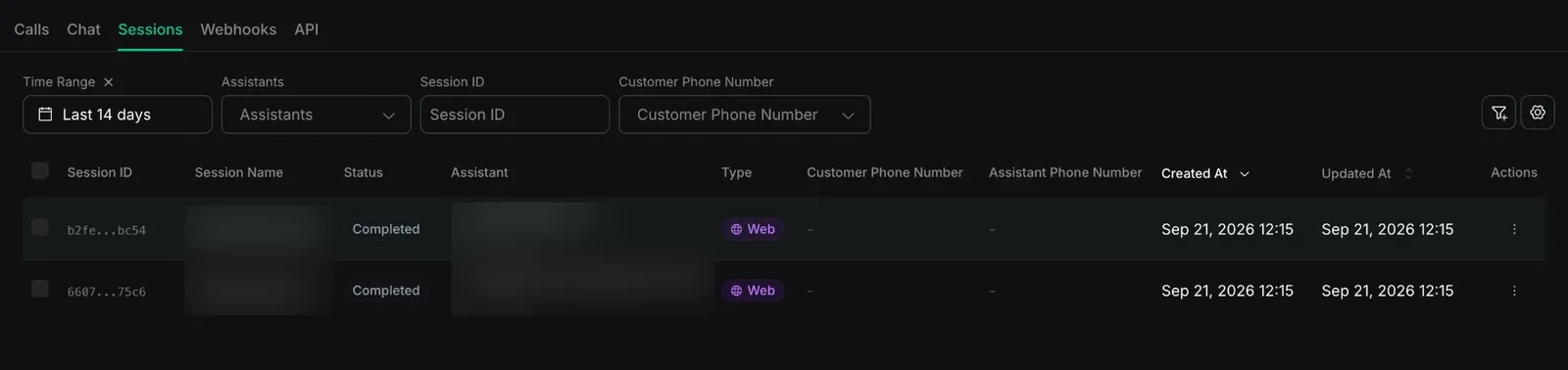
The Sessions tab lists your sessions, most recent first. Each row shows:
- Session ID and Session Name.
- Status:
activewhile the conversation is ongoing,completedonce it ends. - Assistant: the assistant handling the session.
- Type:
SMSorWeb. SMS sessions can also show Customer Phone Number and Assistant Phone Number. - Created At: when the session started.
- Updated At: when the session last changed, such as a new message or a status change.
Filter by time range, assistant, session name, session ID, or customer phone number. The default time range is the last 14 days.
Opening a session
Select a session to open its Session Details:
- Overview: the status (
activeorcompleted), session name, organization, assistant, and created and updated times. It can also show phone-number details, customer details, variable values, cost, workflow information, and structured outputs when available. Structured outputs appear after the session completes. - Messages: the message history persisted for the session, with each message’s role and the total count. Review it to see the context carried across chats that used this
sessionId.
For the complete object, see the session object.
Debug with session logs
Reach for session logs when context did not behave as expected:
- The assistant “forgot” earlier turns. Open the session and read Messages to confirm that the earlier turns are part of it. If they are missing, confirm that later chats used the same
sessionId. ApreviousChatIdcan continue context from one prior chat, but it does not add the chat to a session. See Session management. - A conversation ended sooner than expected. Check Status and Created At. A session expires
expirationSecondsafter it was created; Updated At does not extend the expiration window. - The assistant gave an unexpected reply. Read Messages to review the history carried by the session. Then open Chat logs and filter by Session ID to compare each chat’s current input and output.
Related
- Concept and setup: Session management
- The individual turns inside a session: Chat logs