

Reasoner skills
As an assistant takes on more kinds of work, its reasoner prompt fills with procedures that only apply some of the time. Scheduling needs rules about dates, confirmation, and changes. Answering service questions needs different guidance. Keeping all of it in one prompt makes each procedure harder to find, and gives the reasoner every tool on every request.
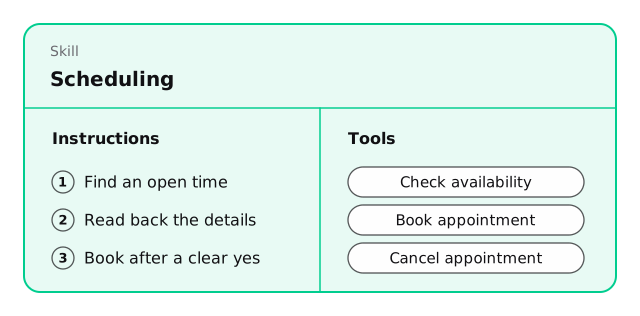
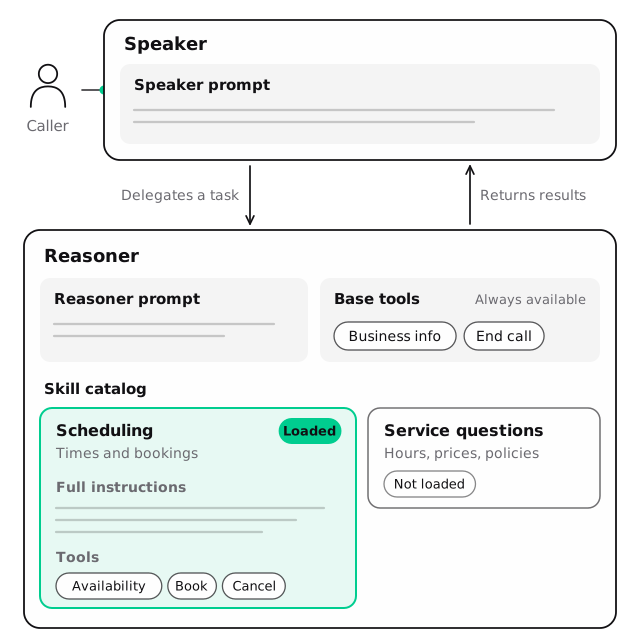
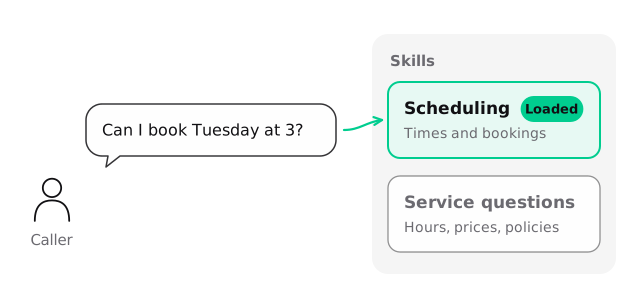
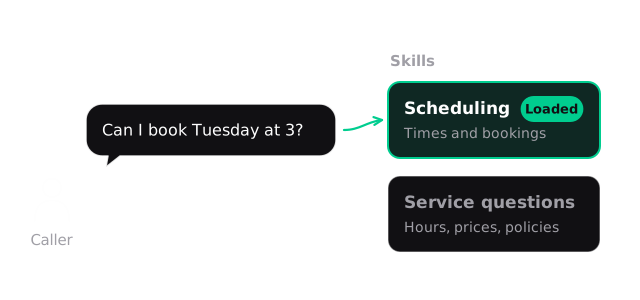
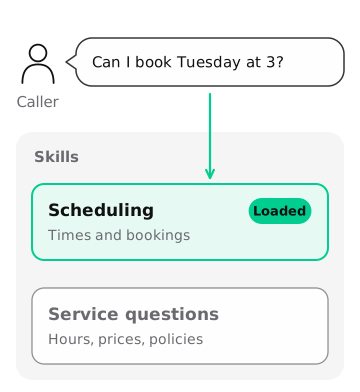
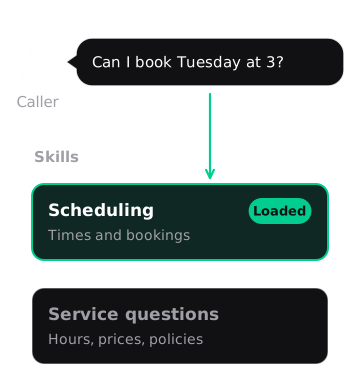
A reasoner skill groups one procedure with the tools it needs. The reasoner sees a short catalog of skills and loads the ones a request calls for. The caller still hears the same assistant throughout: skills change what the reasoner works with, not who the caller is talking to.
The examples on this page use an appointment assistant that checks open times, books and cancels appointments, and answers questions about the business.
When a skill helps
Keep a procedure in the main reasoner prompt when it’s short or applies to most requests. Move it into a skill when it’s a coherent piece of work with its own rules, and often its own tools.
For the appointment assistant:
- Shared rules apply to every request: work from the latest request, return short plain facts, never report an action a tool didn’t confirm. These stay in the reasoner prompt.
- Scheduling has a multi-step procedure and three tools of its own: one to look up times and two that change bookings. That’s a good skill.
- Service questions have their own guidance, such as what to say about the change policy. That can be a second skill.
Group by responsibility. A skill per conversational step (“ask for the date”, “ask for the name”) splits one procedure into pieces that always load together. A skill that tries to cover everything is just the main prompt again.
How skills work during a call
When the speaker delegates, the reasoner starts with:
- the reasoner prompt,
- the catalog of skill names and descriptions,
- the base tools, which are the assistant’s own tools and are always available.
If the request fits a skill, the reasoner loads it. That adds the skill’s full instructions and its tools. The reasoner then follows the procedure and calls the tools. Loading a skill doesn’t take any action on its own. It only makes the procedure and tools available.
Several skills can be active in the same delegation. The reasoner can unload a skill when it finishes that work or changes tasks; unloading removes its instructions and exclusive tools from the active set. Each new delegation starts again from the catalog and loads whatever it needs. The reasoner can still use the call’s earlier conversation and tool results, so it can see what’s already been done.
Loading a skill is an extra reasoning step before the skill’s tools can be used. Keep the catalog small and the descriptions distinct, so the reasoner picks the right skill the first time. Measure the effect on your calls rather than assuming skills make them faster or slower.
The reasoner manages the skill catalog and loading. Vapi also adds each skill’s name and description to the speaker prompt to help it delegate. The speaker doesn’t load skills or receive their full instructions and tools. Keep descriptions short and focused on the caller’s need; callers don’t need to hear skill names.
Example: scheduling and service questions
The appointment assistant has two skills. The scheduling skill’s procedure, written as plain instructions:
The service-questions skill is shorter: use getServiceInfo, answer only from its result, give the specific fact the caller asked for, and note if a booking was in progress so the assistant can return to it. It has no tools of its own, but it still earns its place: it holds guidance that only matters for that kind of request.
The tools are placed like this:
lookupAvailability,bookAppointment, andcancelAppointmentbelong to the scheduling skill, because they only make sense within that procedure.getServiceInfois a base tool, because both skills use it.endCallis a base tool, so ending the call never depends on loading a skill.
In the assistant’s configuration, skills live in model.reasoner.skills. Each skill has a name, a description, and its procedure as content. Attach saved tools by their IDs in toolIds, or include inline definitions in tools. See Settings and compatibility for the field details and limits.
Write descriptions the reasoner can select
A skill’s description tells the reasoner when to load it. Describe the caller’s need and the work the skill covers:
If two skills could both fit a request, make their descriptions say where one ends and the other begins, or merge them.
Base tools and skill tools
A tool’s placement decides when the reasoner can use it:
- Base tools, in
model.toolsormodel.toolIds, are available on every request. - Skill tools, in a skill’s
toolsortoolIds, are available only while that skill is loaded.
Put a tool under a skill when it only makes sense within that procedure, as with the booking tools. Keep it in the base list when several procedures need it, or when the assistant must be able to use it at any time. endCall, and a transfer to a person, are usually base tools, so ending or handing off a call never depends on loading the right skill first. That’s a design choice, not a rule. Don’t move every action into the base list by default.
What skills don’t do
Skills organize instructions and tools for the reasoner. Some things stay the same:
- One assistant. A skill doesn’t create another assistant, hand the call off, or change the voice or model.
- No workflow engine. Loading a skill doesn’t track which steps are done, enforce their order, or remember task state between requests. The reasoner works from the conversation and earlier tool results.
- No enforcement. Skills don’t prevent duplicate actions, check approvals, or keep one skill’s information separate from another’s. Your service enforces the rules that matter, as described in Actions that change state.
- One copy per assistant. Skills are saved with the assistant. Copying an assistant copies its skills, and there’s no shared skill library to update across assistants.
Create and edit skills
In the dashboard, open a GPT-Live assistant and add skills in its reasoner settings. For each skill, enter the name, description, and content, and select saved tools to attach.
Through the API, set model.reasoner.skills when you create or update the assistant. Inline tool definitions in a skill’s tools are available through the API and assistant JSON.
From Markdown, you can import an existing skill with name and description in its frontmatter and the procedure in its body. Other frontmatter fields are ignored, and tools aren’t imported. Attach them to the skill after importing.
With Composer, ask in plain language. Composer can read, create, rename, edit, and remove skills, and attach saved tools, through the assistant’s normal draft and publish flow. For example:
In my booking assistant, update the schedule-appointment skill so a move checks the new time and gets the caller’s agreement before cancelling the old booking. Don’t change the other skills or the speaker prompt. Save it as a draft.
Then open the draft, read the changed skill, test it, and publish.
Every saved tool a skill references must exist. A missing tool reference stops calls from starting, even if the skill is rarely used. Give tools unique names across the base list and all skills. Size limits are in Settings and compatibility.
Test a detour and return
Skills matter most when a call moves between them. Test a caller who asks a service question in the middle of booking, then carries on, and a caller who comes back to a booking that’s already been made.
For each, check three things together:
- The call’s messages show which skills loaded and which tools ran. The scheduling skill should load for the lookup and booking, and the service-questions skill, or
getServiceInfo, for the question. - Your service’s records show one booking, for the time the caller confirmed, and no second booking when the caller returns to the topic.
- The recording shows the assistant answered the question and returned to the booking without asking for details again.
When skills misbehave
Field details are in Settings and compatibility. To move a squad onto one assistant with skills, see Migrate to GPT-Live.