

Get order status
Extend the coffee-order assistant so callers can check an existing order on a later call
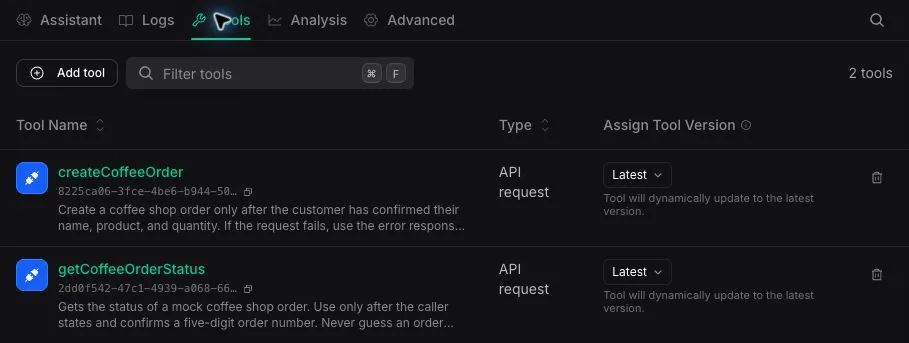
Extend the configured coffee-order assistant with a second API Request Tool that looks up an order by its five-digit order number. This guide keeps createCoffeeOrder and its request configuration unchanged. You update the existing assistant and keep its connected phone number.
Prerequisites
- The coffee-order assistant and
createCoffeeOrdertool from the quickstart - The request configuration from Customize API Request tool requests
- For cURL, your Vapi API key, the existing tool ID, and the assistant ID from the quickstart
1. Create the status tool
Create one new API Request Tool named getCoffeeOrderStatus. Keep the existing createCoffeeOrder tool and any request configuration you already added to it.
Dashboard
cURL
Configure the status request
Enter these values under Base Configuration:
Under Authorization, keep No authentication selected.
Define the request body
Under Request Body, add one required property:
Leave Default value empty. The Dashboard exposes this property as Number; the endpoint still requires a whole number from 10000 through 99999.
Select Apply, enable Lock schema (no additional properties), then select Publish.
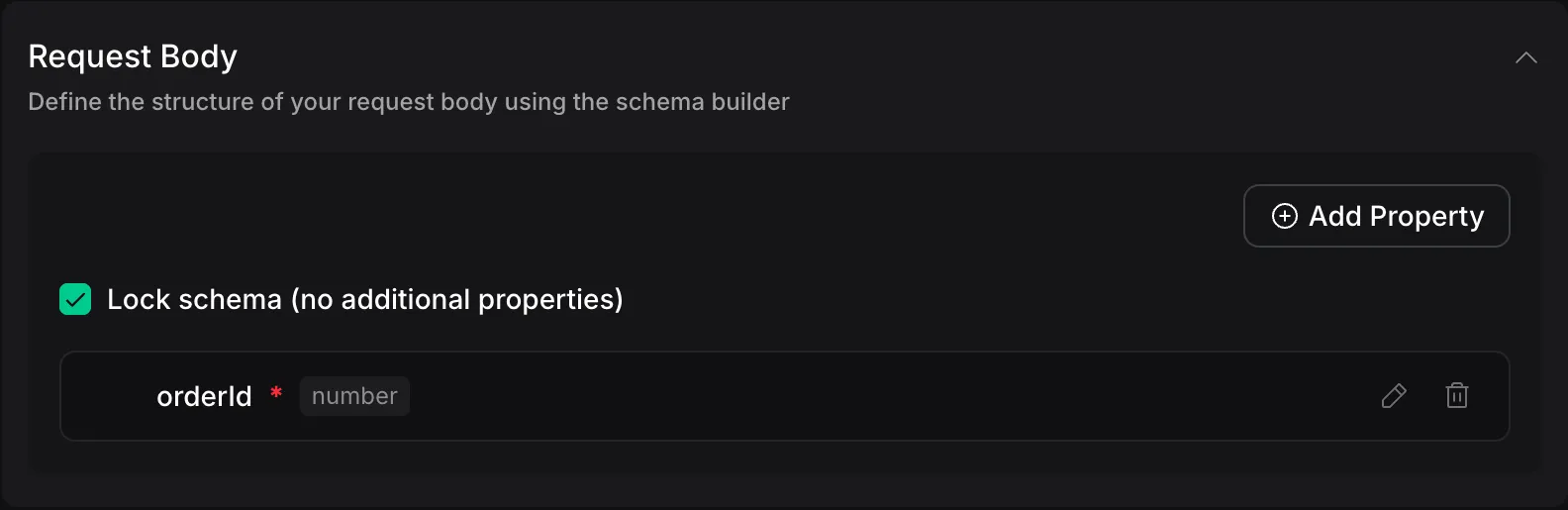
Do not copy the headers, static body fields, or credential from createCoffeeOrder. The status endpoint needs only orderId.
2. Extend the existing assistant
Replace the assistant’s complete System Prompt with the prompt below. It includes the existing product and order instructions plus the new status flow, so do not append it to the old prompt.
Dashboard
cURL
Update the existing assistant
Open Docs Coffee Order Hello World and update these fields:
Keep the assistant’s existing end-call settings, other settings, and connected phone number. Do not create another assistant.
3. Test two calls
Place an order
Call the connected phone number and follow the quickstart test flow. Save the five-digit order number the assistant reads back.
Choose when to check the order status
The endpoint calculates the order status from the time the order was created:
Check the order status
Call the same phone number and ask for the order’s status. Provide the saved order number and confirm it when the assistant reads the digits back.
The assistant should call getCoffeeOrderStatus and state the returned statusLabel. The returned status should match the time window above.
A ready order returns these values: