

Configure the Hang Up tool
This page shows how to configure each part of the Hang Up tool. To build a working assistant first, see the Hang Up tool quickstart.
Prerequisites
- A Vapi account
- A Vapi API key for the cURL examples
- An assistant to attach the tool to
Create the tool
Dashboard
cURL
Create a Hang Up tool
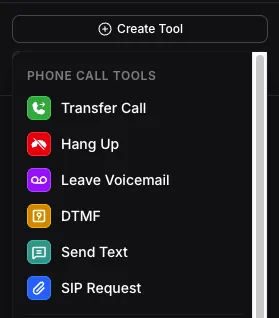
Open the Dashboard, select Tools, select Create Tool, then choose Hang Up.
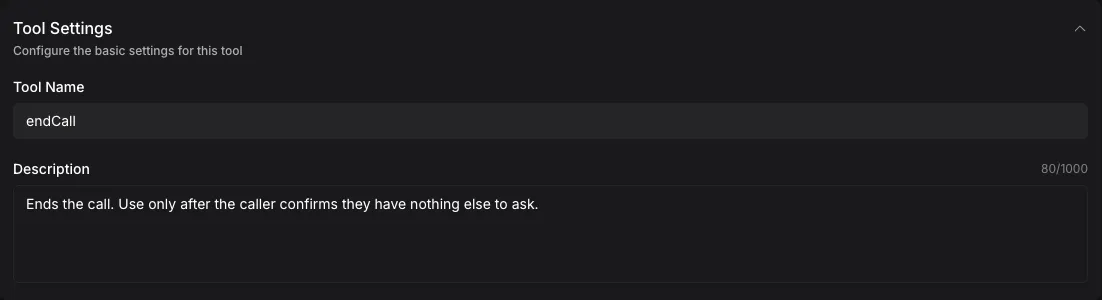
The Dashboard creates the tool when you choose Hang Up and names it end_call_tool.
Set the goodbye message
The tool’s request-start message, set in the tool’s messages array, is what the assistant says before Vapi ends the call. If the tool has a request-start message, the assistant says that message and ignores its End Call Message (endCallMessage).
If the tool has no messages, the assistant says its end call message. If no end call message is set, the assistant says “Goodbye” in the transcriber’s language.
Use a request-start message for the goodbye. Request Failed and Request Response Delayed messages aren’t used by the Hang Up tool.
Dashboard
cURL
Find the Request Start message
Open the tool and expand Messages. A new Hang Up tool includes a Request Start message set to Default. If the tool has no Request Start message, select Add Message, then choose Request Start.
Enter the goodbye
Set Message Option to Custom, then enter the goodbye:
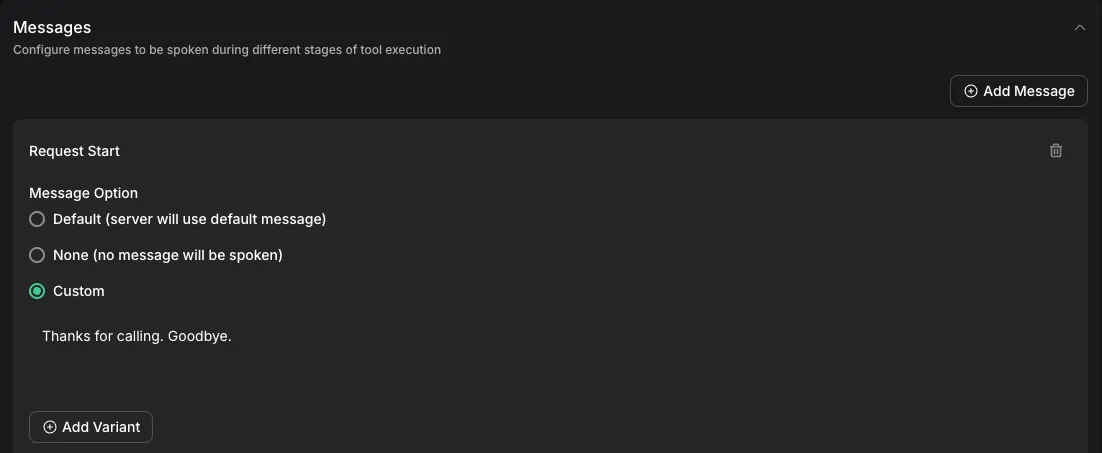
To vary the goodbye, add more variants. The assistant says one variant each time the tool runs.
To end the call without a goodbye, set Message Option to None. The Default option also ends the call without a goodbye, because it saves the message without content.
To use the assistant’s End Call Message or “Goodbye” instead, don’t add a Request Start message.
Don’t also tell the model to say goodbye in its system prompt. If the model says goodbye and then calls the tool, the caller hears two goodbyes.
Attach the tool to an assistant
An assistant can have one Hang Up tool.
Dashboard
cURL
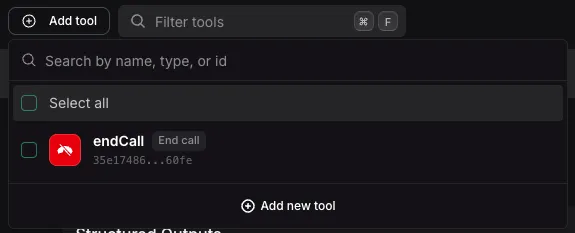

With a custom LLM, return a tool call named endCall to end the call. The Hang Up tool must be attached to the assistant.
Tell the model when to end the call
The model decides when to call the Hang Up tool, so most unexpected endings start in the system prompt. State when to end the call and when not to:
Refer to the tool by its Tool Name. Tools created in the Dashboard start with the name end_call_tool. Tools created through the API without a name use endCall. For more on writing tool instructions, see Integrate tools and APIs in the prompting guide.
Prevent early hang-ups with a rejection plan
A rejection plan blocks the tool call when a condition matches recent messages. Use it as a guard in addition to prompt rules, not as a replacement for them. Configure rejection plans through the API with the tool’s rejectionPlan field.
The following rejection plan blocks the Hang Up tool when the caller’s most recent message asks the assistant to wait or says they have another question:
When Vapi rejects the tool call, the call continues. See Tool rejection plan for regex, Liquid, and grouped conditions.
Add end call phrases as a fallback
If the assistant sometimes says goodbye without calling the tool, add a few specific end call phrases to the assistant with End Call Phrases under Advanced in the Dashboard, or the endCallPhrases field in the API. Use complete closing sentences, such as Thanks for calling. Goodbye., so the phrase does not match ordinary speech.
Verify how the call ended
Dashboard
cURL
Select Logs, then open the call. See Call logs. When the Hang Up tool ended the call, the ended reason is assistant-ended-call.
Troubleshoot unexpected call endings
See Call end reasons for the complete list of ended reasons.