

Test and improve GPT-Live assistants
A GPT-Live call can go wrong in two separate ways. The conversation can be poor even when the task succeeds, for example when the caller has to repeat themselves. And the task can fail even when the conversation sounds fine, for example when the assistant says “You’re booked” and nothing was booked. Test both, using evidence for each.
What to look at
Tool results don’t prove what the caller heard, and a good-sounding call doesn’t prove the action happened. When you judge a scenario, check the one that answers your question: the recording for delivery, the call messages for what the reasoner did, and your service for the outcome.
Scenarios to run
Start with a small set that covers what your assistant must get right, and repeat it after every prompt or setting change. Voice models vary from call to call, so run each important scenario several times.
To test failures and slow tools on demand, point your tools at a test version of your service that can return errors or delay its responses. Actions that change state covers what your service should check in each case.
Repeat scenarios with Voice Simulations
Voice Simulations run scripted scenarios against your assistant with an AI tester, so you can repeat the set above without calling in yourself. GPT-Live can be the assistant under test, the tester, or both.
To run one:
- Follow the Simulations quickstart and select your GPT-Live assistant as the target.
- Write the scenario and success criteria. If the tester uses GPT-Live, choose one of its supported voices.
- Run in Voice mode, then review the transcript, evaluations, and recording.
Unmocked tools run for real. Use tool mocks, or point tools at a test service, before running scenarios that change data. A passing evaluation doesn’t cover everything about the conversation, so listen to some recordings too.
Latency limits are skipped when the assistant under test uses GPT-Live, because its per-turn latency isn’t measured yet. Measure GPT-Live latency with the call’s timestamps, as described in Latency.
Evals check supported text-model decisions, such as which tool is called, using mock conversations. They don’t test GPT-Live’s listening, speech, or turn-taking. Use Voice Simulations to test the spoken conversation.
Watch production calls
GPT-Live supports Vapi’s post-call analysis and monitoring features:
- Extract data from each call. Create structured outputs and attach their IDs in
artifactPlan.structuredOutputIds. Read the results incall.artifact.structuredOutputs. - Grade calls. Create a scorecard from boolean or number structured outputs, and link it to the assistant. Read the grades in
call.artifact.scorecards. - Receive call records on your server. Set a Server URL and include
end-of-call-reportin the server messages. Your server receives anend-of-call-reportmessage after the call. - Get alerts. Create a monitor with its conditions, thresholds, evaluation windows, and notification destinations. Review its issues and alerts in Monitoring.
A few things to know when setting these up:
- When you update an assistant, keep its existing structured output IDs and artifact settings in the update, so you don’t drop them.
- Existing call analysis (
analysisPlan) configurations keep working. For new setups, use structured outputs. - A scorecard doesn’t create a monitor. Set up monitors separately.
- Authenticate your Server URL. An end-of-call report can be delivered more than once, so handle repeats by call ID.
- Boards show call metrics and outcome trends for your assistant.
A structured output is a good way to catch the problems on this page after the fact. For example, a boolean output: “Did the assistant tell the caller an action was completed that no tool result in the call confirmed?” A scorecard can then flag those calls.
Some limits apply:
- Transcript-based checks need transcripts, and audio-based checks need a recording.
- If an assistant has a recording-consent plan, recording is disabled, because GPT-Live doesn’t collect that consent.
- Monitoring isn’t available with Zero Data Retention.
- Live listening and monitor sockets aren’t available. Post-call Monitoring doesn’t provide live audio.
- Classic transcriber and text-to-speech timing metrics don’t describe GPT-Live calls.
Latency
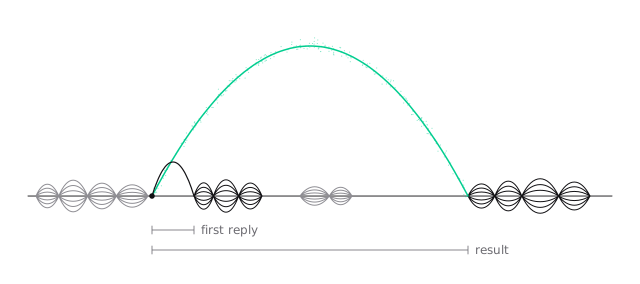
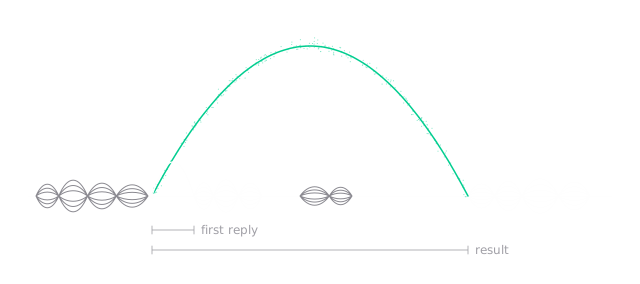
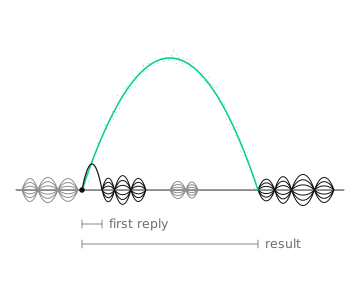
Callers notice two kinds of delay, and they have different causes:
- Time until the caller hears something useful. An acknowledgment, a relevant question, or an answer. This depends on the model’s turn-taking, the call connection, and your speaker prompt, including whether it uses the wait well.
- Time until the task is done correctly. The result, stated accurately. This depends on when delegation happens, the reasoner, and your tools.
Measure them separately. The call’s messages and your service’s logs have timestamps for delegations and tool calls, and the recording shows when the caller heard each part.
When the task takes too long, try these, one at a time, and check that the outcome is still correct after each change:
Lower effort or a smaller model can miss steps that a larger one handles. The right setting is the fastest one that still passes your scenarios.
Cost
A GPT-Live call’s cost has several parts:
- GPT-Live voice time, billed per second for the length of the call, including silence and time spent waiting on the reasoner.
- Vapi’s platform fee, per minute.
- The reasoner, billed by the tokens each delegation uses. Delegations include conversation context, so long conversations and frequent delegations can add input usage.
- Telephony and any other services, such as a phone number provider.
Here’s an illustrative estimate. It uses public rates as of September 30, 2026 and assumed token counts, so check current Vapi pricing and your own calls before relying on it.
Your reasoner usage depends on the length of your prompts, tool results, and conversation, and on how often the assistant delegates.
To see what a real call cost, retrieve it after it ends:
The call’s costs include the model cost with its billable voice time in seconds. If usageComplete is false, some usage wasn’t reported and the cost may be understated.
Troubleshooting
GPT-Live isn’t available, or calls don’t start
- You use your own OpenAI API key. The key needs access to GPT-Live and to the reasoner model you selected.
- The assistant is rejected when you save it. See A voice or tool is rejected when saving.
- Calls stopped starting after you added a skill or saved tool. Check that every saved tool ID the assistant or its skills reference still exists.
The assistant said it would act, but nothing happened
Follow the request through the call, in order:
- Was there a tool call? Check the call’s messages at that point. If there’s none, the speaker may not have delegated, or the reasoner may have returned a question instead of acting. Add a concrete trigger for that request to the speaker’s delegation policy, and make answering the reasoner’s questions a trigger too.
- Did the right tool run? If a tool is missing, check that it’s attached, and, if it’s in a skill, that the skill’s description covers the request.
- What did the tool return? An error in the result means the action failed. The reasoner prompt should report failures plainly.
- What does your service show? Its state is the answer to whether the action happened.
Delegation is a model decision, so check over several calls after changing the prompt.
A tool result never reaches the conversation
The tool ran, but the assistant didn’t use its result. Check your webhook’s response against the tool response contract: HTTP 200, one entry per call with the toolCallId from the request, and result or error as a string. For an async tool, the result must come back in the response to the original request. A job that finishes after your webhook has responded needs a status tool. See Slow and external work.
Said goodbye but the call didn’t end
A spoken goodbye doesn’t end the call. For an assistant-initiated hangup, check the call’s messages for an endCall tool call. If there’s none, list ending the call in the speaker’s delegation triggers, tell the reasoner to call endCall, and make sure the tool is attached. If there is one, check its result. maxDurationSeconds and a final idle hook with endCall are backstops for calls that stay open.
Answers are slow
Work out which delay it is, using Latency. For a long silence before any response, compare the recording with your speaker prompt and connection. For a long wait for a result, check the timestamps for when delegation started, when each tool call started and finished, and when the result was spoken.
A tool received the wrong value
The reasoner works from the transcript. Compare the tool arguments with the recording. If the transcript misheard a name, number, or date, have the assistant read back important details before acting, and ask callers to spell names.
The assistant used an outdated result
A correction arrived while earlier work was running. Check that the speaker prompt says to delegate the updated request and not to present old results, and that your results include the request details, such as the date, so a stale one is recognizable.
The wrong skill loaded, or a tool was unavailable
Waits feel awkward
Listen to the recording. Repeated “still checking” messages, invented progress, or unrelated questions point to the speaker’s guidance for while work is running. Long silences with no acknowledgment point the other way. Adjust one line at a time.
Check-ins happen at the wrong time
Check-ins come from customer.speech.timeout hooks. If they fire while an async tool’s result or an external job is still pending, that’s expected: check-ins can resume once an async tool has been dispatched. Tell the caller about the wait and lengthen the timeouts. If check-ins come sooner than you expected after the caller asked for a moment, remember that the assistant’s reply starts a new quiet period. If a check-in fires fewer times than you expect over a call, check triggerMaxCount and triggerResetMode, which control how many times a hook can fire. See idle-message hooks.
The assistant doesn’t greet the caller
Set firstMessageMode to assistant-speaks-first and give a text firstMessage. Audio greetings aren’t supported, and without usable text the assistant waits for the caller.
A voice or tool is rejected when saving
Use voice.provider: "openai" with a supported voice, and remove voice and model fallbacks. Use supported tool types with unique names, and check saved tools too.
WebSocket calls fail to start or sound distorted
Set the transport audio format explicitly to raw pcm_s16le at 24000 Hz, and send mono 16-bit little-endian audio at that rate. See Call connections.
A transfer fails or doesn’t connect
Transfers work only on native Twilio and Vapi SIP calls, and only as blind transfers. A successful transfer request means the carrier accepted it, not that the destination answered. Check the destination and your carrier’s requirements.
There’s no recording or analysis result
Check that recording is enabled and that no recording-consent plan is configured. A missing analysis result isn’t a pass: check that the output IDs are attached and that the call has the transcript or recording the analysis needs.