

Manage organizations and capacity
Under the current pricing model, a subscription groups usage-based billing, an optional Success Package, add-ons, and one or more organizations. Usage only and each Success Package determine how many organizations the subscription can contain.
This page applies if your Dashboard sidebar shows Billing & Payment. If you see Settings → Billing & Add-Ons instead, each organization has its own subscription and concurrency limit.
Prerequisites
- An Admin role in the organization.
Organization capacity
Organization capacity is the number of organizations that a subscription can contain. Usage only and each Success Package include an organization allowance. An organization add-on increases that allowance. The organization add-on is not available on legacy pricing.
Creating another organization requires available capacity in the subscription.
Create an organization
Create an organization to separate workspaces, teams, or environments under the same subscription.
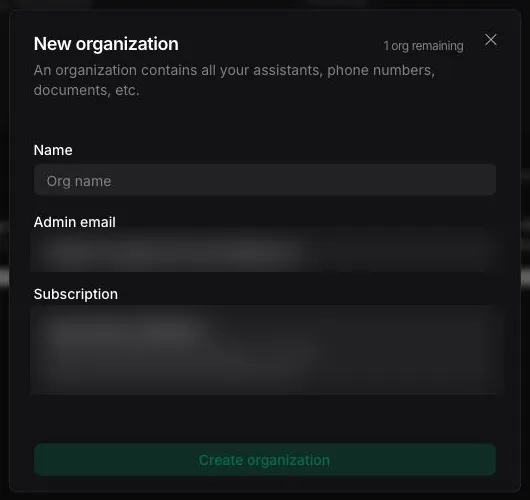
If no capacity remains, purchase an organization add-on or upgrade your Success Package before creating another organization. See Buy capacity add-ons.
Switch organizations
Switch the active organization to work with its assistants and settings, and to access billing for its subscription.
Open the organization switcher
In the Vapi Dashboard, select the current organization name to open the organization switcher.
Shared entitlements
Some entitlements apply across the subscription instead of to each organization separately. For example, concurrent call lines are shared by all organizations in the subscription.
Other entitlements can apply to each organization. Check the Success Package summary or your Premier agreement to confirm how a specific entitlement is measured.
Delete an organization
Deleting an organization permanently removes its contents. Confirm that you no longer need its assistants, phone numbers, files, and other resources before deleting it.
Delete an organization you no longer need, for example to free an organization slot before reducing capacity.
Reduce capacity or downgrade
Reducing organization capacity does not remove organizations automatically. Delete enough organizations before reducing capacity below the number in use.
A Success Package downgrade can also reduce organization capacity and shared entitlements. Resolve any capacity conflict before confirming the downgrade. See Downgrade or remove a Success Package.
Premier Success Package
Organization capacity and related entitlements for the Premier Success Package depend on the customer agreement. Contact your account team to change custom limits.