

Chat logs
A chat is a single text interaction with an assistant: the current input, the resulting output, and any prior messages context. A chat can stand alone, continue a previous chat, or belong to a session.
New to chats? Start with the Chat quickstart. See Session management to understand how turns keep context. This page is about reading the logs, not building with them.
Access chat logs
- Dashboard: Chat under Logs
- API: List chats and Get chat
Chat logging has no separate enable or disable switch. See Retention and logging configuration for chat-history availability and retention behavior.
The chat list
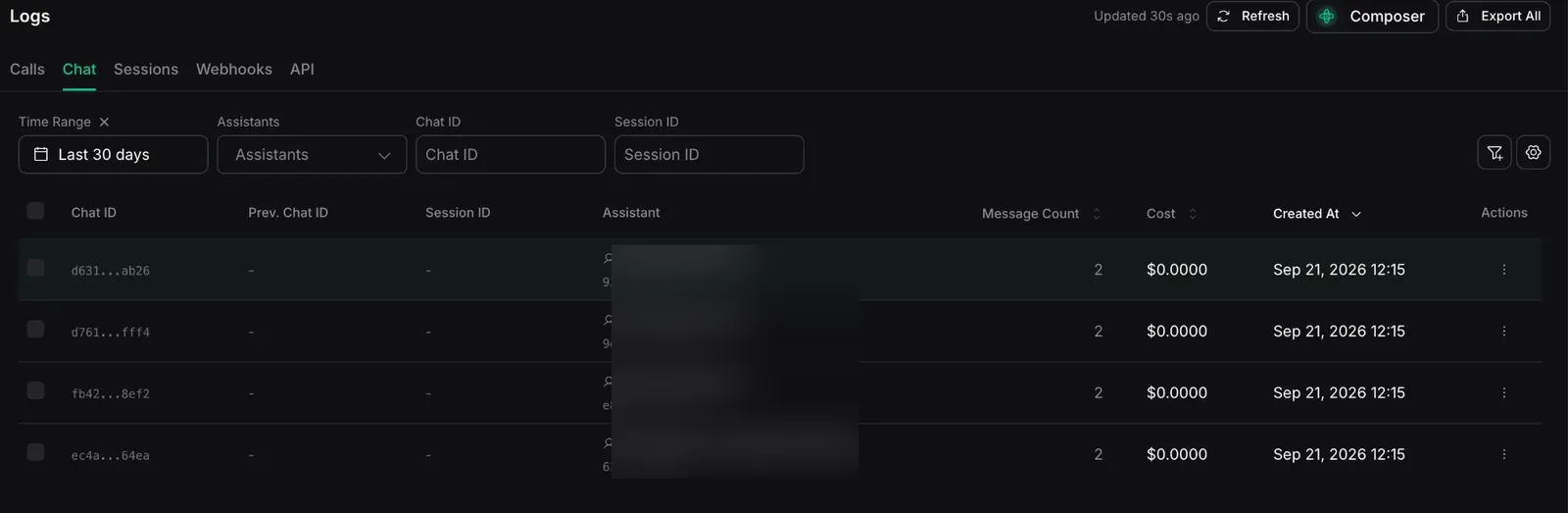
The Chat tab lists your chats, most recent first. Each row shows:
- Chat ID: the chat’s unique identifier.
- Prev. Chat ID: the chat this one continues, if it is chained to an earlier turn.
- Session ID: the session this chat belongs to, if any.
- Assistant: the assistant that answered.
- Message Count: the number of messages in the current input and output.
- Cost: what the chat cost to run.
- Created At: when the chat was created.
Filter by time range, assistant, chat ID, session ID, or previous chat ID. The default time range is the last 14 days.
Opening a chat
Select a chat to open its Chat Details:
- Overview: the assistant that answered, the organization, and when the chat was created. It can also show session, previous-chat, workflow, and streaming details when available.
- Cost: the chat’s total cost, broken down into platform and model costs (with the model, provider, and token counts).
- Input: the current request input stored for the chat.
- Output messages: the messages produced for the current chat.
- Messages history: prior context loaded through
sessionIdorpreviousChatId. Depending on the conversation, the history can includedeveloper,system,user,assistant, andtoolmessages.
For the complete object, see the chat object.
Debug with chat logs
Reach for chat logs when a text conversation did not behave as expected:
- The reply does not match the request. Compare Input with Output messages. Then review Messages history for persisted prior context. If expected earlier turns are missing, check how the chat was linked.
- The assistant lost the thread across turns. Check the Session ID and Prev. Chat ID columns. The
sessionIdfield associates the chat with a session. ThepreviousChatIdfield continues context directly from one prior chat. These fields are mutually exclusive. A chat without either field does not load persisted context automatically. See Session management. - A chat is missing. Confirm the assistant and time range. Chats are separate from calls and appear only under the Chat tab.
Related
- Build with chats: Chat quickstart
- Keep context across turns: Session management
- The session a chat belongs to: Session logs