

Migrate to GPT-Live
This page has two complete paths. Follow From a single assistant if you’re moving one assistant, or From a squad if you’re combining a squad into one GPT-Live assistant. Each path repeats what it needs, so you can follow one without reading the other.
Both start from the same preparation.
Before you start
Check that your assistant can move
Some features don’t carry over. If your assistant depends on one of these, plan how to replace it before you begin:
- Voices must be one of the OpenAI voices GPT-Live supports. Other voice providers and custom or cloned voices aren’t available.
- Squads and assistant handoffs aren’t supported. A squad becomes one assistant, as described below.
- Model and voice fallbacks must be removed. GPT-Live can’t be a fallback model either.
- Exact or prerecorded speech isn’t available. GPT-Live generates all of its speech, including the greeting.
- Keypad input from callers works on native Twilio and Vapi SIP calls, and isn’t available on browser or WebSocket calls.
- Knowledge bases and the Query tool aren’t available. Use a function, API request, or MCP tool for retrieval.
- Transfers are blind only, on native Twilio and Vapi SIP calls. Native Telnyx and Vonage numbers aren’t supported.
The full list is in Settings and compatibility.
Save representative calls
Pick a handful of calls that represent what the assistant has to get right: a straightforward success, a caller who changes their mind, a failure your tools return, and anything specific to your business. For each, note the starting state, the expected tool actions, the expected outcome, and a recording from the current assistant. These are what you’ll compare against.
Keep the original running
Leave your phone numbers on the original assistant or squad until the GPT-Live version has passed the same calls. Work on a copy, test it on its own, and switch traffic when you’re ready.
From a single assistant
1. Take inventory
Write down what the assistant does and what it depends on:
2. Convert a copy
Convert a copy, so the original keeps serving callers while you test:
Duplicate the assistant
In Assistants, open the assistant’s menu and select Duplicate. Don’t attach a phone number to the copy.
Because conversion publishes immediately, working on a duplicate is what keeps callers on the original until you’re ready.
To go back, select Revert to Classic. It restores the assistant’s Classic configuration as a draft, and the published version stays GPT-Live until you select Publish.
You can also migrate by hand through the API: create a new assistant with the GPT-Live configuration from the steps below.
3. Split the prompt
A classic assistant has one prompt that covers both how to talk and how to do the work. GPT-Live has two. The speaker prompt shapes the conversation and says when to delegate. The reasoner prompt holds the procedures and tool rules. Neither sees the other, so rules that affect both belong in both, worded for each role.
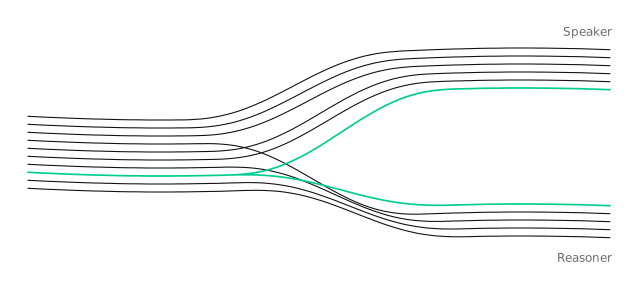
For example, a classic prompt for an appointment assistant at Example Service Studio, a fictional business, might read:
Split it by who does what:
Three things changed besides the split:
- Explicit delegation triggers. The speaker only starts work when it delegates, so every kind of task, including ending the call, is listed.
- Waiting is designed. In the classic flow, the assistant read times out after a lookup and then asked for the name. The speaker now asks for the name while the lookup runs.
- Results are for speaking. The reasoner returns short facts that the speaker can use directly.
If the reasoner prompt grows to cover several distinct procedures, group them into reasoner skills.
4. Map the settings
5. Redesign the waits
Look at the places where your current flow waits for a tool before it moves on. With GPT-Live, the conversation can keep going during that time, so decide what it should cover. Start work as soon as its inputs are known, then ask for something the next step will need:
Caller: A consultation downtown on Friday.
Assistant: I’ll check Friday downtown. Who should I put the appointment under?
Caller: Sam Lee.
Assistant: Thanks, Sam. Friday I have 10:30, 2:30, or 4.
When the next step is blocked, the conversation can still help. Here the booking is running, and the caller asks about something the assistant already knows:
Assistant: That’s Friday at 2:30, downtown, under Sam Lee. Shall I book it?
Caller: Yes. Do I need to bring anything?
Assistant: Nothing’s required for a consultation. Bring any questions you’d like to cover, and it helps to arrive five minutes early.
Assistant: You’re booked: Friday at 2:30 downtown, under Sam Lee.
The preparation answer doesn’t depend on the booking, so it can come while the booking runs. “You’re booked” waits for the result. For the speaker to answer like this, give it a few stable facts in its prompt, such as arrival and preparation guidance. When there’s nothing useful to say, one acknowledgment and a pause is better than filler. Design conversations covers these choices in depth.
6. Compare with the original
Run your saved calls against the copy. For each one, check:
- The outcome. Your service’s state shows the same result as before, with no duplicate or missing actions.
- The tool calls. The call’s messages show the expected tool calls and arguments.
- The conversation. The recording shows the assistant reached the goal without making the caller repeat themselves, and that waits sounded reasonable.
Record differences you intended, such as a shorter call, separately from regressions. Test and improve describes how to repeat these calls with Voice Simulations.
7. Roll out and roll back
When the copy passes, assign your phone number to it. Keep the original assistant, unchanged, until you’re confident in the new one.
If you need to take a converted assistant back to Classic, select Revert to Classic, then Publish. Until you publish, callers still reach the GPT-Live version.
From a squad
A squad splits a conversation across assistants and hands the caller between them. GPT-Live keeps one voice for the whole call, and its reasoner can switch between procedures without a handoff. Migrating a squad means mapping what each member was responsible for onto one assistant. Switch to GPT Live converts a single assistant. It doesn’t convert a squad, so this path is done by hand.
How the pieces map
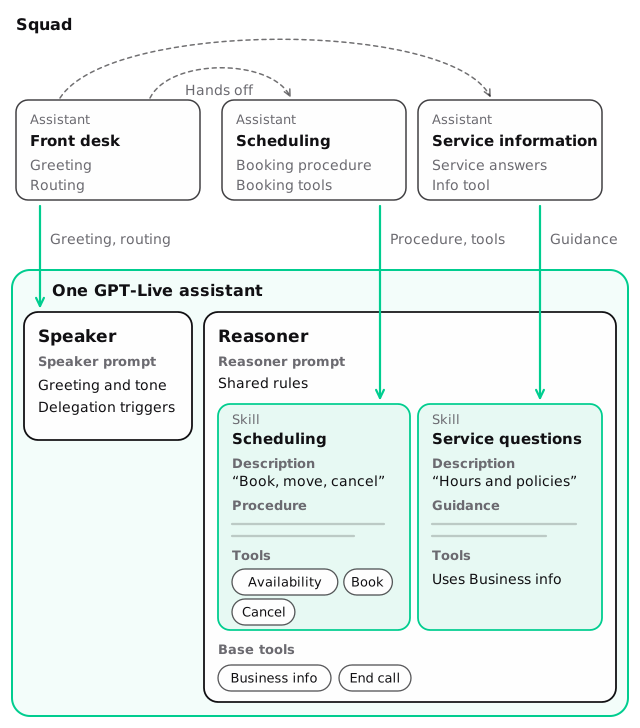
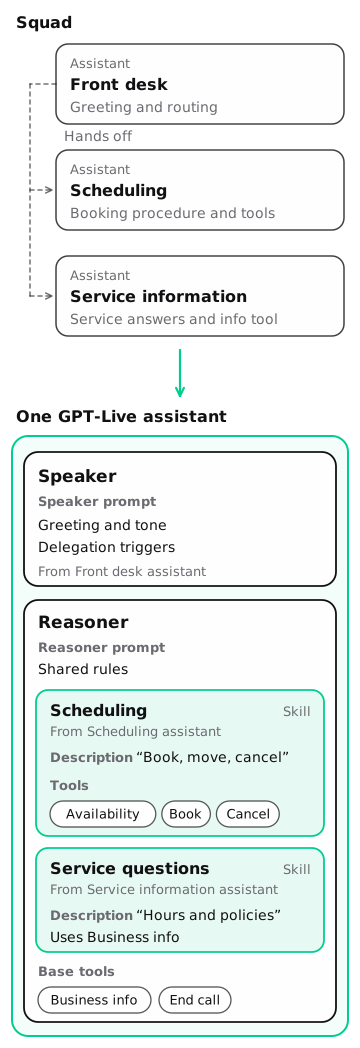
Take a squad with a front-desk assistant that greets callers and routes them, a scheduling assistant, and a service-information assistant:
1. Map each member’s responsibility
For each assistant in the squad, write down what it’s responsible for and why it was separate. Common reasons are a long procedure, a different set of tools, or a different tone.
Then decide where each responsibility goes:
- A procedure with its own rules and tools becomes a skill.
- Rules every part of the call follows, like “never report an action a tool didn’t confirm”, go in the reasoner prompt.
- Conversation guidance, like tone and pacing, goes in the speaker prompt.
You don’t need one skill per old assistant. A front-desk assistant that only greeted and routed usually doesn’t need a skill at all: its job becomes the speaker’s greeting and delegation triggers. Two specialists with closely related work may be clearer as one skill.
2. Keep one voice and shared conversation rules
Write one speaker prompt for the whole call. Take the greeting and tone from the assistant callers heard first, and add anything the specialists did differently that callers relied on, such as a slower pace for explaining policies.
Remove handoff announcements like “Let me transfer you to our scheduling team.” The caller stays with the same assistant, so they aren’t needed. One of the goals of the migration is that the caller no longer repeats details at each handoff. Check that on real calls: it depends on your prompts and on the reasoner using the earlier conversation.
A handoff was also a point where the conversation paused. Now the speaker can keep going while the reasoner works. When the caller moves from a question to booking, the speaker can start the lookup and ask for the name in the same breath:
Caller: Thanks. Can I book a consultation downtown on Friday?
Assistant: Sure, I’ll check Friday downtown. Who should I put it under?
Give the speaker the same waiting guidance as a single assistant: ask what the next step needs, answer what it already knows, and acknowledge a blocked wait once instead of filling it. See Redesign the waits above.
3. Build the skills
Each specialist’s procedure becomes a skill’s content, and its tools become the skill’s tools. A minimal version for the scheduling and service-information specialists:
The toolIds are the IDs of the saved tools the scheduling assistant used. Tools that several skills need, or that must always be available, go in the assistant’s base tools instead. Here getServiceInfo, endCall, and any transfer to a person are base tools. See Reasoner skills for the full procedure and tool placement.
4. Turn handoff conditions into descriptions and triggers
In the squad, handoff conditions decided which assistant took over. Now they do two jobs:
- Skill descriptions tell the reasoner which procedure a request needs. Write them in terms of the caller’s request, and make sure two skills don’t claim the same requests.
- Delegation triggers in the speaker prompt tell the speaker when to send work to the reasoner at all.
A condition like “hand off to scheduling when the caller wants to book, move, or cancel” becomes the scheduling skill’s description and a line in the speaker’s triggers.
Write the speaker’s triggers in terms of the caller’s need. The speaker delegates the work; the reasoner chooses which skills to load.
5. Plan for what doesn’t carry over
- Different voices or models per member. One assistant has one voice and one reasoner model. Skills don’t change either.
- Separate context per member. In one assistant, the whole call’s conversation is shared, and skills don’t isolate it. If a member was separate to keep information apart, enforce that in your services or keep that flow outside this assistant.
- Handoff tools. Remove them, since handoffs aren’t supported.
- Values passed at handoff. Inventory each one before removing it. Details the caller said are in the shared conversation. Values an earlier assistant or tool produced, such as an account ID or a lookup result, may not be. Make those available from your services, for example through a tool the reasoner can call, and keep authoritative state there.
- Member-specific hooks or settings. Combine them into the one assistant’s configuration, and check each against Settings and compatibility.
6. Test the switches between procedures
The old handoff boundaries are the places to test most carefully, because that’s where the combined assistant switches between procedures. Test:
- A switch from scheduling to a service question and back, without repeating details.
- A return to an unfinished booking after the detour.
- A correction during a lookup.
- An already-completed action. After a booking, return to the topic and check the assistant doesn’t book again.
- A failure from a tool, and the recovery.
For each, check the call’s messages for the skill loads and tool calls, your service’s state for the outcome, and the recording for how it sounded. The reasoner uses the conversation and earlier results to continue, which works well when results are clear about status. Skills don’t track workflow state for you, so your services must still reject duplicates and out-of-order actions.
7. Roll out and keep the squad
Move traffic to the new assistant when it passes your saved calls. Keep the original squad and its configuration unchanged as your fallback. Revert to Classic works on converted single assistants and doesn’t recreate a squad, so the squad itself is your way back.