

Configure the Voicemail tool
Configuring the Voicemail tool takes two parts: create the tool and attach it to an assistant, then decide what the assistant does once it knows it has reached voicemail. You can do both in the Dashboard or through the API.
Configuration
Add the Voicemail tool to your assistant and configure your system prompt to invoke it when voicemail is detected.
Dashboard
API
-
In the Dashboard, select Tools, then select Create Tool.
-
Select Leave Voicemail under Phone Call Tools.
-
Give the tool a name and description. The description tells the LLM when to invoke the tool — keep it consistent with the voicemail-detection instruction you’ll add to your system prompt in step 7. Example: “Leave a voicemail message when you detect you’ve reached a voicemail system or auto-attendant.”
-
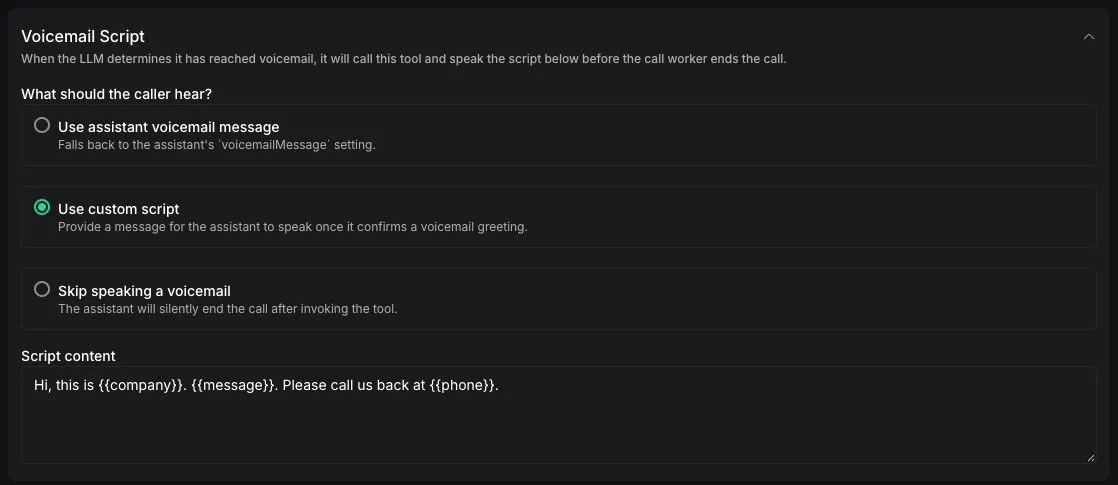
Under Voicemail Script, choose a behavior mode: Use assistant voicemail message, Use custom script, or Skip speaking a voicemail. See Voicemail behavior modes for details.
-
Select Publish to save the tool configuration.
-
Open your assistant, select Tools, then select Add tool and choose the Voicemail tool you created.
-
On the Assistant tab, add a voicemail-detection instruction to the System prompt. Without this, the LLM won’t know when to call the tool. See Detection prompting for indicators to include.
-
Select Publish to save the assistant changes.
Message configuration
Assistant voicemail message
To reuse the same voicemail across an assistant without configuring the tool separately, leave the tool’s messages empty and set voicemailMessage on the assistant:
Custom script mode
For custom-script mode, define the voicemail message inline:
You can set a hardcoded message, or use template variables like {{company}}, {{message}}, and {{phone}} that are substituted at call time. See Variables for how to pass values.
Skip mode (silent end-call)
To silently terminate the call on voicemail, leave the tool’s messages array empty and clear voicemailMessage on the assistant:
Use this mode for outbound outreach where the value is a live conversation and a missed voicemail is fine — silent termination keeps the call short and avoids the cost of running it to the max-duration cap.
Pre-recorded audio messages
For consistent quality and pronunciation, use pre-recorded audio files by providing the URL in the content field:
Pre-recorded audio messages are ideal for brand-specific messaging or when you
need precise pronunciation of phone numbers, website URLs, or company names.
Supported formats: .wav and .mp3 files.