

Google Calendar
The Google Calendar integration allows your Vapi assistant to interact with Google Calendar in two ways:
- Create calendar events through voice commands
- Check calendar availability for scheduling
This enables your assistant to schedule appointments, meetings, and other calendar events directly during phone calls, as well as check when you’re available for meetings.
Prerequisites
Before you can use the Google Calendar integration, you need to:
- Have a Google Calendar account
- Have access to the Vapi Dashboard
- Have an assistant created in Vapi
Setup Steps
1. Connect Google Calendar Account
First, you need to connect your Google Calendar account to Vapi:
- Open the Vapi Dashboard and select Integrations.
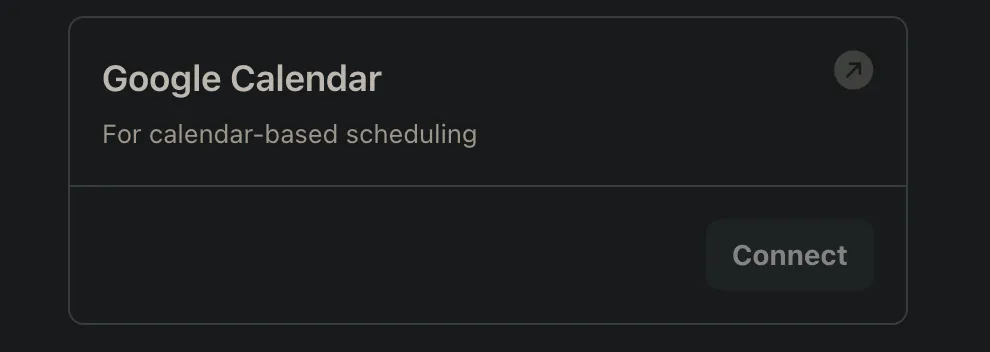
- Under Tool Providers, select Google Calendar.
- Select Connect and complete the Google authorization prompts.
The authorization process will request access to your Google Calendar to create events and check availability.
2. Create Calendar Tools
After connecting your Google Calendar account, create the tools:
- Select Tools in the Dashboard, then select Create Tool and Google Calendar.
- Choose Create Event or Check Availability. Repeat to create both tools.
- For each tool, provide a name and description explaining when it should be invoked.
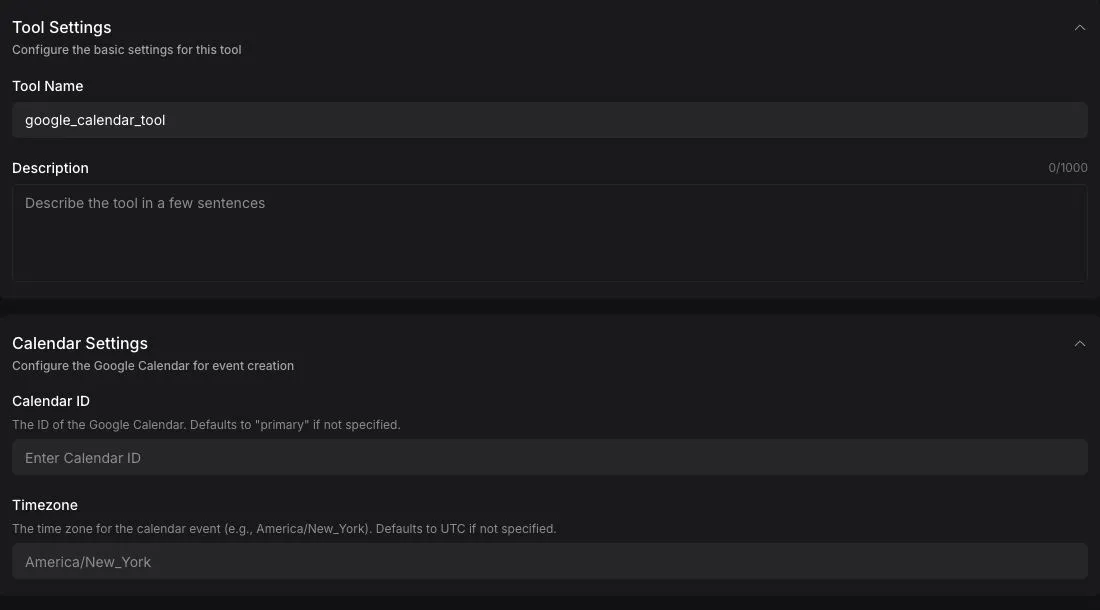
The description field is crucial as it helps the AI model understand when and how to use each tool. Be specific about the scenarios and conditions when each tool should be invoked.
3. Add Tools to Assistant
Now, add your chosen calendar tool(s) to your assistant:
- Select Assistants in the Dashboard and open your assistant.
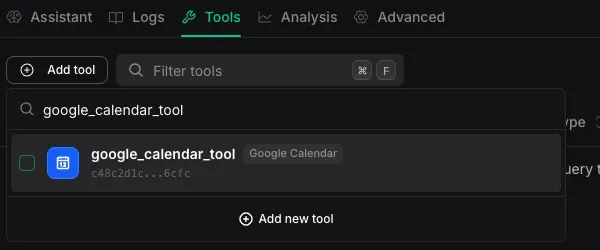
- Open the Tools tab, select Add tool, then choose the calendar tools you want to use.
- Select Publish, review the changes, select Next, then select Publish to apply the draft.
Tool Configurations
Google Calendar Create Event Tool
This tool uses the following fields to create events:
summary: The title or description of the calendar eventstartDateTime: The start date and time of the eventendDateTime: The end date and time of the eventattendees: A list of email addresses for people to invite to the eventtimeZone: The timezone for the event, defaults to UTCcalendarId: The calendar ID to create the event in, defaults to the primary calendar
Google Calendar Check Availability Tool
This tool uses the following fields to check availability:
startDateTime: The start of the time range to checkendDateTime: The end of the time range to checktimeZone: The timezone for the availability check, defaults to UTCcalendarId: The calendar ID to check availability in, defaults to the primary calendar
All datetime fields should be provided in ISO 8601 format.
Example Usage
Here’s how the tools can be used in your assistant’s configuration:
Best Practices
- Clear Instructions: Provide clear instructions in your assistant’s system message about when to use each calendar tool
- Error Handling: Include fallback responses for cases where either calendar tool fails
- Time Zone Awareness: Always specify the correct timezone for events and availability checks
- Event Details: Ensure all required fields are properly filled when creating events
- Availability Flow: Check availability before attempting to schedule events to avoid conflicts